YouTube video visibility explained — public, unlisted and private, how to change it, and scheduled publishing (October 2026)
Shortsmith team · Updated
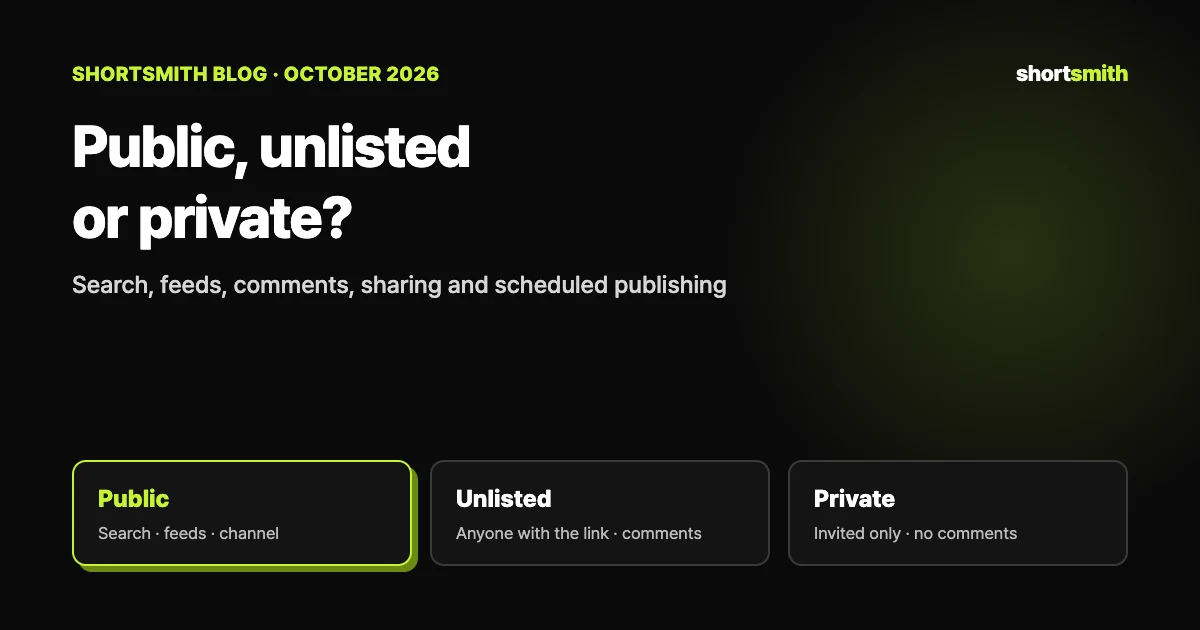
A YouTube video has one of three visibility settings: public, unlisted or private. Public videos can be watched by anyone and can show up in search, recommendations and subscriber feeds. Unlisted videos can only be watched by people with the link and don’t appear in search or on your channel’s Videos tab. Private videos can only be seen by you and people you choose, and can’t be commented on. On top of that, scheduling turns a private video public at a set time.
This guide is based on YouTube Help’s “Change video privacy settings” and “Schedule video publish time”, checked on October 28, 2026. Getting visibility wrong is how a video meant for team review lands in subscriber feeds, or how a video shared by link ends up with comments turned off.
The three settings in one line each
- Public: anyone on YouTube can watch and share it. It’s posted on your channel when you upload and can show up in search results and related video lists.
- Unlisted: anyone with the link can watch and reshare it, and they don’t need a Google Account. It doesn’t appear on your channel’s Videos tab or in search — unless someone adds it to a public playlist.
- Private: only you and people you choose can watch it. It doesn’t appear on your Videos tab or in search, and it can’t be commented on.
Private videos are still reviewed
YouTube’s systems and human reviewers may review videos under all three settings for ad suitability, copyright and other abuse prevention mechanisms. Uploading as private doesn’t skip copyright or policy checks.
Feature comparison
| Feature | Private | Unlisted | Public |
|---|---|---|---|
| Can share URL | No | Yes | Yes |
| Can be added to a channel section | No | Yes | Yes |
| Can show up in search, related videos and recommendations | No | No | Yes |
| Posted on your channel | No | No | Yes |
| Shows in subscriber feed | No | No | Yes |
| Can be commented on | No | Yes | Yes |
| Can show up in a public playlist | No | Yes | Yes |
| Can be reviewed for ad suitability and copyright | Yes | Yes | Yes |
The default depends on your age
If you’re 18 or older, your default visibility is public; for creators aged 13–17 it’s private. Whatever the default, anyone can set each video to public, private or unlisted. If you skip the visibility step while uploading, the video goes up with the default, so double-check that step for anything that still needs review.
How to change visibility and share privately
To change an uploaded video’s visibility in Studio on a computer (live uploads are under the Live tab):
- Sign in to YouTube Studio and select Content in the left menu.
- Point to the video you want to update.
- Click the down arrow under “Visibility” and choose Public, Private or Unlisted.
- Save.
- Share privately: click the video in Content, open the Visibility box, choose “Share privately”, enter the email addresses, then Save.
- Want comments on a video that isn’t public? Use unlisted instead of private.
Scheduled publishing — a private video goes public at a set time
Scheduling makes a private video go public at a date and time you pick. You have to set the video as “scheduled” or “private” on the upload page: in Studio or the YouTube app, choose Create → Upload videos, fill in the details, then use the Schedule card to set the date, time and time zone.
To change the time, edit the video’s visibility under Content. The visibility must be Private for you to pick a new time under “Edit draft”. To publish right away instead, set the visibility to Public and select Publish.
When a schedule doesn’t publish, or the date looks a day off
If your channel has a Community Guidelines strike, scheduled videos won’t publish during the penalty period; they stay private and you have to reschedule them afterwards. Also, the date on the watch page is based on Pacific Standard Time, so uploads from time zones ahead of PST can show a different date than Studio does.
Which setting for which situation
| Situation | Setting | Why |
|---|---|---|
| Show a finished video to a few teammates first | Private (share by email) | Doesn’t appear on the channel, in search or in feeds |
| Team review where you want comments | Unlisted | Private videos can’t be commented on |
| Show a client without a Google Account | Unlisted | Anyone with the link can watch without an account |
| Get ad suitability checks done before going public | Upload as private or unlisted first | Checks run before you publish on time |
| Appeal a YPP rejection with a video | Unlisted (under 5 minutes) | The appeal video format YouTube asks for |
| Notify subscribers at an exact time | Scheduled (private → public) | It goes public and posts to the channel and feeds at that time |
Unlisted isn’t secret
Anyone who gets the link can reshare it, and if someone adds it to a public playlist it can show up in search. If a video must not leak, share it privately instead.
Choosing visibility when you post with Shortsmith
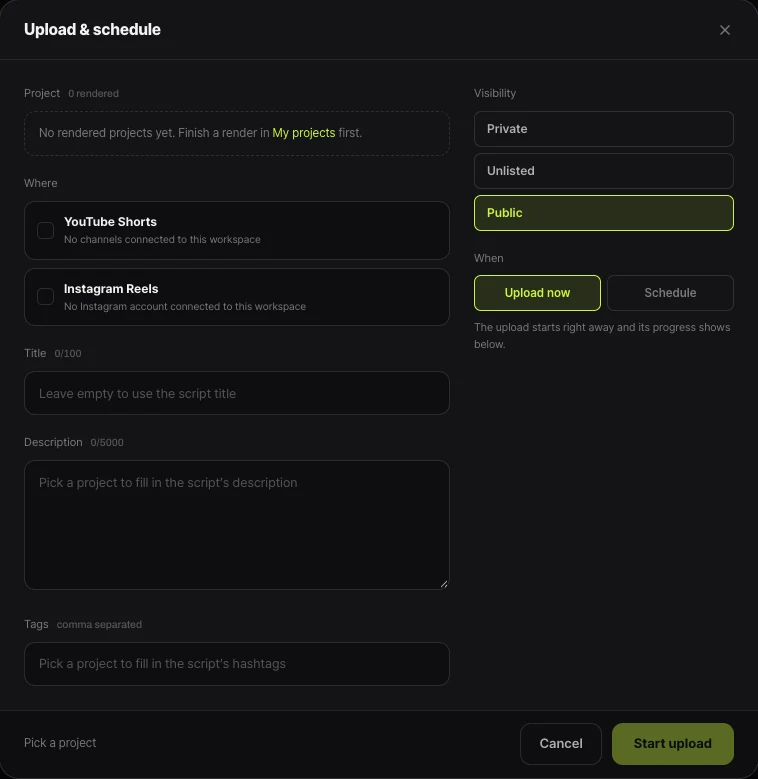
Shortsmith’s Upload & schedule window has a Visibility field — Private, Unlisted or Public — plus Upload now or Schedule. Public is selected at first, so switch it before uploading if the video still needs review.
Shortsmith’s Schedule works differently from YouTube’s scheduled publishing. It doesn’t put the video on YouTube in advance as private; at the time you pick, our server uploads it to the chosen channel with the visibility you chose. Until then nothing is on YouTube, and you can cancel from the calendar (Instagram scheduling isn’t supported). If you need settings that only exist in Studio, such as audience or paid promotion, upload as Private, fix them in Studio, then make the video public.
FAQ
What’s the difference between unlisted and private?
Anyone with an unlisted link can watch and reshare it — no Google Account needed — and it can be commented on. A private video can only be watched by people you choose by email, and it can’t be commented on.
Can an unlisted video show up in search?
Normally no, but it can if someone adds it to a public playlist.
Does uploading as private skip copyright checks?
No. YouTube may review private, unlisted and public videos for ad suitability, copyright and abuse prevention.
How do I change a scheduled time?
Edit the video’s visibility under Content. Make sure it’s Private, then choose a new time under “Edit draft”.
Why does my scheduled video show a different date?
The watch page date is based on Pacific Standard Time, so uploads or schedules from time zones ahead of PST can show a different date than Studio.
Is a Shortsmith scheduled upload already on YouTube?
No. It uploads at the chosen time with the visibility you picked. Until then nothing is on YouTube, and you can cancel from the calendar.
Sources
- Change video privacy settings — YouTube Help · checked
- Schedule video publish time — YouTube Help · checked
- Uploading videos to monetize with ads — YouTube Help · checked
- Appeal a YouTube Partner Program suspension or application rejection — YouTube Help · checked