How to disclose sponsored Shorts: YouTube’s paid promotion box, Branded Content Policies and collaborations with up to 10 creators (October 2026)
Shortsmith team · Updated
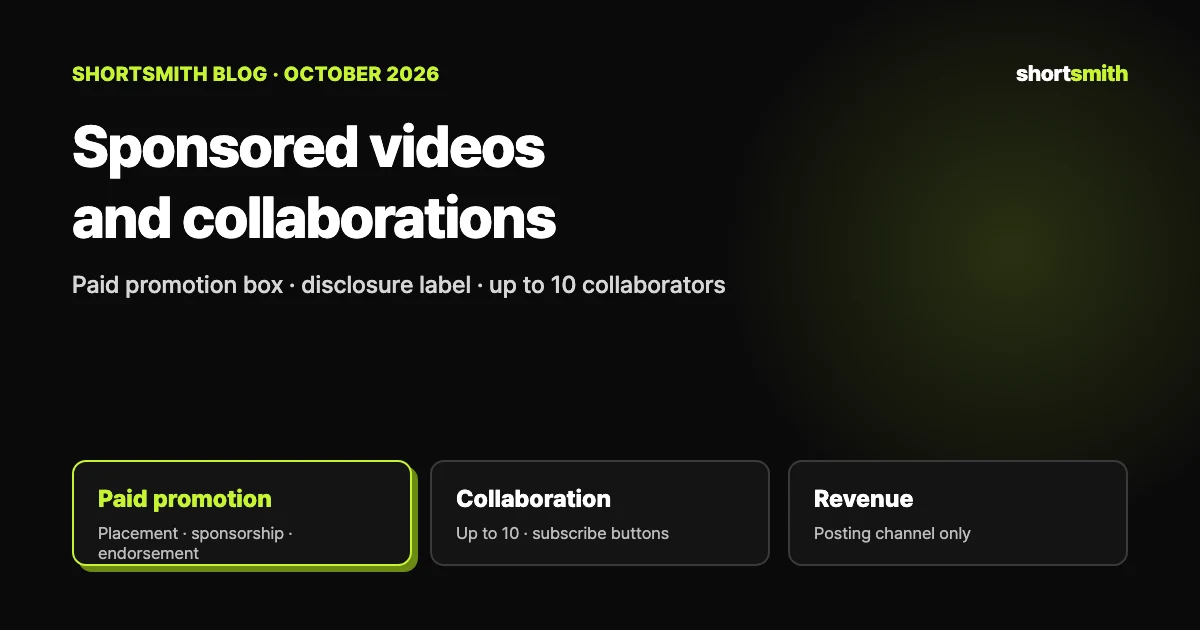
If a brand gave you something of value — payment, free products or a sponsorship, now or later — and your video features or promotes its products or services, YouTube treats it as branded content. You have to tell YouTube by ticking the paid promotion option in Studio, which adds a disclosure label viewers see at the start of the video. For videos made with brands or other creators, the collaboration feature can show up to 10 collaborators’ names and subscribe buttons side by side.
We checked YouTube Help’s “YouTube Branded Content Policies,” “Add branded content restrictions & disclosure labels” and “Invite collaborators to your video” on October 27, 2026. This is not legal advice; check your local regulator’s rules on disclosure, too.
What counts as branded content: it isn’t only about money
YouTube defines branded content as any content influenced by a brand partner in exchange for something of value. That covers paid reviews, but also free products and sponsorships, whether you receive the benefit now or later. The policy applies wherever branded content appears: videos, descriptions, comments, live streams, Shorts and any other YouTube feature.
Even with YouTube’s label, you are ultimately responsible for making the disclosure clear and prominent. You and your brand partners must follow local laws, including when, how and to whom you disclose; YouTube points to regulators such as the FTC in the US, the ASA in the UK, the ACCC in Australia, EASA in the EU and the KFTC in Korea.
How to disclose: the paid promotion box
For a video you’ve already uploaded, follow the steps below on a computer. On mobile, open the video in the YouTube app or Studio app, tap Show more, go to Paid promotion and brands, and tap Yes under Paid promotion.
- Sign in to YouTube Studio, click Content in the left menu, and click the video.
- At the bottom of the page, click Show more.
- Tick “My video contains paid promotion like a product placement, sponsorship, or endorsement.”
- Set minimum age by location if needed, then click Save.
Age and location limits come with it
Once you mark paid promotion, you can set where the content is shown, an overall minimum age and minimum ages for specific locations. These options appear only when you select Yes under Paid promotion, and you edit them in Studio on a computer.
What changes when you tick the box
Ticking it doesn’t switch off ads. If you’re in YPP and the video follows the advertiser-friendly content guidelines, branded content can still earn ad revenue.
| Item | What changes |
|---|---|
| Viewers | A disclosure appears automatically at the start of the video |
| Ads | Ads still run, but one that competes with your brand partner may be swapped for another |
| YouTube Kids | The video is removed from the YouTube Kids app under existing policies |
| If you don’t disclose | Systems may detect it, add a branded content label and notify you (you may be able to certify there’s no branded content and override it) |
If you break the policy
Undisclosed or policy-violating branded content may be removed, and content promoting products not suitable for all ages may be age-restricted. The policy covers the whole video, not just the sponsored segment, and violations can affect YPP eligibility and other features.
What you can’t promote, and what comes with conditions
Branded content must follow the Community Guidelines and Google Ads policies (it doesn’t need to meet the same technical or format requirements as ads). Examples of things that can’t be promoted at all:
- Recreational drugs or paraphernalia
- Weapons or ammunition
- Hacking software
- Counterfeit products
- Academic essay-writing services
Restricted categories, and no burned-in ads
Alcohol, financial services, healthcare and medicines, gambling, and elections and political content carry extra restrictions: confirm your brand partner has any required Google certification and use age and country restrictions. You also can’t burn advertiser-supplied video ads into your content as pre-rolls or mid-rolls.
Collaborations: up to 10 creators
Collaborations let you add up to 10 creators to a video. They work for long-form videos and Shorts, and for archived live streams but not active ones. Once a collaborator accepts, each name and a subscribe button for each channel appear on desktop, mobile and TV. To invite collaborators on a computer:
- In YouTube Studio, click Create → Upload videos at the top right and select your file.
- In the Details section under Audience, click Show more.
- Under Collaboration, click Invite a collaborator.
- On mobile: in the Studio app, tap Create at the top, pick the file, then in Add details tap the collaboration and comments options → Invite a collaborator
- With a brand: select paid promotion, then your brand partner’s channel, to connect the video to the brand’s Google Ads account so they can see its performance
Revenue isn’t split
The channel that posts a collaboration video receives its earnings; revenue isn’t split between collaborators. YouTube aims to recommend the video to both audiences, but says you may not notice changes in search or recommendations at first. Agree on any revenue sharing separately.
Posting sponsored Shorts made with Shortsmith
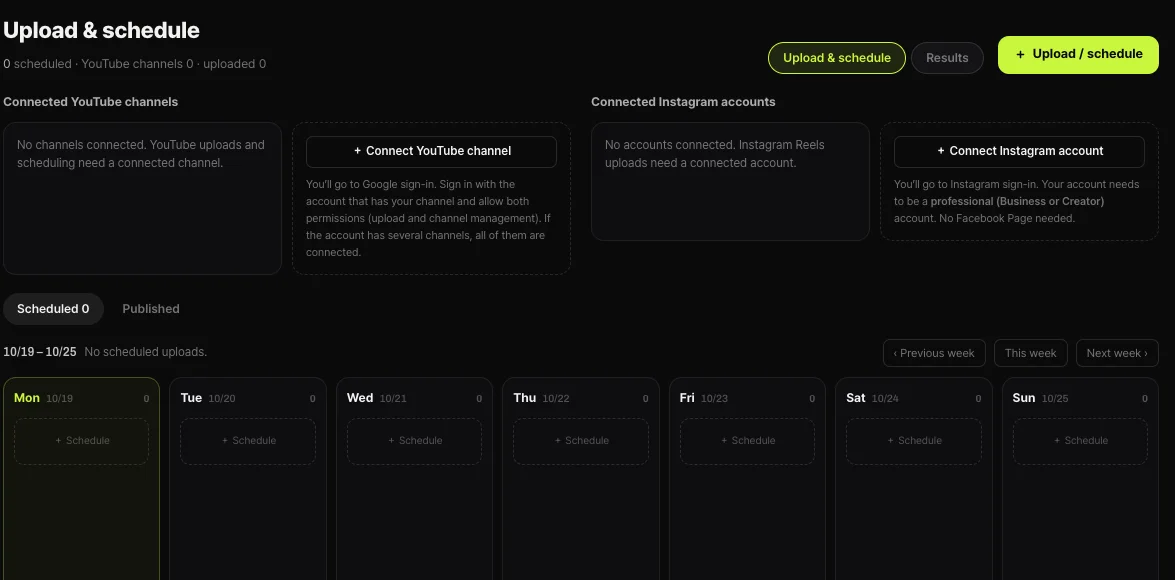
Shortsmith’s Upload & schedule sets the title, description, tags, visibility and timing to post or schedule straight to YouTube; it has no paid promotion or collaboration fields. For a Short with sponsored content, upload it as Private, tick paid promotion in YouTube Studio, then make it public. Shortsmith’s scheduled upload posts at the chosen time rather than sitting on YouTube in advance, so it isn’t a window for edits.
Since YouTube Help describes inviting collaborators during upload, for a video made with other creators it’s more reliable to download the finished Short and upload it directly in YouTube Studio. Mentioning the sponsorship in the description also helps make the disclosure clear to viewers.
FAQ
I only got a free product. Do I still disclose?
Yes. YouTube counts free products and sponsorships, not just payment, and includes benefits you receive later.
Does ticking paid promotion stop ad revenue?
No. Ads keep running; only ads competing with your brand partner may be replaced.
What if I don’t tick it?
YouTube’s systems may detect it, add a label and notify you, and undisclosed branded content can be removed or otherwise penalized.
How many collaborators can I add?
Up to 10, on long-form videos and Shorts. Active live streams can’t have collaborators.
Is collaboration revenue split?
No. The channel that posts the video receives the revenue; it isn’t split automatically.
Can I mark paid promotion in Shortsmith’s upload window?
There’s no such field. Upload it as Private, tick it in YouTube Studio, then make it public.
Sources
- YouTube Branded Content Policies — YouTube Help · checked
- Add branded content restrictions & disclosure labels — YouTube Help · checked
- Invite collaborators to your video — YouTube Help · checked