Why the yellow dollar icon shows up on YouTube and how to clear it: “Limited ad earnings” and “No ad earnings” explained (October 2026)
Shortsmith team · Updated
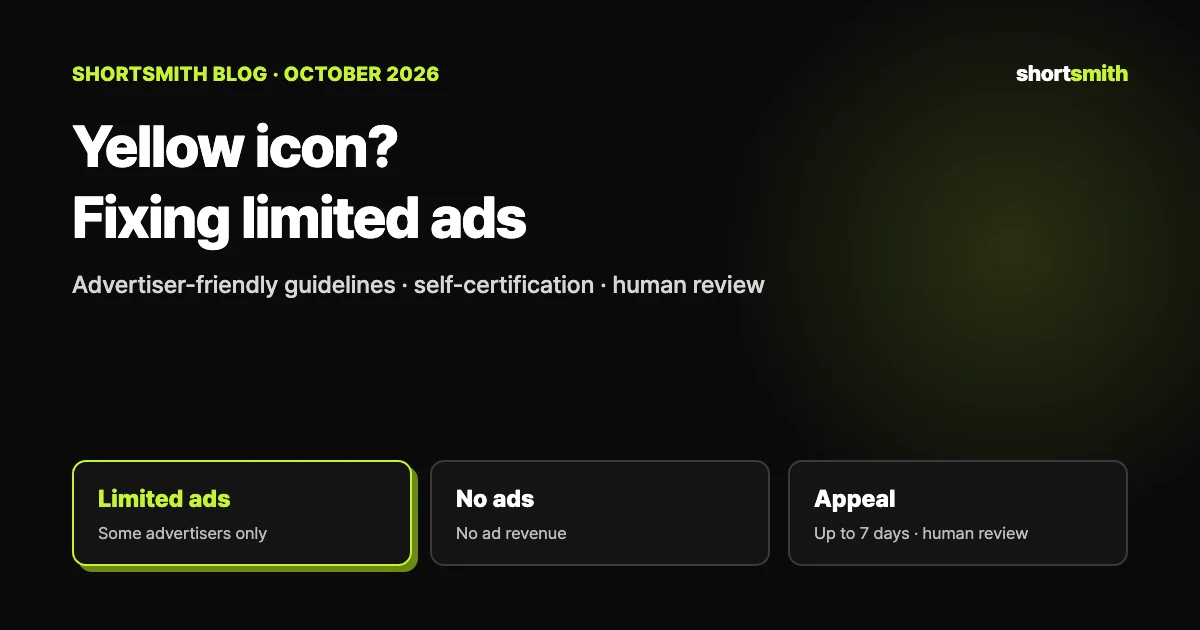
A yellow icon with “Limited ad earnings” next to a video in YouTube Studio’s Content page means ads can still run, but brands that choose to advertise only on the safest content won’t, so the video may earn less. “No ad earnings” means it can’t run ads at all. Both appear when a video is judged not to fully follow the advertiser-friendly content guidelines, and you can ask for a human review through an appeal.
We checked YouTube Help’s “Limited or no ad earnings explained,” “Submit an appeal for videos with ‘Limited ad earnings’ or ‘No ad earnings’,” “Advertiser-friendly content guidelines,” “YouTube Self-Certification overview” and “Uploading videos to monetize with ads” on October 27, 2026.
The icon states at a glance
These notices appear in the Notices column of the Content page for channels in the YouTube Partner Program (YPP). They show how policy decisions and advertiser choices affect that video’s ad revenue — a different thing from a channel strike.
| State | Meaning | Ad revenue |
|---|---|---|
| No notice | Nothing is affecting the video’s ad earnings | Open to all advertisers |
| Limited ad earnings (yellow icon) | Ads run, but brands that only want the safest content opt out | May be lower than videos suitable for all advertisers |
| No ad earnings | Ads can’t run under the guidelines | None (other revenue sources may still apply) |
| Checking | Systems are still reviewing | Best to wait until the check finishes before publishing |
What gets flagged: 14 topics advertisers avoid
The advertiser-friendly content guidelines apply to every part of your content: long-form videos, Shorts and live streams, plus thumbnails, titles, descriptions and tags. These are the main topics YouTube lists as not advertiser-friendly:
- Inappropriate language, violence, adult content, shocking content
- Harmful acts and unreliable content
- Hateful and derogatory content, incendiary and demeaning content
- Recreational drugs and drug-related content, firearms-related content, tobacco-related content
- Controversial issues, sensitive events
- Enabling dishonest behavior, inappropriate content for kids and families
Context matters
The same element can be judged differently depending on context. Artistic content like music videos may still be suitable for ads with some inappropriate language, and violence in news, educational or documentary contexts is assessed separately.
Two common Shorts triggers: profanity and game violence
In a Short, the title, first scene and thumbnail carry a lot of weight. These are the guideline examples most relevant to Shorts creators:
- Profanity that’s bleeped, muted or covered, or abbreviated, in the title, thumbnail or video → can earn ad revenue
- Profanity in most sentences, so swearing is the focus of the video → limited ads
- Moderate profanity in the title or thumbnail → limited; strong profanity there → no ad earnings
- Violence in unedited gameplay after the first 7 seconds → can earn ad revenue; edits that focus gratuitously on violence don’t qualify
- Graphic game violence in the thumbnail (brutal attacks, dismemberment) → limited
What about occasional swearing?
Occasional profanity in background music or intro and outro music doesn’t necessarily make a video unsuitable for ads. The problem is profanity that dominates from start to finish.
Self-certification: rate your own video at upload
Self-certification lets you rate your video against the guidelines with a questionnaire during upload. Access usually arrives one to two months after joining YPP, with a message in Studio. You rate new videos with ads turned on, and older videos you now want to monetize.
- While uploading in Studio, select Monetization → On → Done → Next.
- On the advanced settings page, choose the relevant features and click Next.
- Fill in the Ad suitability questionnaire and click Submit rating. If nothing applies, tick “None of the above.”
- Once the Checks page finishes, choose visibility and click Done.
- The more your ratings match the system and reviewers, the more YouTube uses your input for ad decisions (it usually needs about 20 rated videos to judge accuracy).
- Repeated, clearly wrong ratings can trigger a review of your YPP eligibility.
- Uploading as private or unlisted first runs the ad-suitability checks early, so you can publish on time once they finish.
Appeals: ask for a human review
If your video meets the guideline criteria for content that can earn ad revenue but still has a yellow icon, appeal for an expert review. The option only appears for eligible videos. Since March 10, 2025, videos under checks (including private videos) may get an extra human review, and some monetization decisions can take up to 24 hours.
- Sign in to YouTube Studio and open Content from the left menu.
- Hover over the status in the video’s Notices column.
- Review the Impact summary card and select the Action button to start an appeal.
Good to know
Appeals can take up to 7 days and you’ll get the decision by email. After your one appeal, the reviewer’s decision is final. Deleting and re-uploading the video won’t change the outcome, and videos, thumbnails or titles edited in Studio to remove a violation can’t be re-reviewed. Changing metadata after publishing can also bring a new restriction.
Making Shorts with Shortsmith: say what to avoid up front
The easiest way to avoid yellow icons is to leave out risky material when you make the video. For commentary Shorts, the script’s tone, the title and the first scene matter most.
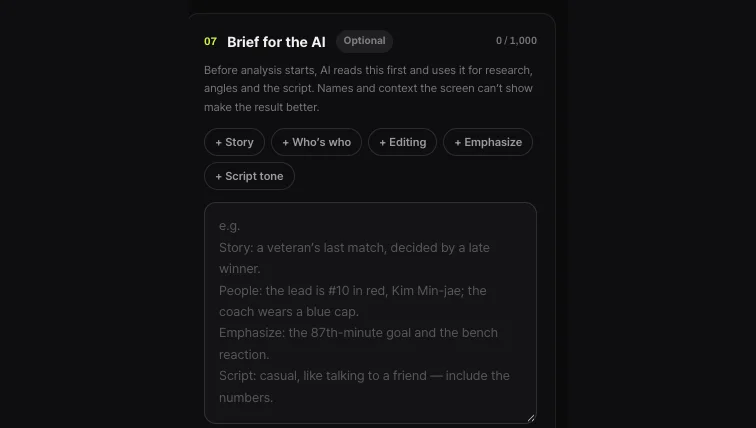
In Shortsmith’s New project screen, the AI reads the “Brief for the AI” box before analysis starts and applies it to research, angles and the script. Use the Script tone button to write something like “no swearing, keep it clean” or “move quickly past injuries,” and the AI writes the script with that in mind. The final call is still yours, so answer the self-certification questionnaire accurately when you upload.
FAQ
Does a yellow icon mean zero revenue?
No. “Limited ad earnings” means only some advertisers run ads, so revenue may be lower. “No ad earnings” is the state where no ads run.
Is the yellow icon a channel strike?
No. It’s about that video’s ad suitability and is separate from Community Guidelines strikes.
How long does an appeal take?
Up to 7 days, with the decision sent by email. After your one appeal, the reviewer’s decision is final.
Will deleting and re-uploading fix it?
No. Re-uploading doesn’t change the outcome.
Can I edit the title and get re-reviewed?
Videos, thumbnails or titles edited in Studio to remove a violation can’t be re-reviewed, so check before you upload.
When can I use self-certification?
Usually one to two months after joining YPP, when Studio shows a message that you can rate your videos.
Sources
- Limited or no ad earnings explained — YouTube Help · checked
- Submit an appeal for videos with “Limited ad earnings” or “No ad earnings” — YouTube Help · checked
- Advertiser-friendly content guidelines — YouTube Help · checked
- YouTube Self-Certification overview — YouTube Help · checked
- Uploading videos to monetize with ads — YouTube Help · checked