How to join the YouTube Shopping affiliate program and tag products in Shorts (October 2026)
Shortsmith team · Updated
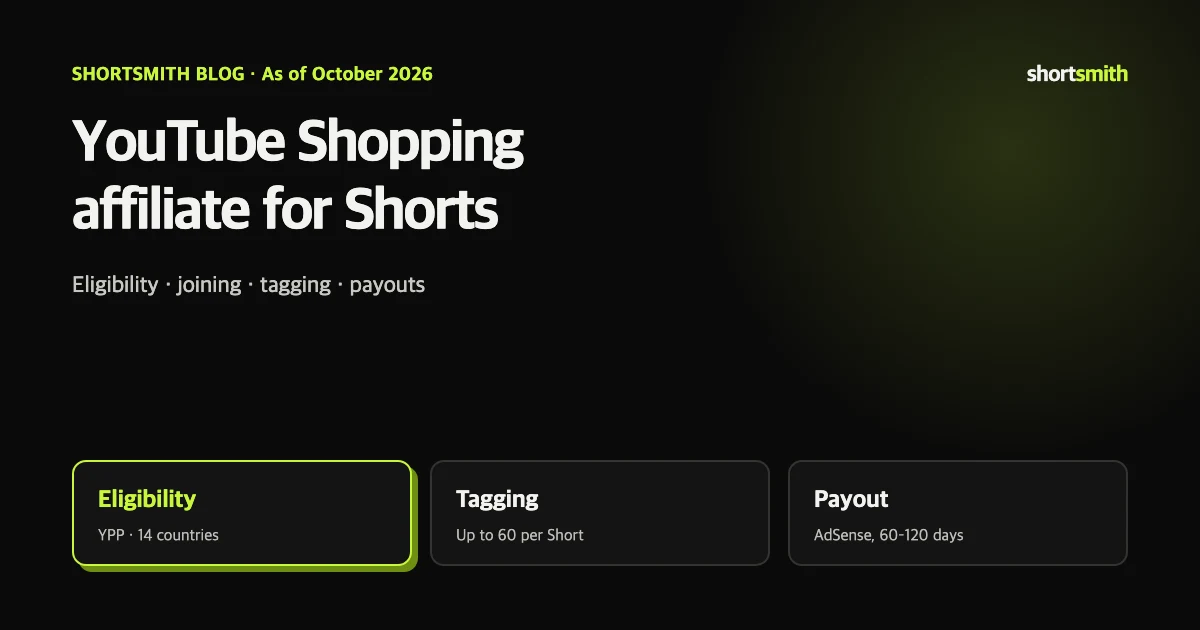
The YouTube Shopping affiliate program lets channels that are in the YouTube Partner Program (YPP), meet its subscriber threshold and live in a participating country tag products from participating brands in Shorts, long-form videos and live streams. When a viewer buys a tagged product on the retailer’s site, you earn a commission. You join in YouTube Studio under Earn › Programs › Join now, and commissions arrive through AdSense for YouTube 60 to 120 days after the purchase.
We checked YouTube Help’s “YouTube Shopping affiliate program overview & eligibility,” “Tag products in your content” and “Get started with Shopping on YouTube” on October 21, 2026. YouTube notes that eligibility can vary with pilot programs, so confirm what your own Studio shows.
At a glance
| Item | What YouTube says | Where to check |
|---|---|---|
| Countries | 14 countries, including the US, Korea, Japan, India, Brazil and Mexico | Help Center overview |
| Eligibility | In YPP · meet the YPP subscriber threshold · live in a participating country | Studio › Earn |
| Excluded | Music channels · Official Artist Channels · Made for Kids audiences | Channel settings |
| Tags | Up to 60 products per video or Short | Upload flow · Studio details |
| Commission | Set per product by brands and retailers | Studio › Earn › Shopping |
| Payout | 60–120 days after purchase, via AdSense for YouTube | AdSense |
Who is eligible
YouTube lists five requirements: you’re in the YouTube Partner Program, you meet the YPP subscriber threshold, you live in a participating country, your channel isn’t a music channel or Official Artist Channel and isn’t linked to a music partner (a label, distributor, publisher or VEVO), and your audience isn’t set as Made for Kids and you don’t have a significant number of Made for Kids videos.
The participating countries are Argentina, Brazil, India, Indonesia, Japan, Malaysia, Mexico, the Philippines, Singapore, South Korea, Taiwan, Thailand, the United States and Vietnam. Older versions of the page named a fixed subscriber count; the current page simply says you must meet the YPP threshold. Because YPP has more than one tier, the reliable check is whether “Join now” for Shopping appears under Earn › Programs in your Studio.
If you qualify but can’t join, make sure you’re signed in to the right channel, and if a content owner (such as an MCN) manages your channel, the owner may need to accept the agreement first.
Note
The affiliate program is for other brands’ products. To sell your own merchandise, you connect a store and tag your store’s products instead.
How to join in four steps
After joining, Earn › Shopping shows participating retailers, their products and commission rates, and you can sort retailers alphabetically or by highest commission. If your channel has a custom rate, it appears under special event promotions. The “YouTube Shopping” Chrome extension lets you save products to tag later while you browse; it’s available in the Chrome Web Store in the US, Korea, India, Indonesia, Thailand and Vietnam.
- Sign in to YouTube Studio on a computer.
- Select Earn in the left menu.
- Under Programs, click Join now for Shopping.
- Review and accept the terms. You can now tag products in your content.
How to tag products in Shorts
For a Short, tag products while uploading in the YouTube mobile app: tap the sticker icon, choose Products, search for the item and add it. For videos you’ve already uploaded, open the video’s details in Studio on a computer and use the Products field to add, reorder or remove tags. To tag many videos at once, use “Tag products” from the Shopping tab under Earn.
Both long-form videos and Shorts can have up to 60 tagged products. Viewers see a Shopping button on long-form videos and a shopping product sticker on Shorts. The sticker shows the first product in your list in the bottom-left by default, and you can change its position and size from Your videos › Edit in the mobile app. Timestamps that control when a product appears work only on long-form videos over one minute, with each window lasting 15 to 60 seconds.
YouTube may suggest products to tag by reading your title, description and captions during upload. Suggestions can be wrong, so check that each product actually appears in the video. Products tagged in Shorts can also show up near the top of Google Lens results.
Tagging guidelines that keep tags from being removed
Every tagged product has to meet four standards: it’s prominently featured and mentioned by voice or text, it genuinely relates to the content (like a demo or review), its design or features are clearly shown so viewers might want it, and it’s used safely as the manufacturer intended. Products in the background can be tagged only if they’re relevant and mentioned.
Spammy tagging of unrelated products gets removed, and repeated violations can limit your access to the affiliate program. Use the Products and tag-violation filters in Studio’s content list to find videos with removed tags, and contact Creator Support if you think a removal was a mistake. Sponsored content must follow YouTube’s branded content policies, including the paid promotion disclosure.
When tags won’t work or won’t show
For viewers in other countries, tagged products can be matched automatically to the same item from a local retailer. Tags in sponsored content aren’t localized.
- Content with an audience set as Made for Kids
- Content with a copyright complaint, or content with limited or no monetization
- Content that uses a Creator Music revenue-sharing track
- Shorts with a product sticker that use a sound that isn’t a shopping-eligible sound
- Viewers on mobile browsers, smart TVs or game consoles, and viewers in unsupported countries
- Products removed by the brand or retailer, for example when out of stock
How much you earn and when it arrives
Brands and retailers, not YouTube, set the commission rate for each product, and the rate is shown next to it. A commission is created when a viewer clicks a tagged product and buys it on the retailer’s site. During the settlement period it can change if the order is canceled, fully refunded or exchanged, and it’s finalized once the transaction is complete and verified. Payouts arrive through AdSense for YouTube within 60 to 120 days of the purchase, and returns cancel the commission.
YouTube’s page currently says it passes 100% of the retailer’s commission in each market to creators, that this is temporary and could decrease, and that it will give at least 30 days’ notice before ending it. Time-limited bonuses appear from time to time with their own dates and tiers, so check whether only products tagged during the announced window count.
Not allowed
Driving off-YouTube traffic to affiliate links — posting them on other sites, auto-redirects, click injection or cookie stuffing — breaks the terms and can get your affiliate features suspended.
Shorts that sell: make the product the main character
The guideline language — prominently featured, mentioned, shown so people want it — is also a recipe for Shorts that convert. In the first two seconds, show the problem the product solves or the result it gets. In the middle, show it in real use with a one-line verdict. At the end, say where to buy it, such as “it’s in the product sticker at the bottom left.” YouTube itself recommends tagging products shown in the video and adding a call to action.
If you already have a long review, split it into Shorts that each carry one conclusion. One review can become three Shorts — one strength, one weakness, and who it’s for — all tagged with the same product, which gives viewers three ways in.
Turning review videos into Shorts with Shortsmith
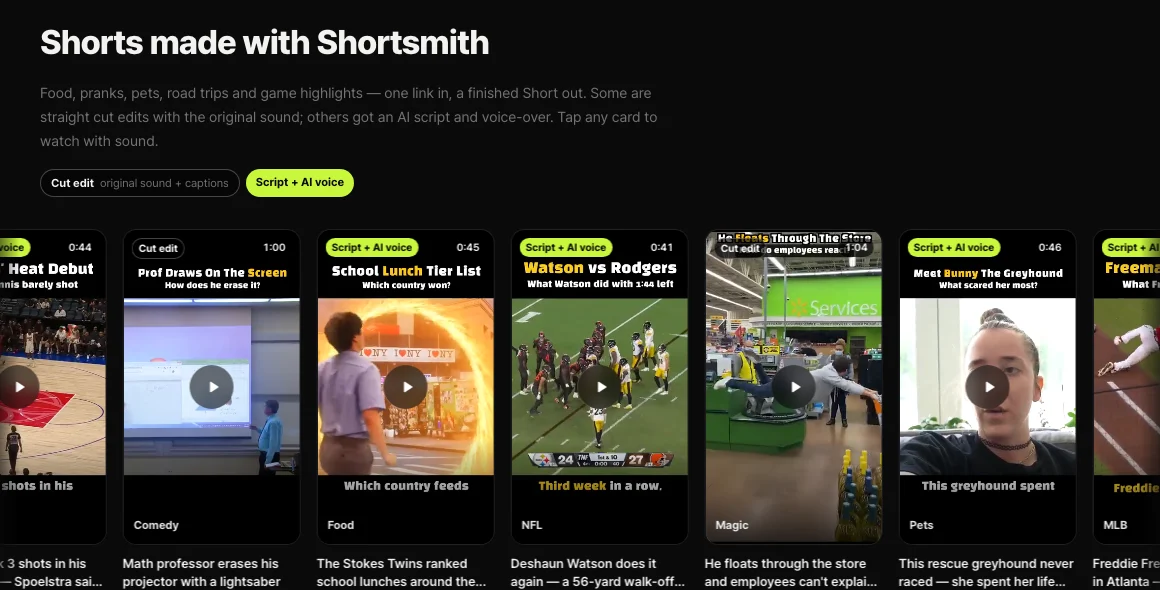
Shortsmith takes a YouTube link or your own video file, watches the whole thing, suggests three story angles, and turns the one you pick into a finished 9:16 Short with captions and an AI voice-over. For product reviews, write an instruction in the brief such as “say the product name at the start and end, focus on scenes where it’s being used,” and the script follows it.
Product tagging is a YouTube feature, so Shortsmith doesn’t add tags for you. After you upload the finished Short, tag products in the YouTube app or Studio as described above. Shortsmith keeps the original audio and doesn’t add music to Shorts, so if you plan to use a product sticker, avoid adding a non-shopping sound in the YouTube app.
FAQ
How many subscribers do I need?
The current page says you must be in YPP and meet the YPP subscriber threshold rather than naming one number. Check whether Shopping appears under Earn › Programs in your Studio.
How many products can I tag in a Short?
Up to 60 per video or Short. Tagging many products that don’t appear in the video can get them removed as spam.
When do commissions get paid?
Within 60 to 120 days after the purchase, through AdSense for YouTube. Cancellations, refunds and returns are deducted.
Can I tag Shorts I already posted?
Yes. Use the Products field in the video’s details in Studio, or tag many videos at once from Earn › Shopping.
Can I share my affiliate links on my blog?
No. Sending off-YouTube traffic to affiliate links breaks the terms and can suspend your affiliate features.
Can kids’ channels join?
No. Channels whose audience is set as Made for Kids, or that have many Made for Kids videos, aren’t eligible, and kids content can’t be tagged.
Sources
- YouTube Shopping affiliate program overview & eligibility — YouTube Help · checked
- Tag products in your content — YouTube Help · checked
- Get started with Shopping on YouTube — YouTube Help · checked