Make YouTube Shorts by chatting in ChatGPT or Claude — connecting Shortsmith over MCP
Shortsmith team · Updated
Shortsmith connects to ChatGPT, claude.ai, Claude Code and Codex over MCP (the Model Context Protocol). Add the server URL from your account page (https://shortsmith.kr/api/mcp) to your AI app, and you can start a Short by saying “make a Short from this YouTube video,” then pick a story angle, render the finished video and check progress — all from the chat. Credits are used exactly as on the site, and the app shows the estimated credits and asks before anything that costs credits.
This guide covers what MCP is, what you can do with Shortsmith from a chat, how to connect each app, and how to use the connection safely. Menu names come from each app’s official help and the Shortsmith account page as of October 9, 2026.
What is MCP (Model Context Protocol)?
MCP is an open standard that lets AI apps call an outside service’s features as “tools.” The official site describes it as a standard way to connect AI applications to external systems — one set of rules, so many AI apps can plug into the same service. Put simply, connecting gives your AI app a “Shortsmith toolbox.”
Once connected, the AI app reads the conversation and picks the right tool. Say “make a Short from this link” and it calls the create tool; ask “how far along is it?” and it calls the status tool. On Shortsmith’s side, the request is handled by the same rules as clicking a button on the site, so your credits, plan and permissions all apply.
How is this different from an AI clicking around for you?
Some AI apps can also drive a browser — looking at the screen and moving the mouse for you. An MCP connection is different. It only exchanges well-defined requests for the tools Shortsmith exposes (create, choose an angle, render, look up), so it doesn’t break when the page layout changes, and it’s faster and more precise. The AI app can’t wander around your account; it can only use the tools you allowed.
Permissions differ too. Browser control hands the AI your whole signed-in screen, while an MCP connection works only on the one workspace you picked when you allowed it, within your own role. Disconnect, and it can’t do anything anymore.
What you can do from a chat — six tools
The Shortsmith MCP server offers your AI app six tools: three that only read, and three that actually make videos (and use credits).
| Tool | What it does | Credits |
|---|---|---|
| get_credits | Shows the connected workspace, credits left and plan | None |
| list_projects | Your 20 most recent projects with status and next step | None |
| get_project | One project’s status, angle options, script and download link | None |
| create_short_from_youtube | Starts a Short from a YouTube link (analysis and angle suggestions) | Same as the site — estimate first |
| choose_theme | Picks one of the suggested angles and writes the script | Same as the site — estimate first |
| render_video | Turns a scripted project into the finished video (voice-over, captions) | Same as the site — estimate first |
Anything that costs credits is confirmed twice
The first call to create, choose an angle or render only returns the estimated credits and charges nothing. The app runs it for real only after you confirm in the chat.
How to connect each app
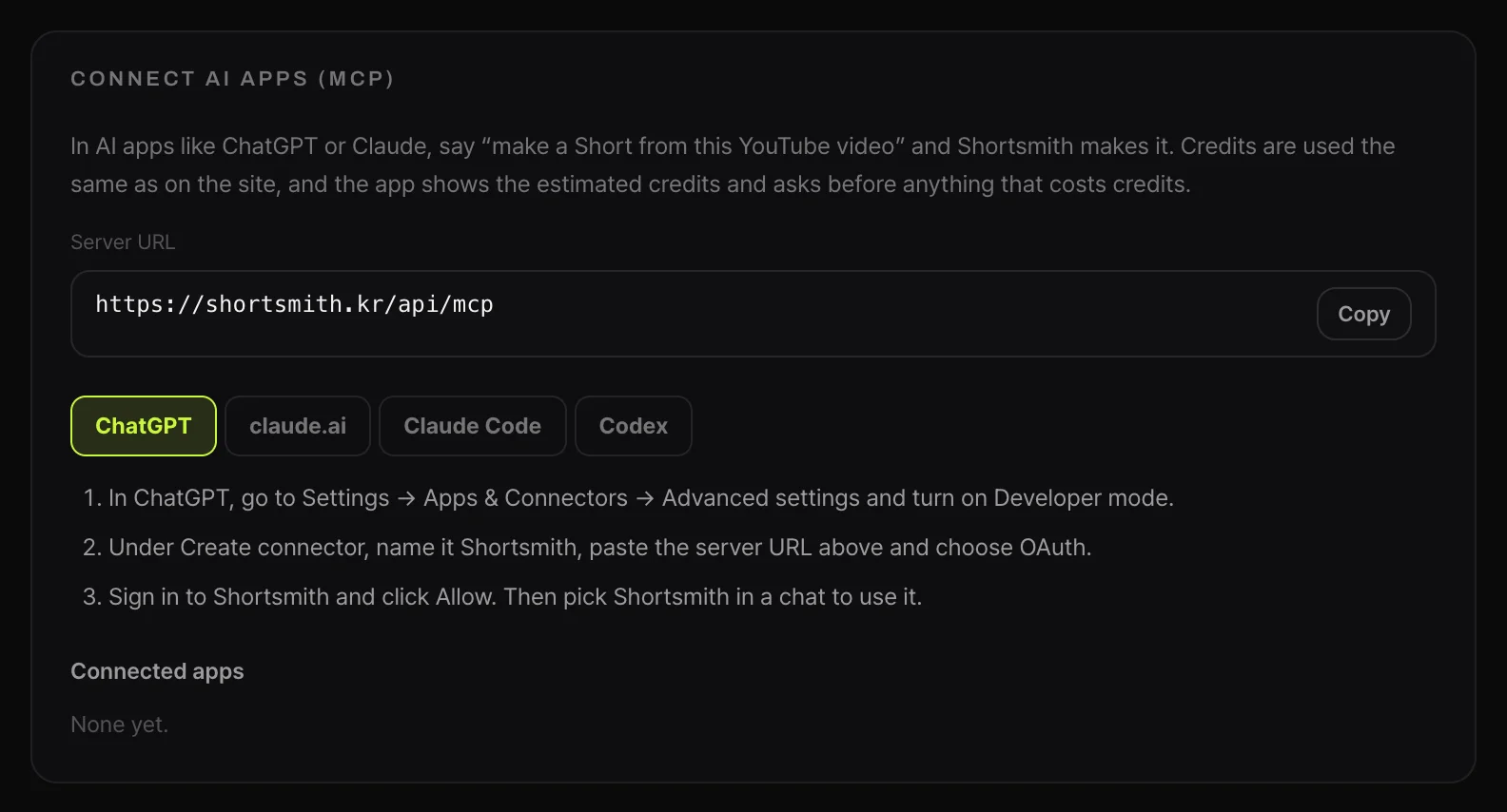
There are two ways to connect. Chat apps such as ChatGPT and claude.ai sign in with OAuth; terminal tools such as Claude Code and Codex use a “connection key” you create on your account page. Either way, first copy the server URL from Shortsmith → Account → “Connect AI apps (MCP).”
Connect ChatGPT
According to OpenAI’s help center, developer mode and MCP connectors depend on your plan and workspace settings, and actions that change data ask for your confirmation before they run. If you don’t see the menu, check your ChatGPT plan and your workspace admin settings first.
- In ChatGPT, go to Settings → Apps & Connectors → Advanced settings and turn on Developer mode.
- Under Create connector, name it Shortsmith, paste the server URL and choose OAuth.
- When the Shortsmith sign-in and “Allow” screen appears, pick the workspace to connect and click Allow.
- In a new chat, turn on the Shortsmith connector and say something like “make a Short from this video.”
Connect claude.ai
Anthropic’s help center says custom connectors using remote MCP are available across plans, with a limit on how many custom connectors free accounts can add. You can switch connectors on or off per conversation from the “+” menu.
- In claude.ai, go to Settings → Connectors → Add custom connector.
- Name it Shortsmith and paste the server URL.
- Click Connect, sign in to Shortsmith, pick the workspace and click Allow. That’s it.
Connect Claude Code or Codex
For terminal tools, open the matching tab in “Connect AI apps” and click “Create connection key.” A new key is shown only once, so copy it right away. Anyone with the key can make videos with your account’s credits — never share it or commit it to a repository.
- Claude Code — run once in your terminal: claude mcp add --transport http shortsmith https://shortsmith.kr/api/mcp --header "Authorization: Bearer <connection key>"
- Codex — put the key in the SHORTSMITH_KEY environment variable and add [mcp_servers.shortsmith] with url and bearer_token_env_var = "SHORTSMITH_KEY" to ~/.codex/config.toml.
- Lost the key or think it leaked? Disconnect that connection under “Connected apps” and create a new key.
How a conversation flows
In practice, a conversation usually goes through five steps. Each AI app phrases things a little differently, but the same things happen on Shortsmith’s side.
- “Make a Short from this YouTube video (link)” — the app first shows the estimated credits and your balance.
- “Go ahead” — Shortsmith downloads and analyzes the video, researches the background and prepares angle options. It takes a few minutes, so ask “how far along is it?” a bit later.
- “Show me the angles” — you get angle options and titles. Say “go with number 2,” and after you confirm the estimate it writes the script.
- “Show me the script” — check it. To fine-tune scene by scene, use the Shortsmith editor.
- “Make the video” — after you confirm the estimate, rendering starts and you get a download link when it’s done.
Works alongside the site
Projects you start in a chat show up in Shortsmith’s My projects too. Visual touch-ups like caption position or narration tone are quicker in the site’s editor.
Five ways people use it
The biggest advantage of making Shorts by chat is starting right where you already are — no tab switching between research, writing and production.
- While researching — after summarizing a game or story with the AI, say “now make a Short from that highlight video.”
- Several at once — paste a few links and say “make them one by one”; the app shows an estimate for each and starts them in turn.
- Status checks — ask “is the one from earlier done?” and get your project list with next steps.
- Choosing angles by talking — read the options and say “go with the audience-reaction angle”; the app picks that number and starts the script.
- Alongside terminal work — in Claude Code or Codex, handle channel scripts and Shorts rendering in one flow.
The apps side by side
| AI app | How it connects | Where you use it | Good for |
|---|---|---|---|
| ChatGPT | OAuth (connector, developer mode) | Web and desktop app | Going from research to production |
| claude.ai | OAuth (custom connector) | Web and desktop app | Long planning chats and choosing angles |
| Claude Code | Connection key (Bearer) | Terminal | Handling many Shorts like a script |
| Codex | Connection key (environment variable) | Terminal | Shorts alongside development work |
Things you can say right away
- “How many Shortsmith credits do I have left?”
- “Make a Short from this YouTube video: (link)” — the first answer is just the estimate.
- “OK, go ahead” — this starts the analysis for real.
- “Show my recent projects” · “How far along is the one I just made?”
- “Show me the angle options and pick the one with the best twist.”
- “Show me the script” · “Make the video from this script.”
How credits work
Credits follow the same rules as the site. Picking a video covers download, analysis and angle suggestions; choosing an angle covers the script; rendering covers voice-over and translated captions. Sources longer than 10 minutes add 1 credit per extra 30 minutes, just like on the site. On the Free plan, Shorts are cut edits (original audio + captions) without a script read by an AI voice.
The difference is the confirmation step. Before calling a tool that costs credits, the app shows the estimate and your balance, and charges only after you confirm — so an expensive job never starts by accident. Your actual charges appear in Subscription & credits → History, together with what you made on the site.
Safeguards
Because an AI app works in your account, Shortsmith applies the same permission rules as the site. When you allow a connection, you choose which workspace it uses, and if a different Shortsmith account was signed in, “Connect with a different account” lets you switch.
- Tools that cost credits only return an estimate until you confirm.
- Viewers in a team workspace can use read tools only — create and render are refused.
- You can disconnect any connection under “Connected apps” at any time, and that app loses access immediately.
- Connection keys are shown once when created, and your account status and role are re-checked on every call.
- Calls are rate-limited, so a runaway loop is asked to slow down.
If it doesn’t connect
- No Developer mode or Create connector in ChatGPT → check whether your plan and workspace admin allow developer mode.
- The wrong workspace shows up after allowing → another Shortsmith account was probably signed in. Disconnect, then reconnect with “Connect with a different account.”
- “Not enough credits” → check with get_credits, then top up or upgrade under Subscription & credits.
- 401 errors in a terminal tool → the key is wrong or the connection was removed. Create a new key and run the command again.
FAQ
Can I make Shorts directly from ChatGPT?
Yes — connect Shortsmith as an MCP connector. Turn on developer mode in ChatGPT settings, add https://shortsmith.kr/api/mcp with OAuth, then say “make a Short from this video” in a chat.
Does making Shorts through an AI app cost more credits?
No. Credits are used exactly as on the site. The app shows the estimate first and starts only after you confirm.
Can the AI app spend my credits on its own?
No. The first call to a credit-using tool only returns an estimate and charges nothing. The app runs it for real only after you confirm in the chat.
Can Free users connect?
Anyone can connect. Plan rules still apply, so Free users make cut edits (original audio + captions); script + AI voice-over is on paid plans.
Can I connect a team workspace?
Yes. Pick the workspace on the Allow screen and its credits are used. Viewers can use read tools only.
I lost my connection key.
Keys are shown only once. Disconnect that connection under Connected apps, create a new key and run the setup command again.
How do I disconnect?
Go to Account → Connect AI apps (MCP) → Connected apps and click Disconnect. That app loses access immediately.
Which AI apps are supported?
The account page covers ChatGPT, claude.ai, Claude Code and Codex. Other MCP apps that support remote HTTP servers with OAuth or a Bearer key can connect to the same URL.
Sources
- What is the Model Context Protocol (MCP)? — Model Context Protocol · checked
- Developer mode and full MCP connectors in ChatGPT — OpenAI Help Center · checked
- Get started with custom connectors using remote MCP — Claude Help Center · checked