Render Shorts faster on your own computer — the Shortsmith desktop app
Shortsmith team · Updated
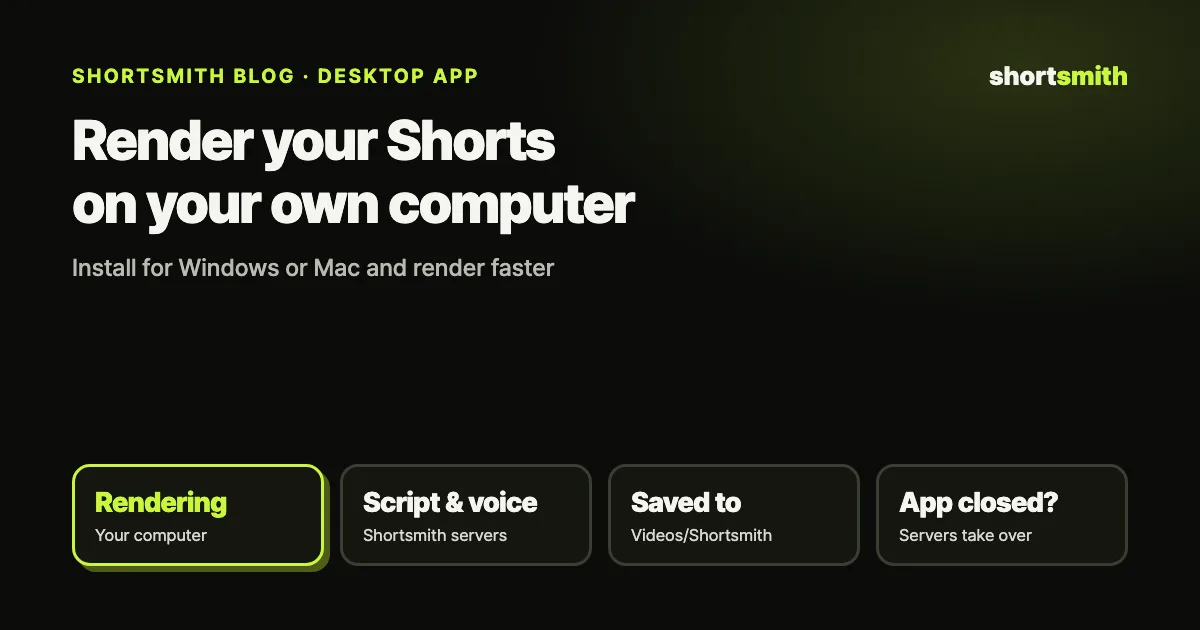
The Shortsmith desktop app runs on Windows 10 and 11 (64-bit) and on Apple silicon Macs (M1 or later). It looks and works exactly like the website, but when you hit render, your own computer does the video stitching — cutting the scenes, drawing captions, mixing audio and exporting. Scripts, AI voice-overs and translations still run on Shortsmith’s servers, and if the app is closed, the servers render for you, so the finished video is the same either way.
This guide covers what the desktop app changes, which computers it supports, how to get past the “unverified app” warning the first time, and where your renders are saved.
What does the desktop app change?
When you render on the web, Shortsmith’s servers stitch the video. They process everyone’s jobs in order, so at busy times you wait for the jobs ahead of you. With the desktop app, that stitching step runs on your computer’s CPU straight away. No queue means less waiting, and most modern laptops and desktops have more cores than a single server slot, so stitching tends to be faster too.
Everything else stays the same: your account, workspaces, projects and credits. You can start a project on the web and render it in the app. Credits follow the same rules — rendering on your computer doesn’t cost more or less.
| Web (server render) | Desktop app (your computer renders) | |
|---|---|---|
| Script, AI voice-over, translation | Shortsmith servers | Shortsmith servers (same) |
| Video stitching (render) | Shortsmith servers, in order | Your computer, right away |
| Where finished videos go | Download from My projects | Saved to Videos/Shortsmith automatically + My projects |
| When the app is closed | — | Servers render for you |
| Credits | Plan rules | Same |
Why we built it
In making a Short, the slowest step is usually the last one: stitching the video. AI writes the script and voice-over in seconds to minutes, but drawing captions on thousands of frames and compressing them takes a lot of CPU time. If all of that happens in one place on the server, the queue grows every time people get busy.
Meanwhile, most of our users’ computers have plenty of cores for rendering. So the desktop app splits the work: the “thinking” (script, voice, translation) stays on the servers and the heavy lifting (stitching) happens on your computer. It also shortens the server queue, so people rendering on the web get faster too.
Which computers are supported?
Rendering is CPU-heavy, so more cores means faster renders. Running other heavy work at the same time (games, another video editor) can slow both down. On a laptop, keep it plugged in.
| System | Support | Installer |
|---|---|---|
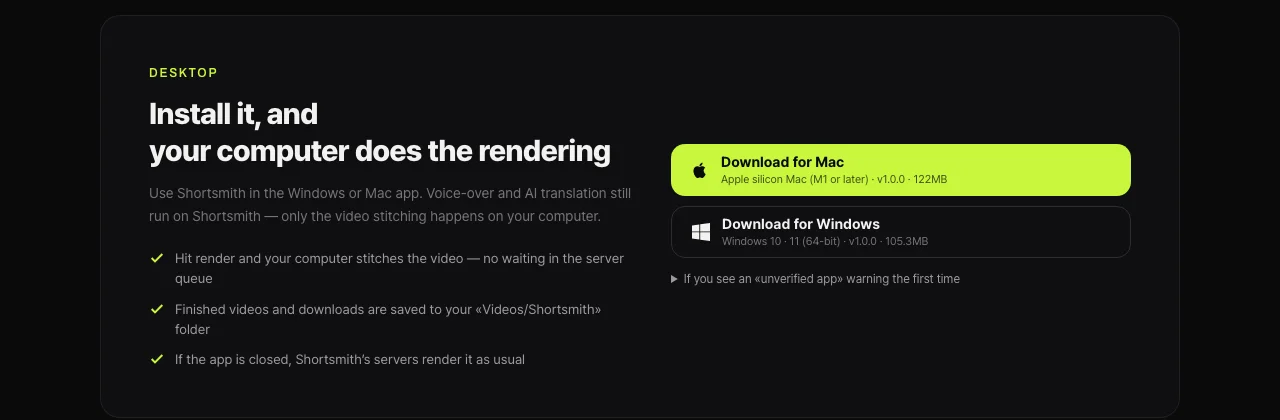
| Windows | Windows 10 and 11 (64-bit) | v1.0.0 · about 105MB |
| Mac | Apple silicon (M1 or later) · macOS 13 or later | v1.0.0 · about 122MB |
| Intel Mac | Not supported yet — use the web with server rendering | — |
Before you install
- System — on Windows, check Settings → System → About for a “64-bit operating system”; on a Mac, check Apple menu → About This Mac for an Apple M1 chip or later.
- Storage — you need room for the installer (about 105–122MB), the render engine (about 100MB) and your finished videos. A Short is usually tens of MB.
- Internet — scripts and voice-overs are made on the servers and render materials are downloaded, so a stable connection matters.
- Account — sign in with the same account you use on the web. No new sign-up needed.
How to install
- On the Shortsmith home page or your account page, click Download for Mac or Download for Windows.
- On Windows, run the installer. On a Mac, open the download and move the app to your Applications folder.
- The first time you open the app, it downloads the render engine (about 100MB) once. Wait until it finishes.
- Sign in with your usual account. The same screens as the website open.
If you see an “unverified app” warning the first time
The desktop app doesn’t carry an Apple or Microsoft developer signing certificate yet, so your system may warn you the first time you open it. If you downloaded it from the official Shortsmith site (shortsmith.kr), here’s how to open it. Don’t open files you got anywhere else.
- Windows — in the “Windows protected your PC” window, click More info, then Run anyway. This is Microsoft Defender SmartScreen flagging an app it hasn’t seen before.
- Mac — if the app is blocked, go to Apple menu → System Settings → Privacy & Security, click Open Anyway in the Security section and enter your login password. Apple says the button stays available for about an hour after you first try to open the app, and once opened the app is saved as an exception.
Open official files only
Use these steps only for apps from a source you trust. The Shortsmith installer is only available from the download buttons on shortsmith.kr.
How to check you have the official file
Before getting past a warning, check where the file came from. The Shortsmith installer is only offered through the Download for Mac and Download for Windows buttons on the shortsmith.kr home page and account page — we never send installers by email or messenger. The buttons list the supported system, version and file size, so you can compare them with the file you downloaded.
Sites with similar names or files labeled something like “Shortsmith free version” have nothing to do with us. If in doubt, don’t run it — delete it and download again from the official site.
How to render on your computer
If you close the app or your computer sleeps during a render, the render may stop. Keep the app open until longer renders finish. If something fails, just click Render again — re-rendering the same script and voice doesn’t charge the voice-over again.
- In the desktop app, pick a video, choose an angle and check the script as usual.
- Click Render in the editor. With the app open, your computer handles the stitching and you can see the progress.
- When it’s done, the video is saved to your Videos/Shortsmith folder, and you can preview and download it from My projects too.
- If you render from the web with the app closed, Shortsmith’s servers render it as before.
Why renders take time — and how to speed them up
Rendering means cutting the chosen scenes from the original, reframing them to vertical 9:16, drawing captions, mixing the voice-over with the original audio and compressing it all into one video file. A Short has thousands of frames, and each one is redrawn and compressed, which keeps the CPU busy. Longer Shorts, more scenes and more caption effects all add time.
On the servers, that work is shared with everyone else’s jobs, so busy times add queue time on top. The desktop app removes the wait and dedicates your computer’s cores to the job.
- Plug in your laptop and turn off low-power mode — battery saver slows the CPU down.
- Close heavy apps such as other video editors or games while rendering.
- When rendering several Shorts, finishing them one at a time gets you results sooner.
- For long sources, choose the part to use — it shortens analysis and uses fewer credits too.
Web or desktop app — which to use when
Either way, the finished video is the same; the choice is about how often and when you render. If you post once or twice a week and leave renders running while you do something else, the web is plenty. If you post several times a day or need to check and upload as soon as a render finishes, the desktop app saves real time.
Mix them freely: use the web on your phone and keep the app open on your home or office computer. It’s the same account, so projects carry over wherever you started them. If you can’t install software (say, on a work computer), every feature still works on the web with server rendering.
Updates
The app shows the Shortsmith website itself, so site changes appear in the app right away. When the render engine needs a new version, the app downloads it on its own; renders you start in the meantime are handled by the servers, so your work doesn’t stop. When a new installer is released, the version on the download buttons changes.
After a render finishes
- Watch the finished video once from start to end in Videos/Shortsmith or My projects — check caption typos, scene order and audio levels.
- If anything needs fixing, edit it scene by scene in the editor and render again. If you didn’t change the script, the voice-over isn’t remade, so it’s quick.
- When uploading, tidy up the title, description and hashtags, and use the thumbnail Shortsmith made.
- If the video includes realistic AI-generated scenes, select “Yes” under AI use when uploading to YouTube.
Good fit for
- Channels posting several Shorts a day that don’t want to wait on renders
- People who mostly work in the busy evening and weekend hours
- Anyone who wants finished videos in a local folder to polish in another editor
- Anyone who wants to check a finished video the moment it’s done
- On an Intel Mac, 32-bit Windows or a phone, use the web with server rendering — the result is the same.
The desktop app and your privacy
The desktop app is a window that shows the Shortsmith website, plus a render engine that only stitches video. Sign-in, payments and account data are handled by Shortsmith’s servers just as on the web, and the render engine downloads the materials a render needs (video, captions, voice-over) and stitches them on your computer. Finished videos stay both in your local folder and in My projects.
To remove the app, uninstall it from Settings → Apps on Windows, or move it from Applications to the Trash on a Mac. Finished videos in Videos/Shortsmith aren’t deleted, so clean them up separately if you don’t need them.
Troubleshooting
- The first launch takes a while → it’s downloading the render engine (about 100MB). Check your connection and wait for it to finish.
- A render ran on the servers instead → the app may have been closed or the engine not ready yet. Render again with the app open.
- No Videos/Shortsmith folder → it’s created after your first render. You can also download the same video from My projects.
- A Mac says the app “is damaged and can’t be opened” → the file may have come from somewhere else. Delete it and download again from shortsmith.kr.
- Still stuck → contact support from your Shortsmith account page with your system and what you see.
FAQ
Does the desktop app use fewer credits?
No. Credits follow the same rules as the web. The only difference is where the video stitching happens — on your computer you skip the server queue.
Does it work on Intel Macs?
As of October 2026, the Mac app supports Apple silicon (M1 or later) on macOS 13 or later only. On an Intel Mac, make Shorts on the website and the servers render them.
Windows says “Windows protected your PC.” Is that OK?
The app isn’t code-signed yet, so Windows treats it as an app it hasn’t seen before. If you downloaded it from shortsmith.kr, click More info → Run anyway.
Where are finished videos saved?
Automatically in your computer’s Videos/Shortsmith folder, and you can also preview and download them from My projects.
Can I use my computer while it renders?
Yes, but rendering is CPU-heavy, so other heavy work like video editing or games can slow both down. Documents and browsing are fine. Don’t close the app or let the computer sleep until it finishes.
Do free credits work in the desktop app?
Credits belong to your account, so the web and the app share the same balance. Sign-up credits work too, and the Free plan makes cut edits (original audio + captions).
I can’t install software on my work computer.
Every feature works without the app. Render on the web and the servers stitch it; download the finished video from My projects.
Why is the render engine downloaded separately?
The engine differs by system and is large, so it’s downloaded once on first launch (about 100MB) instead of being bundled with the installer. When a new engine is released, the app downloads it automatically.
If the app is closed, can I still render?
Yes. With the app closed, Shortsmith’s servers render as before. The desktop app is an option for rendering faster while it’s open.
Sources
- Open a Mac app from an unknown developer — Apple Support · checked
- Microsoft Defender SmartScreen overview — Microsoft Learn · checked