Running a Shorts channel as a team: YouTube channel permissions and Shortsmith teams (October 2026)
Shortsmith team · Updated
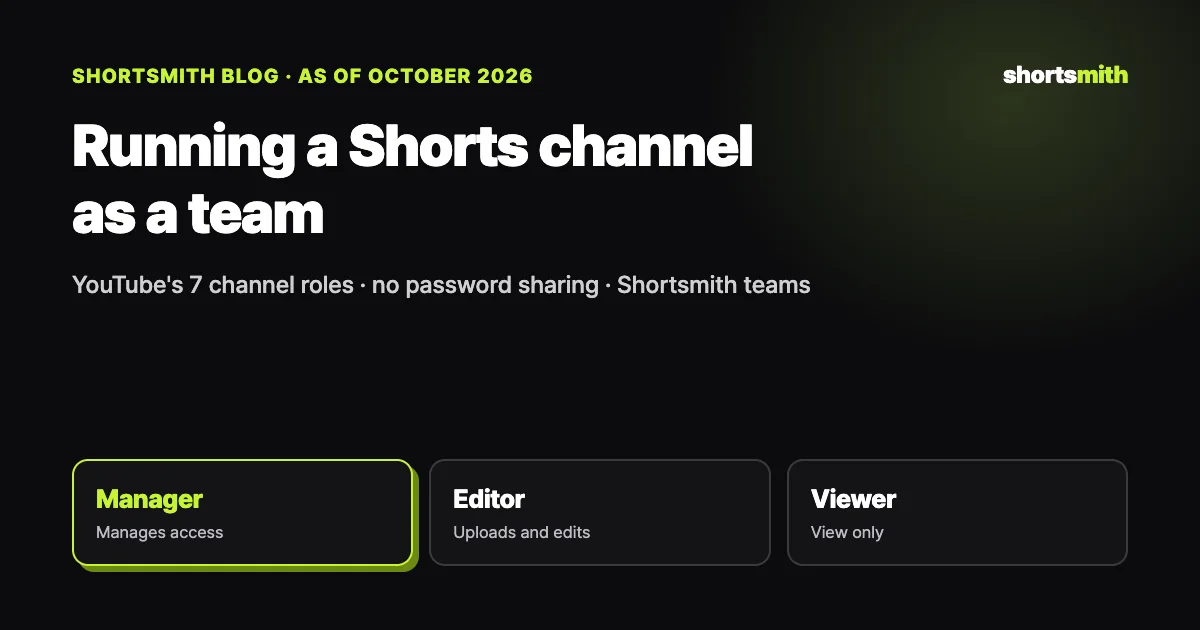
When several people run a Shorts channel together, the first step is to stop sharing the Google account password and give each person a role with YouTube channel permissions. YouTube has seven roles: Owner, Manager, Editor, Editor (limited), Subtitle editor, Viewer and Viewer (limited). Invited people sign in with their own accounts and can do only what their role allows. It’s clear who did what, and when someone leaves you just remove their access.
We checked YouTube Help’s “Add or remove access to your YouTube channel with channel permissions” on October 22, 2026, and explain the roles to use when making Shorts with teammates in Shortsmith.
YouTube’s seven channel roles at a glance
| Role | Can | Can’t |
|---|---|---|
| Owner | Everything, including deleting the channel and managing permissions | Transfer ownership through permissions |
| Manager | Manage permissions, upload, publish, delete, edit channel details | Delete the channel |
| Editor | View all data, upload, publish, delete drafts | Delete published content, manage permissions, enter contracts |
| Editor (limited) | Same as Editor | See revenue data |
| Subtitle editor | Add, edit, publish and delete subtitles | Edit anything else, upload, see revenue |
| Viewer | View channel details and revenue data | Edit or manage live streams |
| Viewer (limited) | Same as Viewer | See revenue data |
Why you shouldn’t share the password
Share your Google account password and that person can see not just YouTube but your email, Drive and payment details. You can’t tell from the records who deleted a video, and you have to change the password every time someone leaves. Everyone also has to ask one person for 2-Step Verification codes.
With channel permissions, invited people manage your channel while signed in to their own accounts. As YouTube puts it, you can delegate channel work without giving access to your Google Account, and when someone leaves you just remove their access. If your channel is monetized, keep 2-Step Verification on for the owner account; it’s also a YouTube Partner Program requirement.
How to choose roles
For someone who uploads Shorts and edits titles and descriptions, Editor fits. Editors can upload and publish but can’t delete published videos or change permissions, so there’s little risk of an accident wrecking the channel. For a freelance editor who shouldn’t see revenue, use Editor (limited).
Managers can manage permissions too, so give that role only to people who share responsibility for the channel. Subtitle editor suits someone who only translates captions, and Viewer, or Viewer (limited) with revenue hidden, suits sponsors or investors who just check numbers. Starting with a lower role and raising it when needed is the safe approach.
How to invite teammates
In YouTube Studio, go to Settings → Permissions → Invite, enter the person’s email, choose a role and send. In the YouTube Studio mobile app, tap your profile picture → Settings → Permissions → Invite. Invitations expire after 30 days, so the person must accept within that time. To remove access, select the person on the same screen and remove them.
If your channel is on a Brand Account, you must migrate to channel permissions before you can use this. Only Managers and the Owner can see the names and emails of people with access, and invitees’ permissions don’t apply in YouTube Music, the YouTube Kids app or YouTube APIs.
When you use outside tools
Channel permissions don’t apply to YouTube APIs. When connecting a channel to an API-based tool such as Shortsmith, connect with an account that has direct access to the channel, not a teammate’s account that only has channel permissions.
Rules to set as the team grows
Workflow matters as much as roles. Decide who picks topics, who checks scripts and who presses publish, and you avoid the same video going up twice or an unchecked video going public. Having one person do the final check before publishing works best.
Write down your channel’s look, such as titles, thumbnails and caption style, in one document; when everyone posts in their own style, the Shorts tab looks scattered. Add a rule that when someone leaves, you remove them from YouTube channel permissions and from your tools’ member lists the same day.
Common problems in team-run channels
The most common problem is the same video going up twice. If one person scheduled a video and another posts it right away without knowing, the channel ends up with duplicate Shorts. Keep schedules and posts visible in one place, and make checking the schedule a habit before posting.
The second is not removing access. If a freelance editor whose project ended, or a teammate who left, still has Editor access months later, your channel is at risk if their account is compromised. Review the permissions list every quarter and remove anyone who no longer needs it.
Making Shorts as a team in Shortsmith
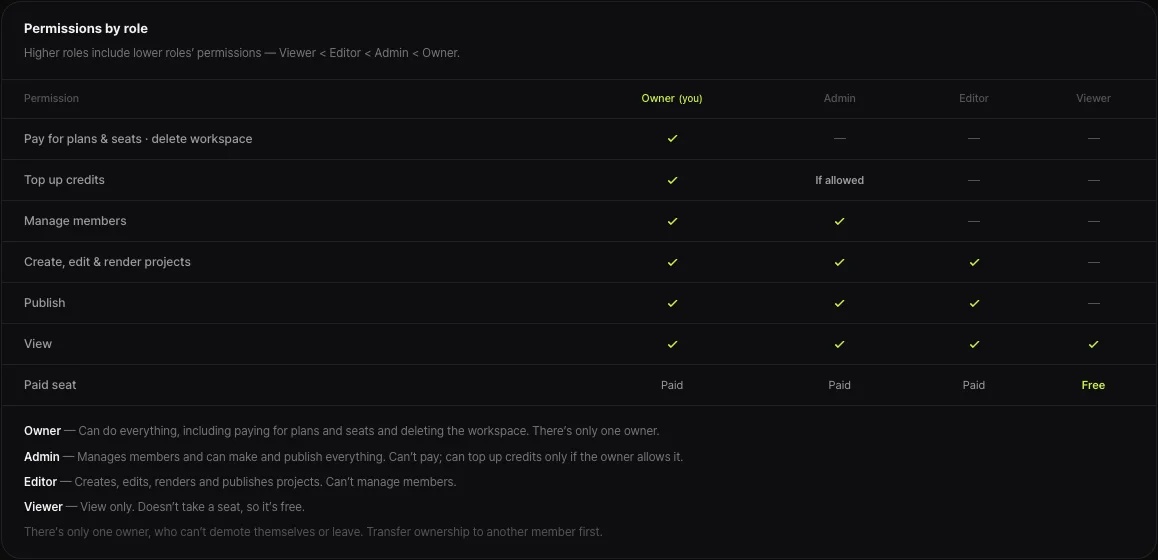
Shortsmith’s Team & members invites people to a workspace with four roles: Owner, Admin, Editor and Viewer. The Owner can pay for plans and seats and delete the workspace, and there’s only one. Admins manage members and can make and publish everything but can’t pay, and can top up credits only if the owner allows it. Editors create, edit, render and publish projects, and Viewers can only view and don’t take a seat, so they’re free.
Only Editors and above can connect YouTube channels and Instagram accounts. Invite by email or by creating an invite link. The Creator plan includes 2 editor seats, Pro 3 and Studio 5, and team plans add seats as needed. Who invited, changed roles, rendered or uploaded, and when, is kept in the activity log, which you can view on team plans.
FAQ
How do I add an editor to my YouTube channel?
In YouTube Studio, go to Settings → Permissions → Invite, enter their email, choose Editor and send. Invitations expire after 30 days.
Can editors delete videos?
They can delete drafts but not published content, and they can’t manage permissions or enter contracts.
I want to hide revenue from a freelance editor.
Use Editor (limited). It can do what Editor does but can’t see revenue data.
Can a Brand Account channel use permissions?
You must migrate to channel permissions first; then invite people the same way.
Can I transfer channel ownership with permissions?
No. The Owner role can’t be transferred through channel permissions.
Do Shortsmith viewers cost money?
No. Viewers can only view and don’t take a seat, so they’re free.
Who can connect channels in Shortsmith?
Workspace Editors and above can connect YouTube channels and Instagram accounts.
Sources
- Add or remove access to your YouTube channel with channel permissions — YouTube Help · checked
- YouTube Partner Program overview & eligibility — YouTube Help · checked