How to upload YouTube Shorts from the YouTube app, the Studio app or a computer (October 2026)
Shortsmith team · Updated
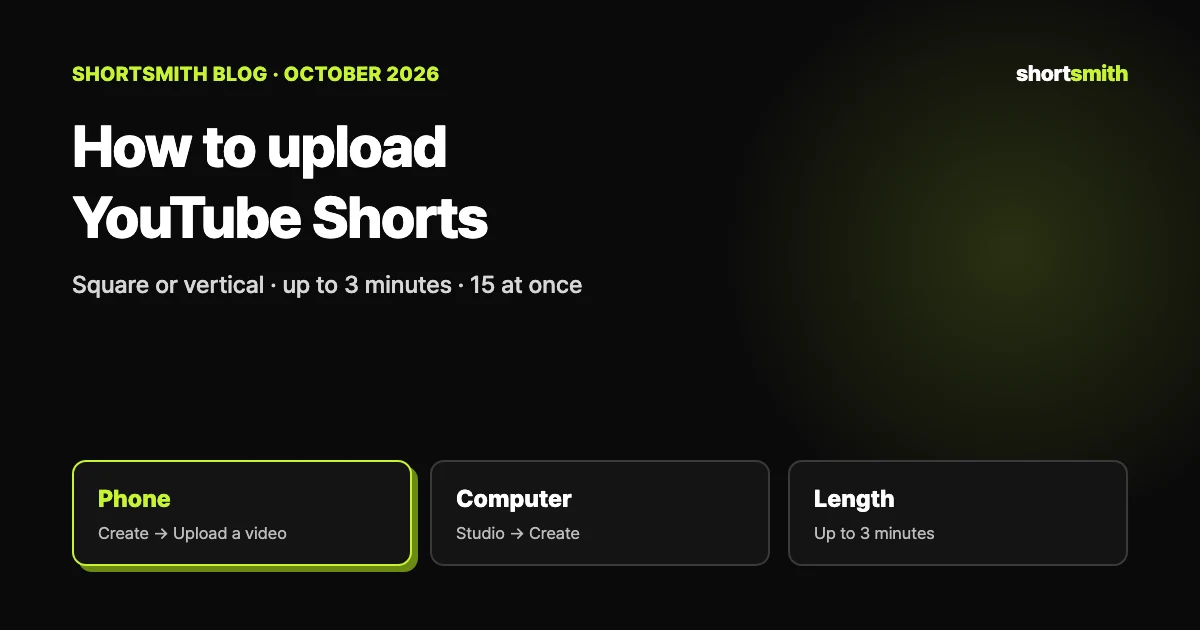
There is no separate “Shorts button” to hunt for. Upload a video that is square or vertical and no longer than three minutes, and YouTube files it as a Short. On a phone you use Create → Upload a video in the YouTube app or the YouTube Studio app; on a computer you use Create → Upload videos in YouTube Studio, where you can pick up to 15 files at once.
We checked YouTube Help’s “Upload YouTube Shorts” (computer and Android instructions), “Understand three-minute YouTube Shorts” and “Recommended upload encoding settings” on October 23, 2026. Menu names can differ slightly between app versions.
Where to upload, at a glance
| Where | Steps | Good to know |
|---|---|---|
| YouTube app (phone) | Create → Upload a video | Trim editor, text, filters and music |
| YouTube Studio app (phone) | Create (top) → Upload a video | Add details, then “Upload Short” |
| YouTube Studio (computer) | Create (top right) → Upload videos | Up to 15 files at once; finish each draft before publishing |
| What makes it a Short | Square or vertical · up to 3 minutes | For uploads on or after October 15, 2024 |
Upload from the YouTube app on your phone
This is the most common route. Tap Create, choose Upload a video and pick a square or vertical clip. For videos up to three minutes a trim editor appears: drag the sides of the bar to set the start and end, and anything outside the box is left out of the Short. If the video is longer than three minutes, tap “Edit into a Short” to cut it down to three minutes or less.
On the next screen you can add text, filters, music or other audio. Note that audio from the library is limited to 15 seconds. On the final screen add a title (up to 100 characters), choose visibility and select your audience (made for kids or not), then tap Upload.
- In the YouTube app, tap Create → Upload a video.
- Pick a square or vertical video and set the start and end in the trim editor.
- Tap Next to add text, filters or music (library audio is capped at 15 seconds).
- Add a title, visibility and audience, then tap Upload.
Upload from the YouTube Studio app or a computer
In the YouTube Studio app, tap Create → Upload a video at the top, choose the file, enter the title, visibility and audience, tap More to review extra details, then tap Upload Short. It is the better choice when you care more about details than editing.
On a computer, sign in to YouTube Studio, click Create → Upload videos in the top right and choose files that are up to three minutes long and square or vertical. You can select up to 15 Shorts at once, but you need to click Edit draft and finish the details for each one before it can be published. This is the fastest way to post several finished edits from your editing software.
What counts as a Short: three minutes and a date
According to YouTube, square or vertical videos up to three minutes uploaded on or after October 15, 2024 are categorized as Shorts and can earn through the Shorts revenue-sharing model. Videos uploaded before that date stay long-form. For Official Artist Channels the date is December 8, 2025.
A horizontal (16:9) video stays a regular video even if it is under three minutes, so reframe it to vertical first if you want it in the Shorts feed. You do not need #shorts — the aspect ratio and length are what count.
Quality and file settings YouTube recommends
YouTube’s recommended upload encoding is an MP4 container, the H.264 video codec and AAC-LC (or Opus) audio. Upload at the same frame rate you recorded; common rates are 24, 25, 30, 48, 50 and 60 frames per second. Converting frame rates can make motion look choppy.
For 1080p, the recommended video bitrate is 8 Mbps at standard frame rates (24–30) and 12 Mbps at high frame rates (48–60), with stereo audio at 384 kbps. Exporting with these settings from your editor helps avoid a muddy result after upload.
- File: MP4 · H.264 · AAC-LC (48 kHz)
- Frame rate: same as recorded (24 · 25 · 30 · 48 · 50 · 60 and others)
- 1080p bitrate: 8 Mbps (standard frame rate) · 12 Mbps (high frame rate)
- Aspect ratio: square or vertical — 9:16 fills the screen
Check before you post: visibility and copyright
For creators aged 13 to 17 the default visibility is Private; for creators 18 and over it is Public. If nobody can see your Short, check visibility first.
If you upload a Short made elsewhere, you need permission for any copyrighted material in it. Copyrighted material can trigger a Content ID claim, and a valid takedown notice from a rights holder can remove the video and give you a copyright strike. Since September 24, 2026, new Shorts longer than one minute but under three minutes with a Content ID claim are no longer blocked automatically and may stay playable; nothing changed for Shorts under one minute.
Key point
A video becomes a Short when it is square or vertical and three minutes or less. The upload button is the same one you use for regular videos.
Uploading videos made with Shortsmith
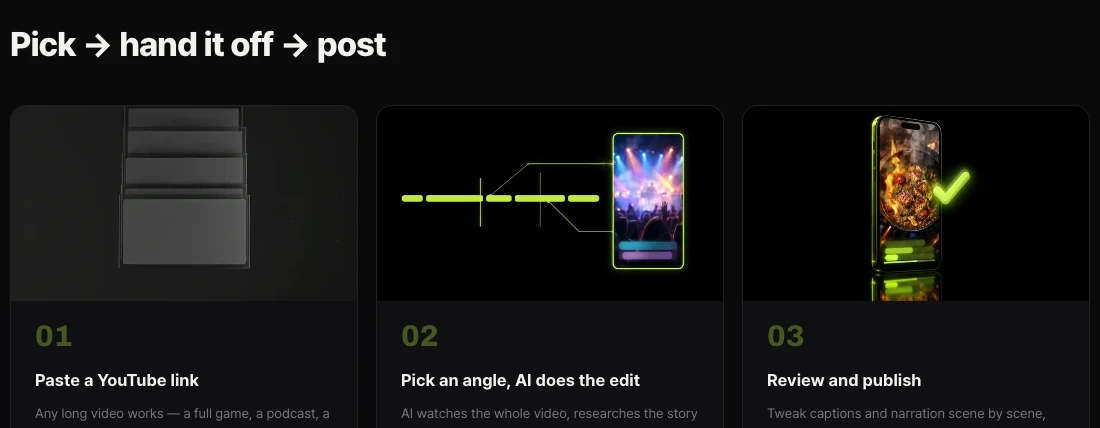
Shortsmith takes a long video link or file, lets you pick a story angle and adds scenes, captions and voice-over to produce a vertical 9:16 (1080×1920) finished Short. Because the output already meets the Shorts conditions, you can download it and upload it with any of the methods above.
Connect your YouTube channel and you can post right away or schedule a time from Shortsmith’s Upload & schedule window, with the title (100 characters), description (5,000 characters) and tags pre-filled from the script. Instagram Reels can be posted from the same window (posting now only).
What to check after uploading
Once the upload finishes, open the Shorts tab under Content in YouTube Studio and make sure the video landed there with the right visibility. If it shows up under Videos instead, its aspect ratio or length did not meet the Shorts conditions.
If you uploaded several at once, check that none are still sitting as drafts. When you pick multiple files on a computer, each one needs its details completed before it publishes, so a few often stay in draft.
FAQ
How long can a YouTube Short be?
Up to three minutes. Square or vertical videos up to three minutes uploaded on or after October 15, 2024 are categorized as Shorts.
Can I upload Shorts from a computer?
Yes. Use Create → Upload videos in YouTube Studio; you can select up to 15 files at once.
Why did my horizontal video not become a Short?
Horizontal videos are uploaded as regular videos even if they are under three minutes. Reframe them to square or vertical.
How long can music be in a Short?
When uploading from the phone app, audio from the library is limited to 15 seconds.
What quality settings should I use?
YouTube recommends MP4 · H.264 · AAC-LC, the original frame rate, and 8 Mbps (standard frame rate) or 12 Mbps (high frame rate) for 1080p.
I uploaded it but nobody can see it.
Creators aged 13–17 default to Private. Check the visibility setting in YouTube Studio.
Sources
- Upload YouTube Shorts — YouTube Help · checked
- Understand three-minute YouTube Shorts — YouTube Help · checked
- Recommended upload encoding settings — YouTube Help · checked