YouTube Studio’s video clips and Shorts tool: when it’s enough and when you need more (October 2026)
Shortsmith team · Published · Updated
YouTube Studio’s “Video clips and Shorts” tool lets you pick a section of a long video already on your channel and post it as a Short or a clip. You choose the section by selecting lines in the transcript or entering start and end times, and in some countries and languages AI suggests segments for you. Shorts made this way automatically link back to the original video as a related video.
We checked YouTube Help’s “Video clips & Shorts” on October 18, 2026, and separate the cases where this tool is enough from those that need narration or translation from another tool.
What it can and can’t do
| Item | YouTube Studio “Clips & Shorts” | Notes |
|---|---|---|
| Source | Long videos you uploaded to your channel | Can’t pick other channels’ videos |
| Choosing a section | Transcript lines, start/end times or AI suggestions | AI suggestions in select languages |
| Captions | Auto captions on Shorts (color, font, style, position) | Generated from the transcript |
| Source link | Original added to the Short as a related video | Not for private, unlisted or made-for-kids |
| Aspect ratio | Final video fills top and bottom with a blurred background | Preview resolution may be lower |
| Narration and translation | None | Needs another tool |
How to make one: choose a section from the transcript
In YouTube Studio, go to Content → Videos, pick the source video, then choose Clips & Shorts in the left menu → Create clip or Short. Choose Short, then select the lines you want in the transcript and click Confirm selection, or type start and end times into the timeline editor. The chosen section is highlighted on the timeline.
Where AI suggestions are supported, suggested segments and an AI-written outline appear in the left panel, and you can fine-tune the start and end with the transcript or timeline. According to YouTube, AI suggestions are available in 11 countries including the United States, United Kingdom and South Korea, in 9 languages including English, Korean and Spanish. When you’re done, click Create draft and fill in the usual upload dialog to publish.
The upside: a source link and “no penalty”
The biggest advantage is the link to the source. Shorts made with this tool automatically get the original added as a related video, so viewers can easily move on to the long version. For clips, YouTube suggests adding a link to the original in the description yourself. YouTube also states there’s no penalty for using your own content as clips or Shorts with this tool.
If your goal is to promote your own long videos (lessons, vlogs, podcasts, livestreams) with Shorts, and the original speech works on its own, this tool is enough. YouTube recommends keeping podcast playlists to full episodes and managing Shorts outside them.
Shorts can run up to three minutes, but a Short promoting a long video usually keeps more viewers to the end when it wraps up one story in 30 to 60 seconds. YouTube also says that since September 24, 2026, new Shorts between one and three minutes with an active Content ID claim are no longer automatically blocked, though Shorts blocked globally can’t be monetized.
Whatever tool you use: picking a good section
The section you choose decides the result. A good section makes sense without the surrounding context and holds one question and its answer within 30 seconds. In a lesson, look for the point that answers “why” in one sentence; in a podcast, where a guest’s voice rises or laughter breaks out; in a vlog, the shot where the result shows.
When selecting from the transcript, check where sentences begin and end. Start on a half-finished sentence and viewers swipe in the first second. Moving the start a sentence or two so the Short opens on a question or a surprising line can change retention noticeably. End right after the answer, before the laughter or reaction fades.
If you make several Shorts from one long video, pick a different question for each. Splitting one story into a first and second half makes the second feel like a repeat to anyone who saw the first. Space out the uploads, and title each Short with its own question rather than the original video’s title.
Using both together
The two kinds of tools do different jobs rather than compete. Make Shorts that promote your own long videos quickly in YouTube Studio and keep the source link, and use an AI editing tool for material that needs narration or translation or for sources in another language. Even within one long video, the parts that play well as-is differ from the parts that need explaining.
For example, a channel that posts English interviews needs translated captions and Korean narration to reach Korean viewers, which YouTube Studio alone can’t do. On the other hand, the key moment of a lesson can be cut to 30 seconds with the Studio tool and posted as-is.
Whichever route you take, put one sentence on the first line of the Short’s description that leads into the original, and leave a link to it in a pinned comment. Combined with the related-video link the Studio tool adds automatically, that gives Shorts viewers more ways to reach your long video.
When you need another tool
This tool focuses on cutting the source and adding captions. To tell a story with narration, add translated captions to a source in another language, mix several sources, or make several different stories from the same source, you need another tool. It also can’t make commentary Shorts about other channels’ videos (and those must follow the reused content policy as well).
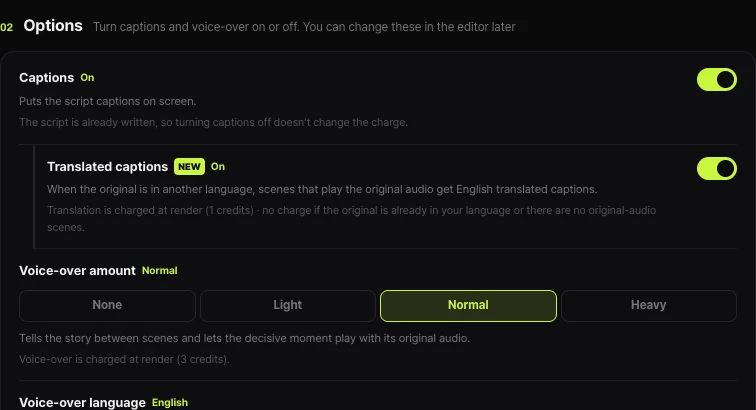
Shortsmith takes a video link or file, suggests several angles, and renders a script that alternates short narration lines with the original audio, plus a narration voice, translated captions of the original audio, a caption style and an on-screen title. In the options you can choose captions, translated captions and how much voice-over to use, and finished videos can be posted or scheduled straight to YouTube Shorts and Instagram Reels.
FAQ
Is YouTube Studio’s Clips & Shorts tool free?
Yes. It’s built into YouTube Studio at no extra cost, but it only works with videos uploaded to your own channel.
Which languages get AI-suggested segments?
According to YouTube, 9 languages including English, Korean and Spanish in 11 countries. Supported countries and languages may change.
Are Shorts made with this tool disadvantaged?
YouTube states there’s no penalty for using your own content as clips or Shorts with this tool, and Shorts automatically link to the source as a related video.
How does a horizontal video become vertical?
The preview may show black bars, but the final video fills them with a blurred background. A full-screen vertical layout needs separate editing.
Can I add narration?
The tool has no narration feature. For narration or translated captions, use a separate editor or an AI tool such as Shortsmith.
Can I make Shorts from another channel’s video?
The YouTube Studio tool only works with your own videos. To use another channel’s video, get permission or add clear contribution such as commentary and analysis, and follow the reused content policy.
Sources
- Video clips & Shorts — YouTube Help · checked
- Understand three-minute YouTube Shorts — YouTube Help · checked