How to turn Shorts views into long-form channel growth (October 2026)
Shortsmith team · Updated
The most direct way to move Shorts viewers to your long videos is the Related video link. Open a Short in YouTube Studio, click Related video in the right-hand menu and pick a long-form video, live stream or another Short from your channel, and a clickable link appears near the bottom of the Short. YouTube's official blog calls it the most effective tool for moving viewers from a Short to your deeper catalog.
A link alone does not make people click. We checked YouTube's official blog post "How to convert YouTube Shorts views into long-form channel growth" (July 14, 2026) on October 12, 2026. This guide covers how to set the link, the closing call to action, the first ten seconds of the long video, and how Shortsmith helps you make several different Shorts from one long video so you have more bridges to it.
Why Shorts viewers don't move to long videos on their own
YouTube's blog describes three kinds of Shorts viewers: Shorts-only viewers who may never click a ten-minute video on their own, context-dependent viewers who watch a long review one day and a 60-second clip the next, and exploratory viewers who use the Shorts feed to discover channels before committing to longer content. Without Shorts you are invisible to many potential fans, and with them you still need a deliberate strategy to move people across formats.
Shorts play in a feed where the next Short starts as soon as one ends. Unless viewers get a reason to stop and open something else, they keep swiping. The Related video link, the closing call to action and the opening of your long video are three steps that break that flow and bring viewers into your channel.
How to add a Related video link
The principle YouTube stresses is matching the viewer's intent. If your Short teaches a quick hack, link to the full tutorial. If it highlights a product, link to the full review. Choosing the video that holds the full answer to the Short's question gives viewers a clear reason to click.
- Sign in to YouTube Studio.
- Select Content from the left-hand menu.
- Click the Short you want to edit.
- In the right-side menu, click Related video and choose the long video, live stream or Short from your channel.
Note
You set the Related video link in YouTube Studio. If you published the Short with another tool, add the link in Studio afterward for each Short.
The last 5 seconds of the Short and the first 10 of the long video
YouTube's blog points out that viewers will not click just because a link exists. It recommends verbal and visual cues in the final five seconds of the Short: say exactly what to do, such as "get the full step-by-step breakdown by clicking the link right here", and point toward the link on screen or briefly flash the long video's thumbnail. A Short clipped from a long video should still work as a standalone piece.
The most important step is rewarding the click. Just as a thumbnail makes a promise the intro must keep, a Short sets an expectation the linked video must meet. YouTube advises against opening the long video with slow channel graphics, logos or unrelated updates, and recommends addressing the topic, question or hook promised in the Short within the first five to ten seconds. If viewers have to hunt for the part they came for, they leave.
- Last 5 seconds of the Short: say the action clearly and point to the link
- First 5 to 10 seconds of the long video: go straight to the promised question
- The Short should still make sense on its own
Several Shorts from one long video: building more bridges
Linking one Short to a long video gives you one bridge. Making several Shorts from the same long video, each asking a different question, lets each Short bring a different audience to the same video. People drawn by a personal story, by numbers or by an argument are not the same viewers.
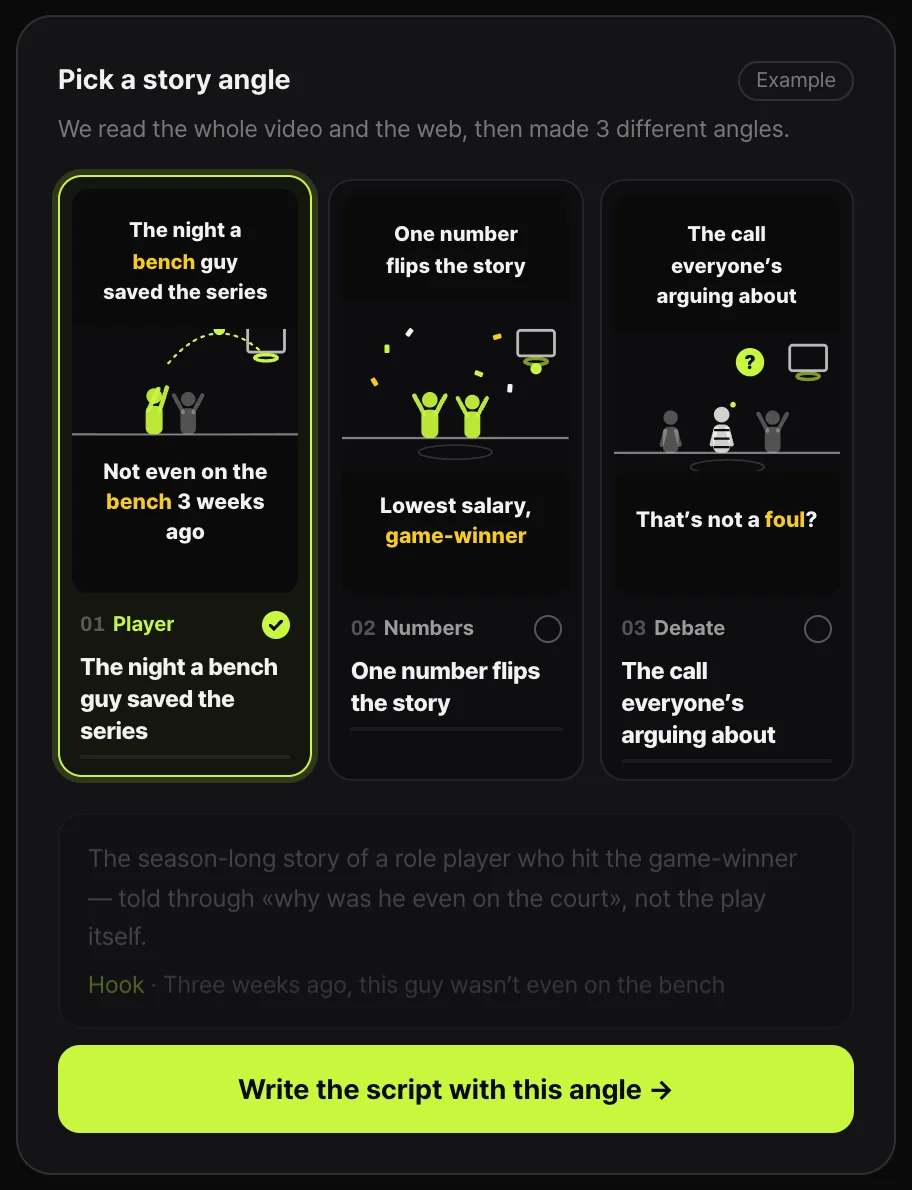
Shortsmith reads the whole long video and suggests three story angles from different directions. The image below shows the story angle picker on the Shortsmith home page. One game video produces a player angle, a numbers angle and a debate angle, and you can pick several to make multiple Shorts from the same source. Point each Short's Related video link at the same long video and it gains three bridges.
Which long video should you link?
The Related video should hold the full answer to the question your Short raised. If the Short showed the last play of a game, link the full highlights or a long video about that player. If it is a cooking Short, link the full recipe. A video that only shares a broad topic, without answering the Short's question, gets clicks that leave quickly.
Look at the long video's opening too. Viewers arriving from a Short are used to fast videos, so when the scene or question they just saw reappears in the first ten seconds, they feel they have come to the right place. A brief repeat of the Short's moment, followed by an immediate move into the main content, works well.
Experiment with vertical live streams
As an optional step, YouTube's blog suggests vertical live streams. They appear directly in the Shorts feed, so people swiping through can join with a single Watch Live tap. Start from Create, then Live in the YouTube mobile app; your first live stream may take up to 24 hours to be enabled. On a computer you can also run a dual stream that sends horizontal and vertical versions at once.
When the stream ends, the replay becomes a long video. Add that replay to Shortsmith, turn the highlights into several Shorts, and link each Short back to the replay. That creates a loop from live stream to Shorts to replay.
FAQ
Where does the Related video link appear?
Near the bottom of the Short, as a link viewers can tap. Tapping it opens the long video, live stream or Short you selected.
Can I link to someone else's video?
YouTube's blog describes choosing a long-form video, live stream or Short from your own channel.
How is this different from a link in the description or a pinned comment?
The Related video link shows on the Short itself and takes one tap. Description and pinned-comment links require viewers to open something first, so treat them as backups.
Can I change the Related video later?
Yes. Open the Short from the Content menu in YouTube Studio and choose a different Related video. When you publish a new long video, you can point older Shorts at it to send their ongoing views there.
Sources
- How to convert YouTube Shorts views into long-form channel growth (July 14, 2026) — YouTube Official Blog · checked
- Understand your YouTube content performance — YouTube Help · checked