What is a YouTube Shorts remix? How to remix, and how to limit remixing (October 2026)
Shortsmith team · Updated
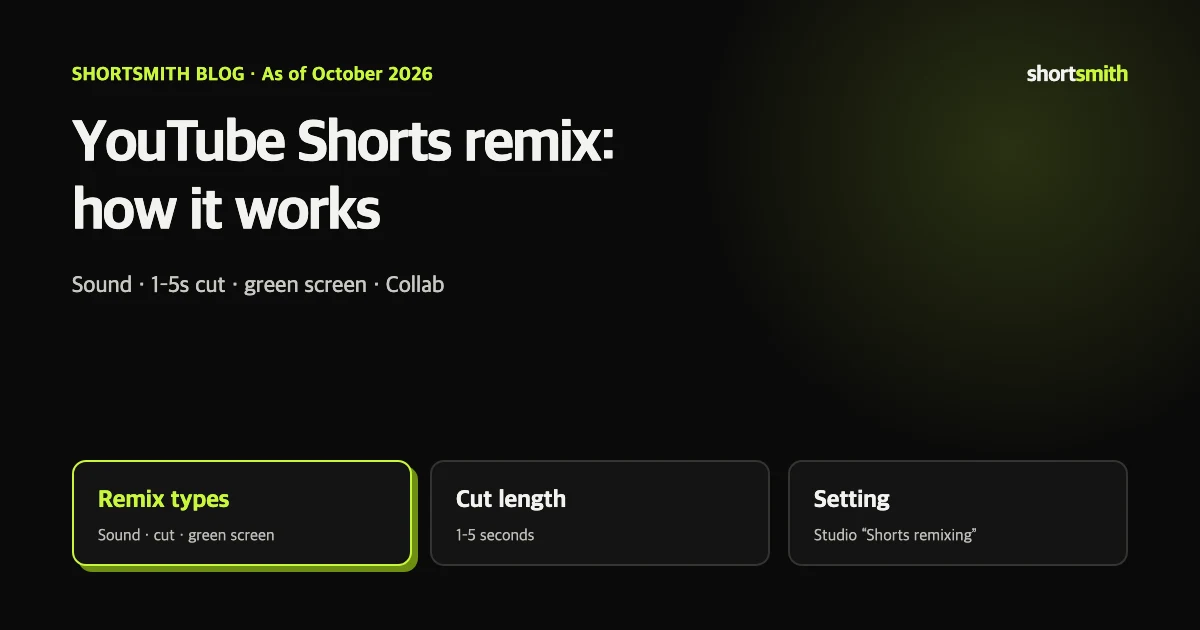
A YouTube Shorts remix brings another Short’s or video’s sound, a 1–5 second segment (a cut), or the video itself into your Short using the YouTube app’s built-in tools. Remixed Shorts link back to the original automatically, so the original creator gets new viewers too. Shorts you create are opted in to remixing by default, and you can opt your Shorts out of video remixing in YouTube Studio.
We checked YouTube Help’s “Create YouTube Shorts with remixed content” in English and Korean on October 21, 2026. Menu names can differ slightly by app version and device, and features that are rolling out gradually, such as AI restyle, may not appear for you yet.
Remix types at a glance
| Type | What you take | Where to tap |
|---|---|---|
| Sound | Audio from another video (music video audio up to 90 seconds, some limited to 30) | Short › Sound › Use this sound |
| Cut | A 1–5 second segment with audio and picture | Video › Share › Remix › Cut |
| Use this video | A segment of another Short | Short › Remix |
| Green Screen | The original as your background | Short › Remix › Green Screen |
| Collab | The original side by side with yours | Short › Remix › Collab |
| Template | Another Short’s edit template with your clips | Short › Remix › Use template |
What remix means: borrowing with a built-in credit
The point of remixing is that attribution is automatic. A remixed Short shows a link to the original video in the player, and for sound remixes, tapping the sound shows the original video along with other Shorts using that audio. Remixes can themselves be remixed, and the original and later remixes stay linked in the pivot page and player metadata.
For the original creator, remixes are a way to reach new viewers. You get a digest notification when your content is remixed — at most once a day and three times a week — and in analytics you can sort traffic sources by “Remixed videos” to see views that came from remixes.
How to remix, step by step
Sound: while watching a Short, tap the sound at the bottom and choose Use this sound to open the camera with that audio. On a long-form video, go to Share › Remix › Use this sound. Official Artist Channels can be browsed from their Shorts section sorted by popular.
Cut: on a long-form video, tap Share › Remix › Cut and choose a 1–5 second segment. The segment includes audio and video, and you record or add your own footage after it. On a Short, use Remix › Use this video to trim a section.
Green Screen and Collab: put the original behind you while you explain it (Green Screen), or place the original and your video side by side (Collab). Tap Layout to change the arrangement. For templates, tap Remix › Use this template and add your clips to recreate the same edit.
AI restyle: under Remix, enter a custom or suggested prompt to change a video’s style, with up to three reference photos. YouTube says it supports English prompts only and is rolling out gradually.
What can’t be remixed
You can remix songs from the YouTube library, original audio from many Shorts and long-form videos, segments of many videos, and soundtracks made with Dream Track. If you paste copyrighted material in with tools outside YouTube’s remix features, it isn’t a remix — it can receive a Content ID claim or be removed, and a valid takedown request can lead to a copyright strike.
- Private videos
- Videos claimed by a third-party copyright owner, unless content-supply approval exists
- Videos whose creators have limited remixing
- Some remixes blocked by music licensing
Heads up
If the original creator later limits remixing or deletes the video, audio remixes are muted, made unlisted and scheduled for deletion after 30 days, and video remixes are removed. The Short’s views still count toward lifetime totals.
How to allow or limit remixing of your videos
Shorts you create are automatically opted in to remixing. Any creator can opt their Shorts out of video remixing; opting out of audio remixing as well is available to partners with access to YouTube Studio Content Manager. You can change the setting for many videos in bulk or choose it during upload.
Whether to opt out depends on your goals. If you want your clips to spread as memes and challenges, leave remixing on to reach new viewers. If your videos feature people or products that would be awkward in other contexts, limit it.
- Sign in to YouTube Studio on a computer.
- Select Content in the left menu.
- Click the title or thumbnail of the video.
- Scroll down and click Show more.
- Under Shorts remixing, choose whether to allow remixing, then click Save.
Remixes and monetization: two things to know
First, remixing is YouTube’s official way to reuse content with credit, but monetization is reviewed separately. A channel that mass-posts a few seconds of someone else’s clip with a brief reaction can be judged as reused content. Follow the borrowed segment with a clear contribution of your own — an explanation, a demonstration, a conclusion.
Second, Shorts ad revenue going to the creator pool shrinks with music. With one music track, half of that view’s revenue goes to the creator pool; with two tracks, a third. Keep that in mind when remixing music video audio.
Remix ideas that work
- Explainer: cut 1–5 seconds of a viral moment, then explain why it happened with Green Screen.
- Your version: use a popular Short’s sound or template, but film it in your niche — cooking, fitness, pets.
- Comparison: use Collab to put the original next to your attempt, like “the original recipe vs. what I got.”
- Trailer for your long-form: cut the key 1–5 seconds from your own long video and let the link send viewers to the full video.
Remix or Shortsmith: when to use which
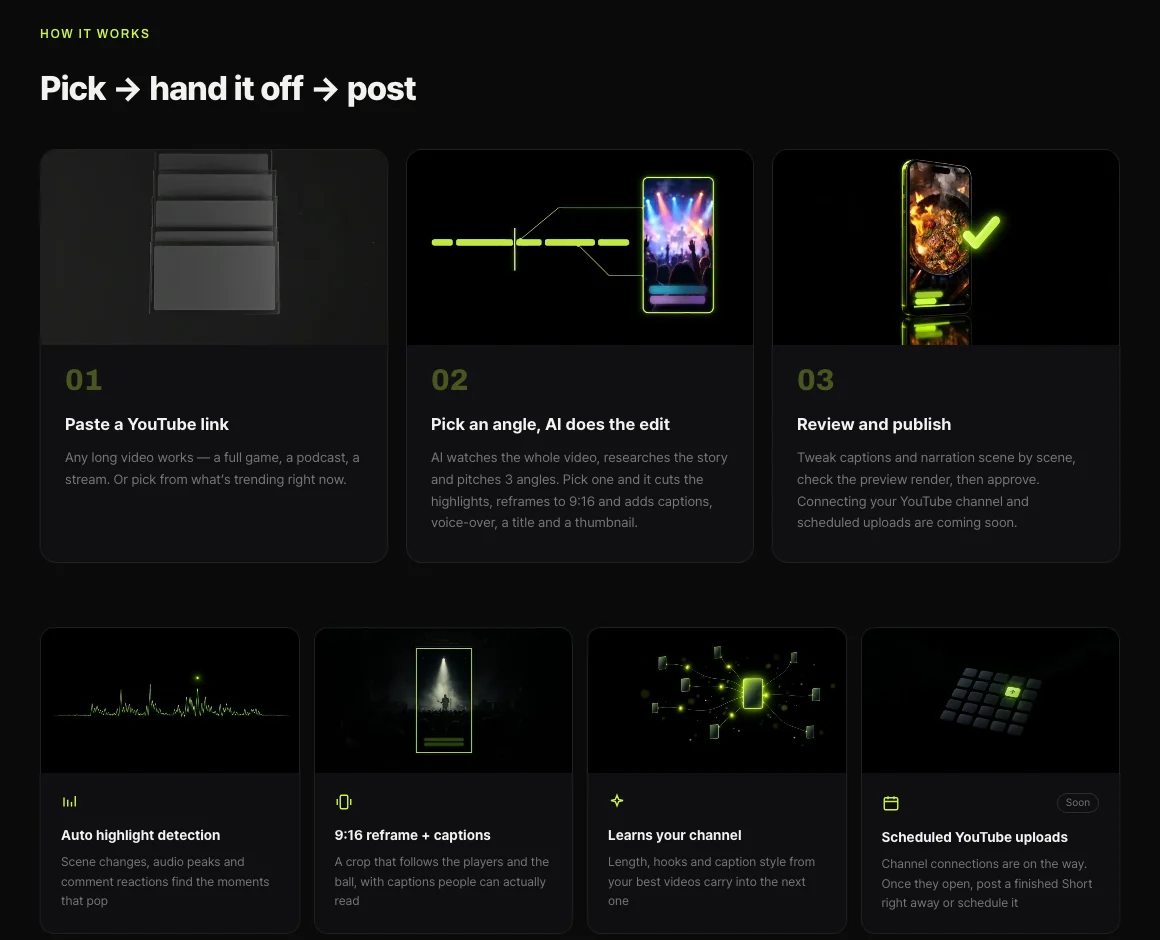
Remix is built for using a few seconds of someone else’s video with credit. It isn’t designed for rebuilding a whole long video into a 30–60 second Short with a story. For your own long videos or Creative Commons (CC BY) footage, a tool that watches the entire source and chooses scenes is more efficient. Shortsmith analyzes the full video, suggests three story angles, and produces a finished Short with scenes, captions and voice-over for the angle you pick.
The workflow is simple: paste a link, pick an angle, and review the result before posting. When the source belongs to someone else and you don’t have rights to it, quote it briefly with YouTube’s remix tools or get the creator’s permission instead.
FAQ
Are remixes safe from copyright claims?
Remixing allowed videos with YouTube’s tools is the official route and links the original. Pasting content in with outside editors isn’t a remix and can be claimed by Content ID.
How long can a cut be?
A cut takes a 1–5 second segment with audio and picture. Music video audio can be used for up to 90 seconds, and some for 30.
Can I turn off remixing for my Shorts?
Yes. In Studio, open the video, click Show more and change Shorts remixing. Opting out of audio remixing too requires Content Manager access.
Why don’t I see a Remix button?
The video may be private, remixing may be limited by its creator, or it may be claimed by a copyright owner. Updating the app can also help.
What happens if the original is deleted?
Video remixes are removed; audio remixes are muted, made unlisted and deleted after 30 days. Views still count toward lifetime totals.
Can I remix on a computer?
Creating remixes is a YouTube mobile app feature. The remix permission setting is changed in YouTube Studio on a computer.
Sources
- Create YouTube Shorts with remixed content — YouTube Help · checked
- Create YouTube Shorts with remixed content (Korean) — YouTube Help · checked