Putting comments into Shorts: replies, top comments and masking names (October 2026)
Shortsmith team · Updated
Comments make good material for Shorts. The YouTube app lets you reply to comments posted on your channel with a Short; the commenter is notified, and your Short appears in the feed below the original comment. Showing the source video’s top comments on screen lets viewers see other people’s reactions alongside the video, which tends to draw comments that agree or push back.
We checked YouTube Help’s “Reply to comments with your YouTube Shorts” and “Review & reply to comments” on October 19, 2026, and explain Shortsmith’s YouTube comment overlay and name masking.
Two ways to use comments in Shorts
| Method | How | Best for |
|---|---|---|
| Reply with a Short (YouTube app) | Comment → Reply → Shorts icon; the comment becomes a sticker | Answering questions and requests |
| Reply later from saved comments | Save a comment → Shorts camera → Comments → saved comment | Collecting things to answer, then filming |
| Show top comments on screen (Shortsmith) | Top comments by likes appear one by one under the video | Showing reactions when clipping long videos |
Reply to a comment with a Short, in the YouTube app
In the YouTube app, go to the watch page of your Short or video, tap Reply on the comment, then tap the Shorts icon; the Shorts creation screen opens with the comment as a sticker. From the Shorts camera you can also tap More → Comments to pick a comment sticker. If you can’t answer right away, save the comment and pick it later from the comments list in the Shorts camera.
The commenter is notified, and your Short appears in the feed below their comment. Shorts that answer questions tend to invite more requests, which makes them a good way to collect ideas for your next videos.
Why showing top comments helps
The same scene lands differently when a comment like “I’ve rewatched this part so many times” appears with it; viewers pay closer attention, because someone else’s reaction signals that this is the moment to watch. Comments that express an opinion also make it easier for viewers to leave their own, agreeing or disagreeing.
Comments shouldn’t cover the video, though. Keep them low on the screen, away from key action and captions, and show one at a time. If comment text is too small or changes too fast it won’t be read, so let each one stay for a few seconds.
Masking commenter names
Comments are public, but their authors may not want their names appearing in someone else’s video, especially when you put a critical comment on screen. Partly masking the name keeps the reaction while reducing the burden on the person who wrote it.
Skip comments with profanity, personal information or attacks on a specific person, however many likes they have. A comment on screen becomes part of your video, so content that breaks YouTube’s Community Guidelines makes your video the problem.
Finding your next Short in the comments
Comments on your videos are a list of ideas for your next Shorts. Requests like “Explain this part in more detail” or “I want to see this player’s other games” become your next topic, and replying to that comment with a Short notifies the person who asked, giving you a first viewer.
YouTube’s comments view can filter by response status, such as unresponded comments, which makes it easy to find comments to answer. Heart or pin good comments; a pinned comment appears at the top of the comments on the video’s watch page.
If the same question keeps coming up, it can be your Short’s first line. Open with “I get asked this a lot in the comments,” and viewers who wondered the same thing will stay. When choosing comments to show or answer, leave out the following.
- Comments with profanity or hate speech
- Comments containing personal information like phone numbers or addresses
- Comments attacking a specific person
- Comments that spoil the ending for other viewers
Videos that suit comment overlays, and ones that don’t
Showing the source’s top comments suits videos many people watched and reacted to: game highlights, a viral performance, a scene from a variety show, where comments say “chills right here” or “lost count of how many times I’ve watched.” There, comments add to the fun.
Informational videos, or videos with hardly any comments, are cleaner without them. Comments unrelated to the scene or about old events can confuse viewers. Shortsmith lets you turn the comment overlay on or off per video.
Shorts with comments on screen tend to collect new comments too. Heart or pin good new reactions, and answer questions with your next Short to keep the conversation going.
The comment overlay is a supporting device. If comments become the star instead of the footage, viewers end up reading rather than watching. Let the scene speak, and let comments confirm the reaction once more.
Shortsmith’s YouTube comment overlay
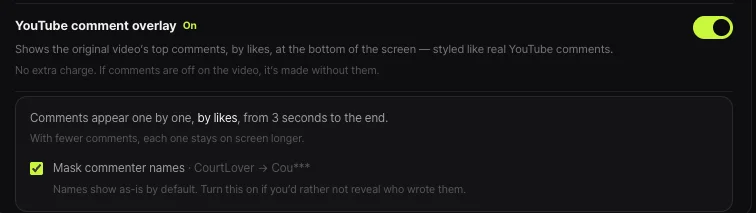
Shortsmith takes the source video’s top YouTube comments by likes and shows them at the bottom of the screen, styled like real YouTube comments. Comments appear one by one from three seconds to the end; with fewer comments, each stays on screen longer. The source channel owner’s own comments are left out, and if comments are off on the source, the video is made without them. There’s no extra charge.
Turn on “Mask commenter names” and “CourtLover” shows as “Cou***.” Use it when revealing who wrote a comment might be uncomfortable.
FAQ
Can I reply with a Short to comments on other people’s videos?
YouTube’s help page describes replying to comments posted on your channel. The commenter is notified and your Short shows below their comment.
Can I make comment-reply Shorts on a computer?
YouTube describes it in the mobile app’s Shorts camera. Use the app to add the comment sticker.
What about commenter names shown on screen?
For sensitive topics, partly mask them. Shortsmith’s “Mask commenter names” shows names like “Cou***.”
Does the comment overlay cost extra credits?
No. If comments are off on the source video, it’s made without them.
Which comments work best?
Ones reacting to the scene or giving an opinion. Skip profanity, personal information and attacks on specific people, however many likes they have.
Do comments cover the video?
Shortsmith shows them one at a time below the video, and each stays longer when there are fewer comments.
Where do pinned comments appear?
At the top of the comments on the video’s watch page. You can pin when viewing comments for a single video.
Sources
- Reply to comments with your YouTube Shorts — YouTube Help · checked
- Review & reply to comments — YouTube Help · checked