Switching to an Instagram professional account and connecting it to post Reels (October 2026)
Shortsmith team · Updated
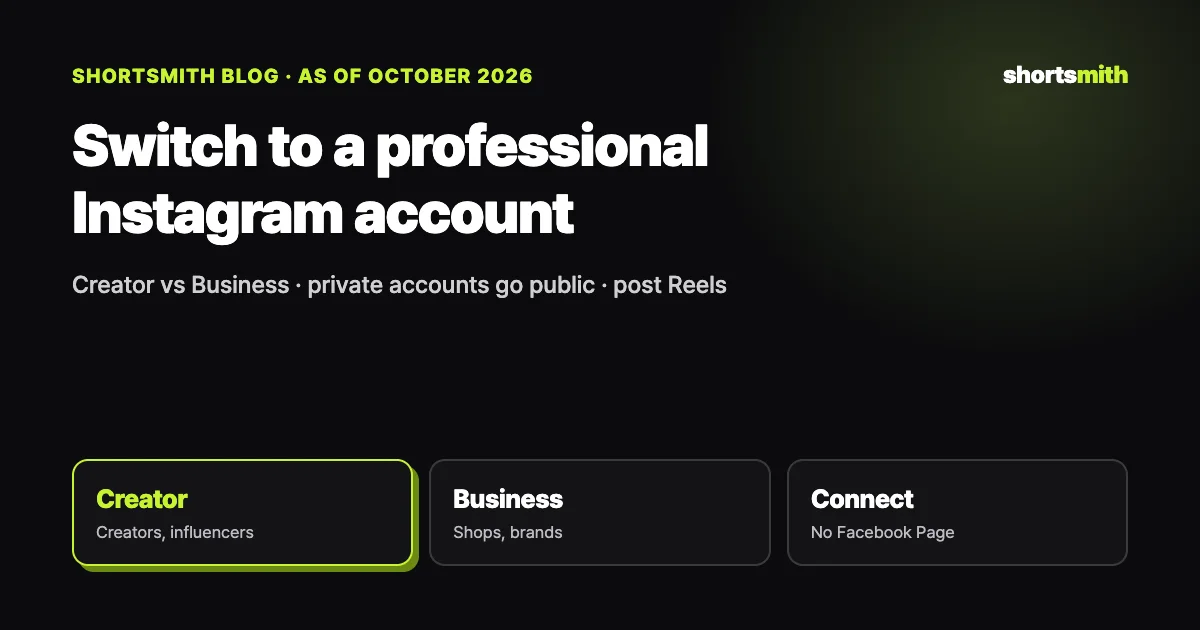
To post Reels directly from an outside tool such as Shortsmith, your Instagram account needs to be a professional account, either Creator or Business, because Meta’s content publishing feature works only with professional accounts. In the Instagram app it takes a few taps under Settings and activity → Account type and tools → Switch to professional account, and you can switch back to personal any time. A private account becomes public when you switch, though.
We checked Instagram Help Center’s “Set up a professional Instagram account,” Meta for Developers’ “Content Publishing” and Instagram’s “Reel size & aspect ratios” on October 22, 2026.
Creator vs. Business at a glance
| Item | Creator account | Business account |
|---|---|---|
| Best for | Public figures, content producers, artists, influencers | Retailers, local businesses, brands, organizations, service providers |
| Shared features | Insights, ads, monetization tools, message management | Same |
| Posting from outside tools | Yes (professional account) | Yes (professional account) |
| Private accounts | Become public when you switch | Same |
| Switching back | To personal any time | Same |
Creator or Business: which to choose
Instagram recommends Business accounts for retailers, local businesses, brands, organizations and service providers, and Creator accounts for public figures, content producers, artists and influencers. Most individuals making Shorts and Reels fit Creator. Both let you track growth with insights, create ads, check eligibility for monetization tools and manage messages.
The category you pick during the switch doesn’t decide whether you get a Creator or Business account; it’s just a label describing what you do, and you choose the type in a separate step. You can change the type later or go back to a personal account.
How to switch to a professional account
In the Instagram app, tap your profile in the bottom right → More in the top right (Settings and activity) → Account type and tools under For professionals → Switch to professional account. Pick a category that describes what you do, choose Creator or Business and tap Next. Adding contact details and connecting a Facebook Page are optional steps you can skip.
On instagram.com, go to More → Settings → Account type and tools → Switch to professional account. When you’re done, the professional dashboard shows insights, lets you create ads and shows your eligibility for monetization tools.
Private accounts go public
If your personal account was private, it becomes public the moment you switch, and all pending follow requests are accepted automatically. Clean up anything that shouldn’t be public before switching.
What to know when posting from outside tools
Publishing images, videos or Reels through Meta’s content publishing feature requires an Instagram professional account. Each account can publish up to 100 posts through it within a 24-hour moving period, and a carousel counts as one. Posting a few Shorts a day won’t come near that.
Reels can be anywhere from 1.91:1 to 9:16, with at least 30 fps and 720 pixels. The recommended cover photo size is 420 × 654 pixels (1:1.55), and you can’t edit the cover after posting, so check it first. A Short made at 9:16, 1080 × 1920, goes up as a Reel as-is.
If connecting doesn’t work
The most common reason is that the account is still personal. Check that your profile’s account type changed to Creator or Business, and if you just switched, close the Instagram app and try connecting again. If you use several accounts, make sure you signed in to the right one in the connect window; Instagram lets you be logged in to up to 10 accounts at once.
Tapping Cancel on the permission screen leaves the account unconnected; the publishing permission must be allowed for a tool to post Reels. To disconnect, remove the account from the tool’s connected accounts list, and to reconnect, sign in the same way and allow publishing again.
What changes after switching
A professional account gets a professional dashboard with insights on posts and Reels. Numbers like how many accounts a Reel reached help you choose the topic and opening shot for the next one. The dashboard also shows whether you can create ads and use monetization tools.
You can choose whether your profile shows a category label and contact details. Individual creators often hide contact details and show only the category. Change it any time under Public business information in Edit profile.
If you switch back to personal, you lose access to ads and may lose some tools. To keep posting Reels from outside tools, stay on a professional account.
Connecting Instagram to Shortsmith
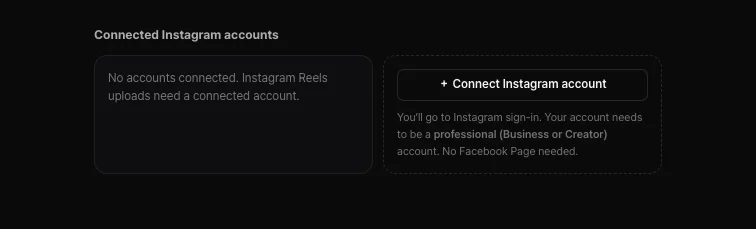
In Shortsmith’s Upload & schedule view, click Connect Instagram account to go to Instagram sign-in. Your account needs to be professional (Business or Creator), and no Facebook Page is needed. Shortsmith requests only two permissions, basic info and content publishing, and doesn’t ask for comment or message access.
Once connected, you can post finished Shorts as Reels right away. YouTube supports scheduled uploads, but Instagram Reels currently support posting right away only. Only workspace Editors and above can connect accounts, and the connection refreshes automatically so you don’t have to sign in each time.
FAQ
Does a professional account cost money?
No. It’s free, and you can switch back to a personal account any time.
Creator or Business?
Creator for individual Shorts and Reels channels; Business for shops, brands and organizations. Both can connect to outside tools.
Will my private account stay private?
No. Switching to professional makes it public and accepts pending follow requests automatically.
Do I need a Facebook Page?
Connecting a Page is optional when switching, and Shortsmith doesn’t need one.
How many posts can I publish a day?
Up to 100 posts per account in a 24-hour period through Meta’s publishing feature.
Can Shortsmith schedule Reels?
Not yet; Reels post right away. Scheduling is YouTube only.
It says no professional account was found.
Your account is still personal. Switch it to Creator or Business in the Instagram app and connect again.
Sources
- Set up a professional Instagram account — Instagram Help Center · checked
- Content Publishing — Meta for Developers · checked
- Reel size & aspect ratios on Instagram — Instagram Help Center · checked