Horizontal video to vertical Shorts and Reels: three ways to reframe (October 2026)
Shortsmith team · Updated
There are three main ways to turn a horizontal (16:9) video into a vertical Short: crop the center to fill the vertical frame, place the whole horizontal frame in the middle of a vertical canvas with a title above and captions below, or fill the space above and below with a blurred background. YouTube only treats square or vertical videos as Shorts, so a horizontal source has to go through one of these.
We checked YouTube Help’s “Upload YouTube Shorts” and Instagram Help Center’s “Reel size & aspect ratios on Instagram” on October 19, 2026, and explain how Shortsmith places horizontal sources on a 1080×1920 vertical frame.
Platform ratios and three methods, at a glance
| Item | Details | Source / notes |
|---|---|---|
| YouTube Shorts | Square or vertical, up to 3 minutes | Upload YouTube Shorts |
| Instagram Reels | 1.91:1 to 9:16, at least 30 fps and 720 pixels | Reel size & aspect ratios |
| Center crop | Fills the screen but cuts off the sides | One person centered in frame |
| Centered frame | Whole source visible; title and captions above and below | Groups, sports, screen recordings |
| Blurred fill | Top and bottom filled with an enlarged, blurred copy | How YouTube’s clips tool does it |
Center crop: full screen, at a cost
Cutting a 9:16 frame out of 16:9 keeps only about a third of the original width. For an interview where one person stays in the middle, a full-screen frame feels immersive. But in a conversation between two people facing each other, or a game where the ball crosses the screen, the important part gets cut off.
If you crop, the crop position has to move scene by scene: toward whoever is talking, or following the ball. Doing that by hand takes a lot of time, and automatic tracking can follow the wrong thing in fast scenes.
Centered frame: show everything, use the space above and below
Placing the horizontal frame as-is in the middle of the vertical canvas loses nothing from the source. It leaves space above and below, and that space is useful: put a title that frames the whole video on top, and captions and comments below, so you add information without covering the action.
On Shorts, the like and comment buttons sit on the right and the channel name and title text overlap the bottom. A centered frame keeps the source action clear of those too. Zooming the source in slightly makes the bands thinner so the screen looks less empty.
Blurred fill: the easiest, but carries no information
You can also fill the space above and below with an enlarged, blurred copy of the video. YouTube Studio’s Clips & Shorts tool does this when it makes a Short from a horizontal source. It takes the least effort, but the extra space carries no information.
Instagram Reels accept anything from 1.91:1 to 9:16, so you can post a horizontal video as-is. In a vertical feed, though, it takes up only part of the screen, so if a video is also going to Reels, make it 9:16 vertical from the start.
Placing text on a vertical frame
Think of a vertical frame in three bands: the title that frames the whole video on top, the source footage in the middle, and captions and comments at the bottom. Keep the title in the same place throughout and let captions change with the speech, so viewers’ eyes rest in one place. Text should be readable with the phone held at arm’s length.
Avoid the very top edge and the very bottom. The top of a phone screen shows the clock, battery and app menus, and the bottom overlaps the channel name, title text and music info. The like, comment and share buttons on the lower right also hide text easily. Keeping text within a central vertical band is safest.
If you post the same video to Shorts, Reels and TikTok, remember their buttons sit in slightly different places. Grouping text conservatively toward the center lets one video go to all three with little hidden.
Source quality and zoom
Center cropping enlarges only part of the source, so quality drops easily. Crop a 1080p horizontal source to vertical and output 1080×1920, and you’re stretching a roughly 600-pixel-wide slice almost two times. A high-resolution source such as 4K helps if you crop.
A centered frame fits the source’s full width to the screen width, so quality loss is small; a slight zoom stays sharp even from 1080p. If the source is a blurry 720p or lower, zoom less and fill the screen with the title and captions instead.
Sources with lots of small text, like screen recordings or game footage, especially benefit from a centered frame. Cropping cuts text off or blows it up until it breaks, making on-screen information hard to follow. Mixing in occasional zoomed-in shots of the part that matters solves the small-text problem.
How Shortsmith lays out the vertical frame
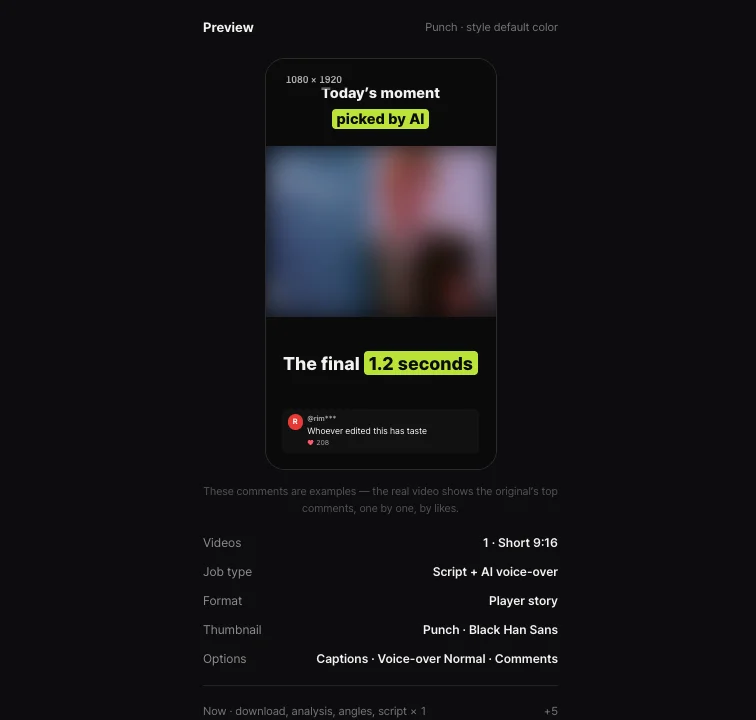
Shortsmith places a horizontal source slightly zoomed in the middle of a 1080×1920 frame, with an on-screen title such as “Today’s moment picked by AI” on top and captions and the source’s top comments below. The source action stays clear of the buttons and title text, and your caption style template’s color and look carry into the title and captions.
In the editor you can move and resize the video and captions yourself. For an interview with one person centered, enlarge the video to fill more of the screen; for sports where the whole frame matters, keep the original size. Decide per video.
FAQ
What happens if I upload a horizontal video as a Short?
YouTube asks for a square or vertical aspect ratio for Shorts. A horizontal video goes up as a regular video, not a Short.
What resolution should Shorts be?
1080×1920 vertical 9:16 is the most common. Instagram Reels need at least 720 pixels and 30 fps.
Crop or centered frame?
Crop for an interview with one person centered; use a centered frame when the whole picture matters, as with groups, sports or screen recordings.
The black bands look awkward.
Put the on-screen title and captions in them and they become information space. Zooming the source in a little makes them thinner.
Can Reels be horizontal?
Reels accept 1.91:1 to 9:16, but horizontal videos look small in a vertical feed, so 9:16 is better.
Can I change the video size in Shortsmith?
Yes. Move and resize the video and captions in the editor.
Do I need an on-screen title?
With a centered frame, a one-line question about the whole video is better than empty space on top. Viewers start knowing what to watch for.
Sources
- Upload YouTube Shorts — YouTube Help · checked
- Reel size & aspect ratios on Instagram — Instagram Help Center · checked
- Video clips & Shorts — YouTube Help · checked