YouTube Premiere tips and live chat tools — schedule 24 hours ahead, pin messages, polls, Q&A and moderation (November 2026)
Shortsmith team · Updated
For Premieres and live streams, what you do in chat shapes the experience as much as the video. YouTube Help covers prep before the start, the chat tools and moderation separately.
This post summarizes YouTube Help’s “YouTube premiere tips” and “Use Live Chat during your live stream or Premiere” as read on November 8, 2026.
Build anticipation before the start
- Schedule a Premiere at least 24 hours ahead so its thumbnail can show in subscription feeds worldwide.
- The custom thumbnail appears on the Premiere landing page, so choose it carefully and add curiosity-building text to the description.
- Even before it starts there is a watch page and URL; promote it in posts, social media and pinned comments.
- Encourage viewers to use Notify me. Reminders go out 30 minutes before and at the start.
- Customize with a countdown theme, monetization and a trailer (see the earlier Premiere post for trailer rules).
Watching together in chat
The help page points out that Super Chat and Super Stickers work on pre-recorded content, so channels that do not stream can still test a new revenue source through Premieres.
- Turn on live chat to share the moment with your community; turn on chat replay so later viewers feel the atmosphere.
- Share behind-the-scenes details and fun facts, let fans guess the next scene and invite questions.
- Greet and thank viewers who send Super Chat or Super Stickers or join as members.
- You can keep chatting for a short time after the Premiere ends.
Chat tools
When you end a Q&A, unanswered questions are removed from the list and the Q&A session is available in chat replay.
| Tool | How | Note |
|---|---|---|
| Pin a message | More on a chat message, then Pin | One at a time, creator only, shown below Super Chat |
| Live poll | Create poll at the bottom of the chat window | End it and see results from the banner at the top of chat |
| Live Q&A | More, then Start Q&A, then add a message | Pick from the question list to pin it at the top of chat |
| Reactions | Live control room, Stream, Edit, Customization, Reactions | Turn on or off any time during the stream |
| Embed chat | Use an iframe on your own site | Not possible on mobile web |
Moderate chat safely
- Chat reviewers: add people to help moderate the live stream.
- Keyword blocking: block chat containing words you choose.
- Slow mode: limit how often viewers can post.
- Chat bots: use third-party tools such as Nightbot.
- As in the help page example, naming your most active channel members as live chat moderators helps keep conversation going.
Give moderation to people you trust
Moderators can clean up chat. For streams involving young creators, the help pages advise naming a trusted adult as a moderator.
Videos where chat is limited
Rather than using every chat tool, pick the one or two that suit this video: Q&A when you expect questions, a poll when opinions split, and keyword blocking and slow mode when many viewers arrive. The help pages stress handing moderation to people you trust.
- Made-for-kids videos and live streams have live chat, chat replay and Super Chat disabled.
- Live streams with only under-16s may be removed or have live chat disabled.
- Without monetization eligibility you cannot use Super Chat or Super Stickers; check eligibility in the help pages.
Connecting this to Shorts scheduling
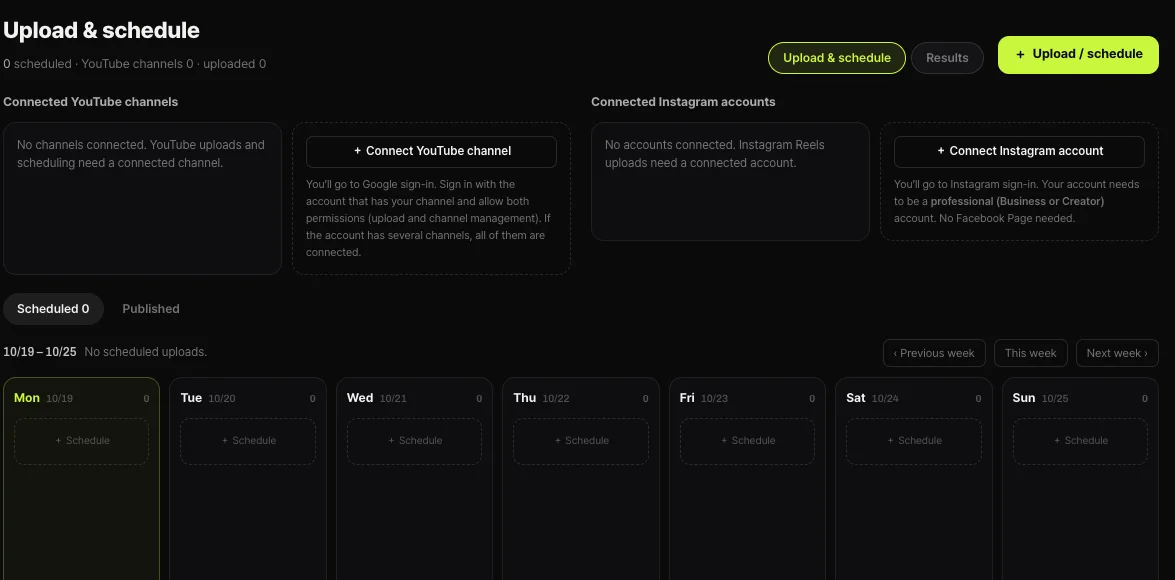
The “schedule 24 hours ahead” idea for Premieres is a useful habit for Shorts too. Shortsmith’s Upload and schedule screen adds schedules to a weekly calendar, which helps you plan a week. The Premiere settings themselves are done in Studio.
Checklist
An eight-line list for preparing chat before a Premiere or live stream. Pick only what each video needs.
- Schedule a Premiere 24 hours or more ahead so its thumbnail can show in subscription feeds.
- Viewers with reminders are notified 30 minutes before and at the start.
- Turning on chat replay lets later viewers feel the atmosphere.
- Pin one message at a time, creator only, shown below Super Chat.
- Create a poll at the bottom of chat and end it from the top banner.
- For Q&A pick from the question list to pin it at the top of chat.
- Reactions are toggled in the live control room; chat embedding does not work on mobile web.
- Manage chat with keyword blocking, slow mode, reviewers and chat bots.
How to check whether the help pages have changed
YouTube Help updates its documents whenever a feature changes, and translations lag by language, so the Korean and English versions can differ slightly. The figures and conditions here come from pages read on November 8, 2026 and may have changed since.
Before making an important decision, open the original links under Sources and compare them with what you see now. Eligibility rules, time limits and numeric caps change most often. If a menu name looks different, look for a similar item in the same place; if it is missing, the feature may not be enabled for your account yet. Statements about Shortsmith reflect its screens and code as of November 2026.
FAQ
When should I schedule a Premiere?
At least 24 hours ahead so the thumbnail can appear in subscription feeds worldwide.
How many messages can I pin?
One at a time; pinning another replaces it. Only the creator can pin.
How do I end a Q&A?
Select End Q&A at the top of chat; unanswered questions are removed from the list.
Can I embed chat on mobile web?
No. Live chat cannot be embedded on mobile web.
How can I limit unwanted chat?
Use keyword blocking, slow mode and chat reviewers.
Sources
- YouTube premiere tips — YouTube Help · checked
- Use Live Chat during your live stream or Premiere — YouTube Help · checked
- Avoid restrictions on YouTube live streaming — YouTube Help · checked