Create a YouTube Premiere — upload, schedule, countdown, trailer and monetization (November 2026)
Shortsmith team · Updated
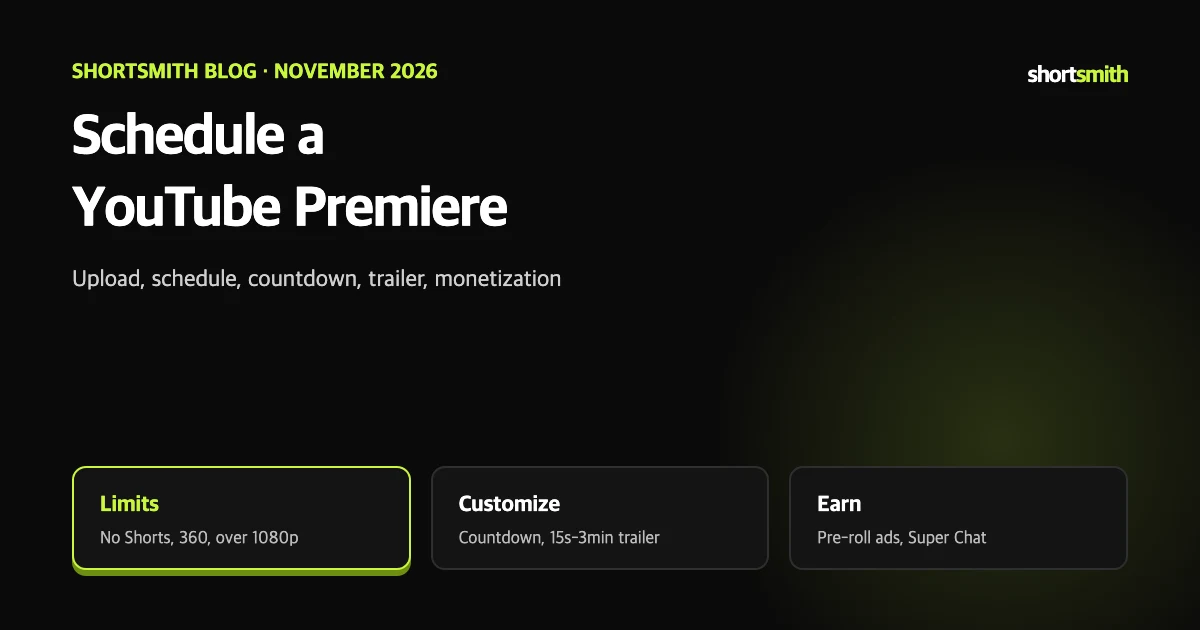
Instead of publishing quietly the moment an upload finishes, a Premiere gets viewers into the same watch page at the same time. The watch page opens before the start so you can share its link, and viewers can set a reminder and chat while the video plays.
This post summarizes YouTube Help’s “Premiere a new video” and “Customize your Premiere” as read on November 8, 2026. Menu names follow the help pages and may change.
Check the requirements first
If your channel is Shorts-first, a Premiere may not fit. It is a feature for long-form uploads; for Shorts, scheduling an upload is the better tool.
| Item | Requirement | Note |
|---|---|---|
| Video type | Shorts cannot be set as a Premiere | Upload Shorts normally or schedule them |
| Resolution | 360/VR180 and output above 1080p are not supported | Export 4K sources at 1080p or lower |
| Account status | A Community Guidelines strike blocks publishing during the penalty period | The video goes private for that period; reschedule afterward |
| Where viewers watch | Computer, iPhone, iPad, Android, mobile web | You can also pick it in the app’s visibility step |
Steps
Creating a Premiere makes a public watch page right away. It can appear across YouTube — Search, Home, Suggested — like any upload, so you can share the link on social media before the start.
- Sign in to YouTube Studio and select Create, then Upload videos.
- Choose the video and fill in the details such as title and description.
- To go live right away, choose Save or publish, then Public, then Set as instant Premiere. The Premiere starts once processing finishes.
- To go live later, select Schedule, enter a date and time, and choose Set as Premiere.
- To change the countdown theme and length, select Premiere settings.
- Select Done or Schedule.
What happens before, during and after
- Before: anyone can open the watch page, set a reminder, leave a comment and, if enabled, send Super Chat in chat. A trailer you added plays there.
- At start time: the countdown theme begins at the scheduled time and, when it ends, viewers watch together. Viewers can rewind.
- Afterward: the video stays on your channel like a normal upload without the countdown, chat is available as chat replay, and views earned during the Premiere carry over to the video.
Reminder timing
Viewers who set a reminder are notified 30 minutes before the Premiere and again when it starts.
Customize the countdown and trailer
Pick the countdown theme and length from the dropdowns in the Premiere settings pop-up. To show a trailer, upload it to your channel as usual, then in the visibility step of the Premiere video open Premiere settings and choose Add under Add trailer.
| Trailer requirement | Details |
|---|---|
| Eligibility | More than 1,000 subscribers and no Community Guidelines strikes |
| Length | 15 seconds to 3 minutes |
| Aspect ratio and resolution | Same as the Premiere is recommended |
| Copyright and policy | Must not infringe other content or violate the guidelines |
| Previously premiered video | Cannot be used as a trailer |
Monetizing a Premiere
If your channel is not yet monetized, treat a Premiere as a way to build a shared-viewing moment rather than revenue.
- Ads: if your channel is eligible for ad revenue, you can turn on pre-roll ads during the Premiere. Mid-roll and post-roll ads are not available during the premiere itself.
- After it ends: ads follow your channel’s upload defaults.
- Super Chat and Super Stickers: viewers can use them in chat before and during the Premiere.
- Channel memberships: eligible channels can offer perks such as members-only chat.
Small ways to gather viewers
Unlike a normal upload, a Premiere is about a shared appointment. That makes the start time, notifications and chat preparation matter as much as the video itself. The help pages also stress that your most engaged fans tend to watch, and suggest adding a routine only fans will recognize.
- The watch page exists before the start, so share its link on social media.
- Leave a comment or chat message on the watch page to nudge viewers to set a reminder.
- You can set the Premiere video as your channel trailer; changing the channel layout is covered in the channel home tab post.
- Send viewers from a live stream to a Premiere to build anticipation, or use Live Redirect to bring viewers to your live stream.
- Scheduling at least 24 hours ahead can put the thumbnail in subscription feeds.
A note for Shortsmith users
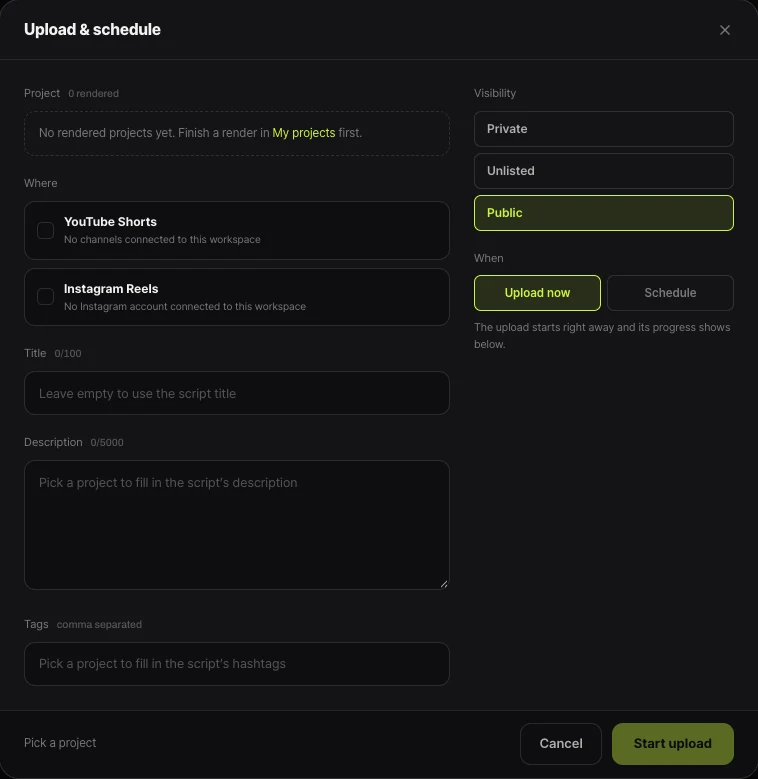
If you make a landscape long-form video (16:9) in Shortsmith and want to premiere it, download it and upload it in Studio with the steps above. Shortsmith’s Upload and schedule window handles Shorts (vertical) and Reels, so Premiere settings are not in it; fill in the title and description there and set the Premiere in Studio.
At a glance
A Premiere is about when and how you gather viewers. Rechecking these points before you upload prevents most setup mistakes.
- Shorts cannot be premiered, and neither can 360/VR180 or output above 1080p.
- In the visibility step choose Schedule, then Set as Premiere.
- A public watch page opens before the start so you can share its link early.
- Change the countdown theme and length in Premiere settings.
- A trailer needs over 1,000 subscribers, no strikes and 15 seconds to 3 minutes.
- Only pre-roll ads run during it; Super Chat and memberships work in chat.
How to check whether the help pages have changed
YouTube Help updates its documents whenever a feature changes, and translations lag by language, so the Korean and English versions can differ slightly. The figures and conditions here come from pages read on November 8, 2026 and may have changed since.
Before making an important decision, open the original links under Sources and compare them with what you see now. Eligibility rules, time limits and numeric caps change most often. If a menu name looks different, look for a similar item in the same place; if it is missing, the feature may not be enabled for your account yet. Statements about Shortsmith reflect its screens and code as of November 2026.
FAQ
Can I premiere a Short?
No. Shorts cannot be set as Premieres.
Can a 4K video be premiered?
Output above 1080p and 360/VR180 are not supported, so export at 1080p or lower.
What happens to views during the Premiere?
Views that happen during the Premiere carry over to the video afterward.
What if I schedule one while under a strike?
It will not publish during the penalty period, goes private, and must be rescheduled afterward.
How long can a trailer be?
15 seconds to 3 minutes, with more than 1,000 subscribers and no guideline strikes.
Sources
- Premiere a new video — YouTube Help · checked
- Customize your Premiere — YouTube Help · checked
- YouTube premiere tips — YouTube Help · checked