Shaping the Home tab for first-time visitors: channel trailer, featured video and section layout (November 2026)
Shortsmith team · Updated
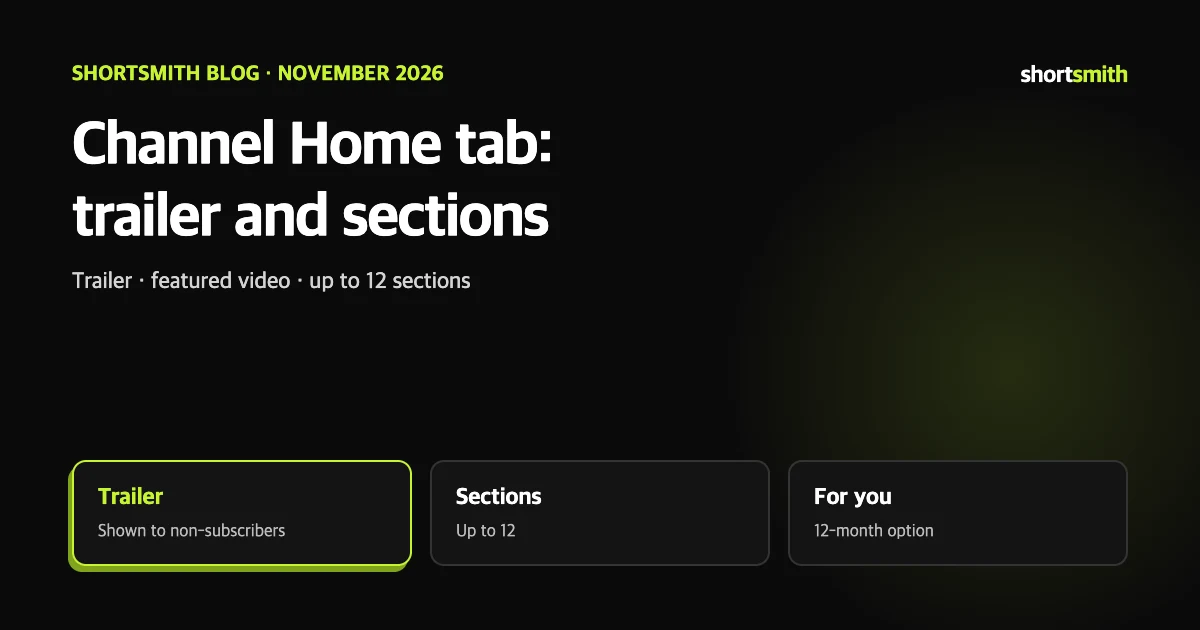
Many creators keep uploading while leaving the channel page in its default state. Yet what a first-time visitor sees on the Home tab often decides whether they subscribe. YouTube lets you set one video for people who have never subscribed, another for subscribers who return, and sections that group your videos.
This guide is based on the YouTube Help pages “Customize your YouTube channel layout” and “Channel customization”, read on November 3, 2026. Profile settings such as name and picture are covered in the previous guide; here we look only at Home tab layout.
What you can set on the Home tab
A channel trailer carries no ads by default unless the video contains content with a third-party claim. A viewer who has seen the trailer will not see it again, and the same goes for a featured video.
| Element | Shown to | Key point |
|---|---|---|
| Channel trailer | Non-subscribers | A preview video about your channel; by default no ads run on it |
| Featured video | Returning subscribers | Highlights one of your videos or another YouTube video |
| Custom sections | Everyone | Up to 12; the default four are Shorts, Uploads, Created playlists and Subscriptions |
| For you section | Varies by viewer | Personalized from what the viewer has watched |
| Popular community clips | Everyone | Popular clips sorted by popularity and recency |
Turn on the Home tab and pick a trailer
To pick a video for returning subscribers, use Add section in the same place and choose Featured video. It can be your own video or another one on YouTube. A natural split is to use the trailer to explain what your channel is about to someone new, and the featured video for the newest release you most want to show. That split is our suggestion.
- Sign in to YouTube Studio and choose Customization, then Home tab, from the left menu.
- Switch the Home tab toggle on. In the Studio app, edit your profile and use the same toggle under Home tab.
- Under Layout choose Add section, then Channel trailer, and pick the video.
- Click Publish.
Creating, editing and reordering sections
Add section lets you choose the kind of content: For you, Videos (videos, Shorts and live streams), Playlists, Memberships, Channels, Popular community clips, Effects and Posts. A Memberships section only makes sense on a channel with memberships turned on, and a Channels section can show subscriptions or featured channels.
To edit, hover over a section, choose Options, change the contents and publish. To reorder, press and hold the vertical bar beside a section and drag it. You can have up to 12 custom sections, and the default layout shows four filled with public content: Shorts, Uploads, Created playlists and Subscriptions. Put the group you most want seen at the top.
The For you section differs by viewer
The For you section shows each visitor tailored content based on what they have watched, so the same channel looks different to different people. You can choose which content types appear and limit it to content published in the last 12 months. That option helps a channel whose old videos make the Home tab feel stale.
To add it use Add section, For you; to edit, open More settings on the section; to delete, use the three-dot menu and Delete section. In the Studio app, a For you toggle under Home tab turns it on and off.
One way to lay out a Shorts channel
- Top: a channel trailer that explains your topic in one video.
- Next: playlist sections per series, so a new visitor has a reason to keep watching.
- Middle: a Shorts section showing the latest uploads.
- Bottom: optional elements such as memberships or posts.
This is our suggestion
It is not a YouTube template. Only the section types and the limit come from Help; arrange the rest to suit your channel.
If you use Shortsmith
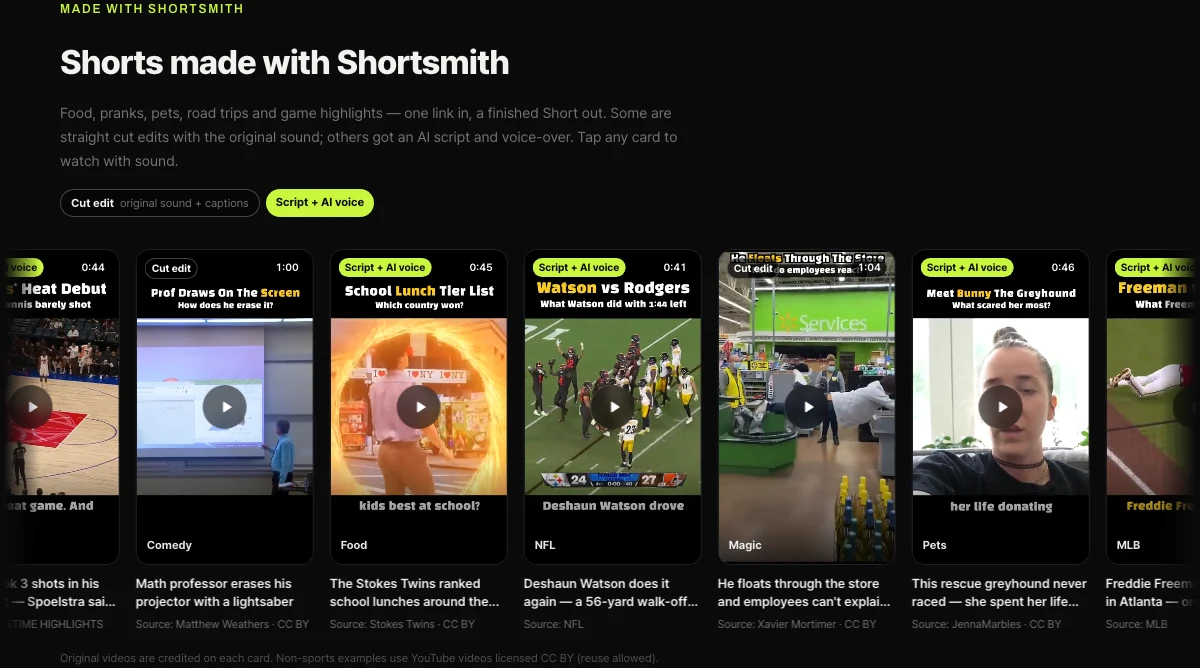
Shortsmith makes videos and posts them to your connected channel; it has no feature for changing the Home tab layout. Trailers, sections and playlists are all set in YouTube Studio. The Shortsmith home page has a strip of Shorts made with it, grouped by genre, which can serve as a reference when you think about what to group on your own channel page.
FAQ
Who sees the channel trailer?
Viewers who are not subscribed. Someone who has watched it will not see it again.
How many sections can I add?
Up to 12 custom sections. The default layout shows Shorts, Uploads, Created playlists and Subscriptions.
Old videos show up in For you.
In the For you settings you can limit the section to content published in the last 12 months.
Do ads run on the trailer?
By default no, unless the video contains content with a third-party claim.
How do I reorder sections?
In the Studio Home tab, press and hold the vertical bar beside a section, drag it, then publish.
Can I decorate the Home tab in Shortsmith?
No. Trailers and sections are set in YouTube Studio.
Sources
- Customize your YouTube channel layout — YouTube Help · checked
- Channel customization — YouTube Help · checked