Group your Shorts series into playlists — how to create and manage them in Studio, limits when a playlist is Shorts-only, and playlist analytics (October 2026)
Shortsmith team · Updated
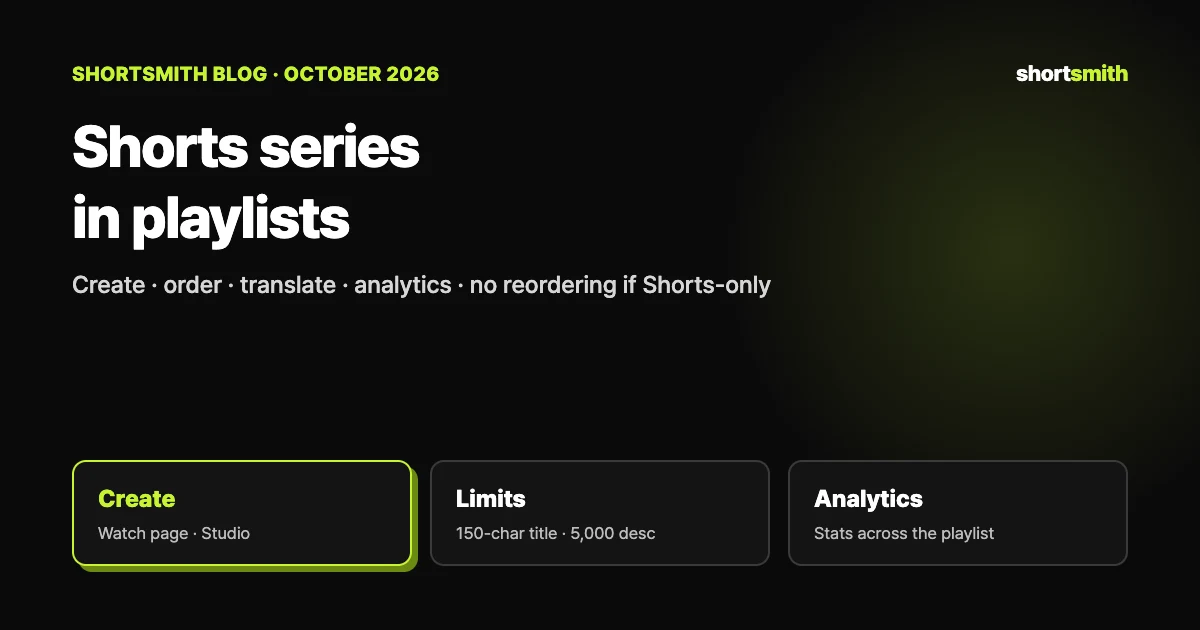
A playlist is a collection of videos. It can hold Shorts and long videos together, anyone can create and share one, and friends can add videos to yours. If you post a lot of Shorts, a playlist per series or topic is where organizing starts. There are two ways to make one: use the Save button on the watch page, or use “New playlist” in YouTube Studio, where you can set a title and description from the start.
This guide is based on YouTube Help’s “Create & manage playlists”, “Manage playlists in YouTube Studio” and “Upload YouTube videos”, checked on October 29, 2026. YouTube doesn’t say that playlists raise views, so this guide sticks to organizing and managing them.
Two ways to create one — the watch page and Studio
When you create one from the watch page and set it to private, only you can see it. The upload flow also has a “Playlist” item under Details, where YouTube says you can add the video to an existing playlist or create one.
| Method | Steps | When it’s handy |
|---|---|---|
| From a Short or video watch page | Open the Short’s watch page → More → Save → Create new playlist → enter a name → choose privacy → Create | When you want to start quickly from a Short you’re looking at |
| In YouTube Studio | CREATE (top right) → New playlist → enter a title and description → choose visibility and how videos are arranged → ADD VIDEOS → CREATE | When you want the title, description and order set properly from the start |
Title and description limits, and the daily limit
- A playlist title can be up to 150 characters and a description up to 5,000 characters.
- Titles and descriptions can’t include invalid characters such as “<”, “>” or the line separator.
- There’s a limit to how many public playlists a channel can create each day across YouTube Music, the main YouTube app and the YouTube API. Gaining access to advanced features can raise it.
- If a video’s or channel’s audience is “made for kids” and you’re on a homepage, you can’t add it to a playlist. You can still add content from search results.
Managing playlists in Studio
To change the title or description, click Details on the same Playlists tab, edit and Save. When you have many playlists, type keywords into the filter bar to find one by title.
- Sign in to YouTube Studio, choose Content in the left menu and open the Playlists tab.
- Hover over the playlist description you want to update and choose Edit on YouTube from the menu; the playlist opens in a new tab.
- Drag videos up and down to reorder, use Share in the playlist details to share it, and use More → Collaborate to add collaborators.
- To add videos, open the video’s details and choose More → Add videos; you can add from search, a URL or your library.
Limits when a playlist contains only Shorts
There’s a constraint to know about with Shorts-only playlists. YouTube says reordering (dragging videos) and temporarily reordering from the watch page’s playlist panel aren’t available for playlists that only contain YouTube Shorts. If the order of a series matters, you can plan the order you post in, or mix in a long video (that last part is our reading).
Inside a playlist you can filter by type with the All, Shorts and Videos chips, but the Shorts chip is available on computers only.
Deleting it removes it from analytics too
After you delete a playlist, its URL and title are no longer visible or searchable in YouTube Analytics. Data such as watch time stays in broader reports but isn’t attributed to the deleted playlist. The old playlist may continue to exist in viewers’ watch histories.
Adding translations and viewing analytics
Advanced features such as translations may require a one-time verification first. For each playlist you can open the Overview, Content, Audience and Revenue tabs to see insights aggregated across every video in it, which is handy for comparing how a series performs.
- In Studio’s Content → Playlists tab, open the playlist’s Details and click Languages in the left menu.
- Under “Set language”, choose the playlist’s default language.
- Click Add language on the right, choose a language, enter the translated title and description, and click Update.
Turning a playlist into a podcast
For long conversational content, you can also designate an existing playlist as a podcast. In Studio’s Content → Playlists, open the playlist’s menu, choose “Set as podcast”, review the title, description and who can view it, add a square podcast thumbnail and click DONE. To undo it, go to Content → Podcasts and choose “Set as playlist”.
A checklist for running a series playlist
These are our own suggestions for using the settings above, not rules from YouTube.
- Put the series name and the topic together in the title, within the 150-character limit
- Use the first line of the description to say in one sentence what the series is
- Create it as private first, check the order and contents, then switch it to public
- Compare how each series performs in the playlist analytics
- Make sure no made-for-kids videos have been mixed in
Posting a series with Shortsmith
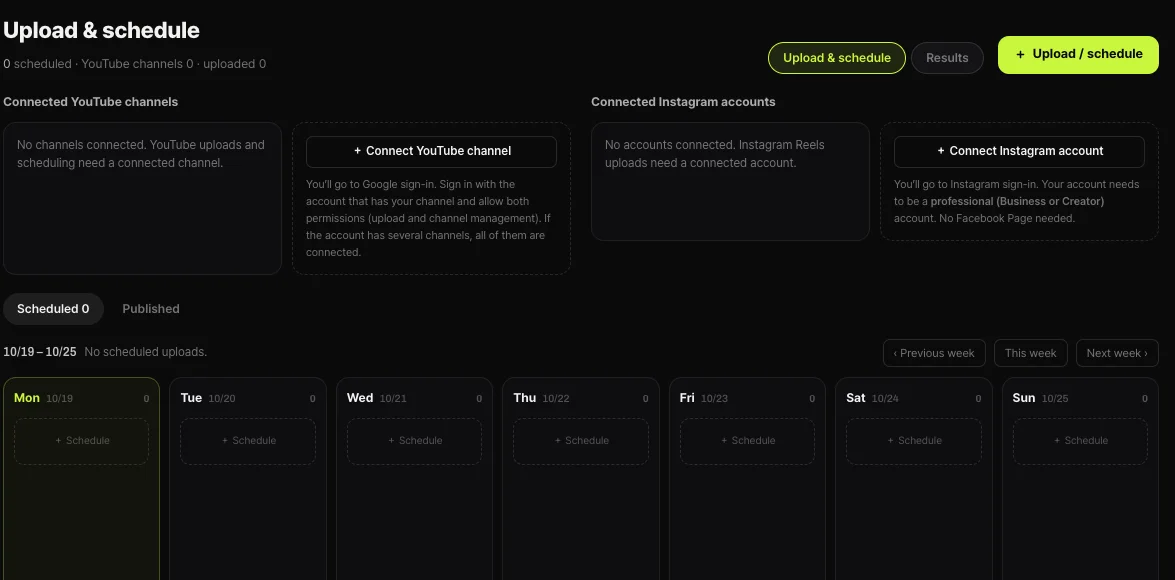
Shortsmith’s Upload & schedule window has no field for choosing a playlist. After the video is up, add it to a playlist with Save on the watch page or in Studio. Shortsmith’s schedule posts at the chosen time with the chosen visibility, so tidy up once you see it has gone live.
For planning a series, making several Shorts at once in Shortsmith and spreading them across the week fits well. The weekly calendar shows which episode goes out on which day, so keeping the playlist order in step with your posting order keeps things easy to manage.
FAQ
Can a playlist hold Shorts?
Yes. Use More → Save on a Short’s watch page to create a new playlist or add it to an existing one, and you can mix it with long videos.
Can I reorder a Shorts-only playlist?
No. YouTube says reordering isn’t available for playlists that only contain YouTube Shorts.
How long can a playlist title and description be?
A title can be up to 150 characters and a description up to 5,000 characters, and characters such as “<” and “>” aren’t allowed.
What happens to analytics if I delete a playlist?
Its URL and title disappear from analytics and can’t be searched. Data such as watch time stays in broader reports but isn’t attributed to the deleted playlist.
How many playlists can I create per day?
YouTube only says there’s a daily limit on public playlists and doesn’t give a number; access to advanced features can raise it.
Can I choose a playlist in Shortsmith’s upload window?
There’s no such field. After the video is up, add it with Save on the watch page or in YouTube Studio.
Sources
- Create & manage playlists — YouTube Help · checked
- Manage playlists in YouTube Studio — YouTube Help · checked
- Upload YouTube videos — YouTube Help · checked