YouTube comment moderation settings explained — the four review levels, blocked words, hidden users and link blocking (October 2026)
Shortsmith team · Updated
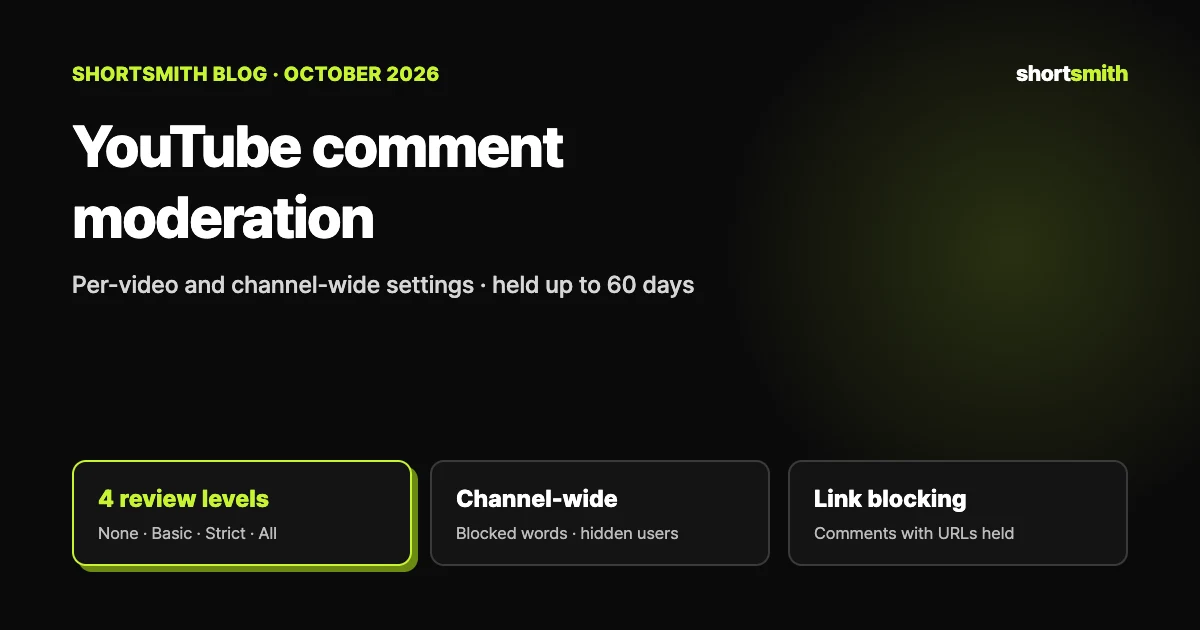
YouTube comment settings work on two layers. Per video, you turn comments on, pause them or turn them off, and choose how many comments are held (None, Basic, Strict or Hold all). Channel-wide, you set hidden users, approved users, blocked words and blocking of comments with links. Held comments stay in YouTube Studio for up to 60 days and aren’t public unless you approve them.
This guide is based on YouTube Help’s “Learn about comment settings”, “Choose comment settings”, “Manage your channel’s moderation settings” and “Hide or unhide users on your channel”, checked on October 29, 2026. Comments on Shorts can arrive all at once when a video takes off, so it’s easier to decide your settings before you post.
At a glance — per video and channel-wide
| Setting | Applies to | What it does |
|---|---|---|
| On, Pause, Off | Each video | Accept comments, stop only new comments, or block them entirely |
| Comment moderation (None, Basic, Strict, Hold all) | Each video | Chooses which comments are held before they appear |
| Subscribers and members only | Each video (not available channel-wide) | Limits who can comment to subscribers and paid members |
| Hidden users | Whole channel | Hides a specific commenter’s comments across all your videos |
| Approved users | Whole channel | Publishes their comments without filtering |
| Blocked words | Whole channel | Holds comments containing or closely matching your words and phrases |
| Block comments with links | Whole channel | Holds comments that contain URLs for review |
Per-video settings — On, Pause or Off
- On: you receive comments, and you can choose how many are held or limit commenting to subscribers and members.
- Pause: existing comments stay, but no new ones arrive until you turn comments back on. YouTube suggests this when a sudden surge needs time to review.
- Off: viewers can’t comment and see a message that comments are turned off. Existing comments can’t be seen on the watch page or in Studio, but they reappear if you turn comments back on.
Made-for-kids and private videos can’t be changed
If a channel’s or video’s audience is “made for kids”, comments are turned off and you can’t change the settings. You also can’t change comment settings on a private video, so YouTube says to post an unlisted video if you want comments on one that isn’t public. Supervised accounts can’t change them either.
The four review levels — None, Basic, Strict, Hold all
Held comments are kept in YouTube Studio for up to 60 days and aren’t public unless you approve them, and review is available in over 100 languages. YouTube says Basic and Strict use AI to detect comments that should be held, so they may not always get it right. You can ignore, remove or approve what shows up, and send feedback while reviewing in Studio.
| Level | What is held |
|---|---|
| None | Nothing is held |
| Basic | Potentially inappropriate comments (spam, self-promotion, gibberish or potentially inappropriate) |
| Strict | A broader range of potentially inappropriate comments |
| Hold all | Every comment |
Letting only subscribers and members comment
After turning comments on, choose “Subscribers and members” under “Who can comment” to limit commenters to subscribers and paid members. You can also set a minimum subscription time: Any duration, 1 hour, 1 day or 1 week. This isn’t available channel-wide, so it has to be set per video, and YouTube points to bulk edits to apply it to several videos at once.
Four channel-wide tools — hide, approve, block words, block links
| Setting | What it does | Good to know |
|---|---|---|
| Hidden users | Their comments (and live chat messages and community posts) don’t appear on your channel | They aren’t notified, their earlier comments are hidden too, they don’t show in Studio’s Comments page so you can’t review them, and they can’t create clips of your videos or live streams |
| Approved users | Their comments are published automatically and skip blocked links, blocked words and inappropriate-content filters | In live commentary participant mode they can also send live chat messages |
| Blocked words | Comments containing or closely matching your terms may be held for up to 60 days, and matching live chat messages are blocked | Separate terms with commas; approved users are exempt; review them in the “Held” tab of the Comments page; blocked words can’t be used in clips either |
| Block comments with links | Comments with URLs (and hashtags) are held for review | Comments from you, moderators and approved users aren’t blocked; review them in the “Held” tab within 60 days |
You can’t apply them to just one video
Hidden users, blocked words and link blocking automatically apply to all videos and to your channel homepage. There’s no way to block words, links or users on one specific video only.
The order to set things up
Changes apply to future comments. Existing comments are only affected in two cases: when you turn comments off on a video, and when you hide a user. To unhide someone, delete them from the Hidden users list.
- Per video: in YouTube Studio choose Content → click the video’s thumbnail → scroll and click Show more → under “Comments and ratings” choose your comment settings → Save.
- Channel defaults: choose Settings → Community → Moderation (content management) to set comments on new videos and posts, live chat, community posts, blocked words and link text in one place, then Save. Defaults apply to new uploads only.
- Hiding a user: copy the user’s channel URL, go to Settings → Community → User management, paste it into the “Hidden users” box under Automated filters and Save. You can also use More → Hide user from channel next to a comment.
- Reviewing held comments: open the “Held” tab on Studio’s Comments page.
A first setup for a Shorts channel — example combinations
This table is our own suggestion for combining the settings YouTube offers. There’s no single right answer, so adjust it to your channel’s tone and the amount of review you can handle.
| Situation | A combination to try | Why |
|---|---|---|
| A new channel with few comments | Review “Basic” plus a few blocked words | Filters spam and self-promotion with little review work |
| One video suddenly takes off and comments flood in | Pause or “Hold all” on that video only | Buys time to review, then turn comments back on |
| The same person keeps harassing you | Add them to “Hidden users” | Hides them across all videos without notifying them |
| Frequent link spam | Block comments with links | Holds only comments with links; add regulars as approved users |
| An established community | Subscribers and members only plus a minimum subscription time | Cuts down on pile-ons from brand-new accounts |
When you post with Shortsmith
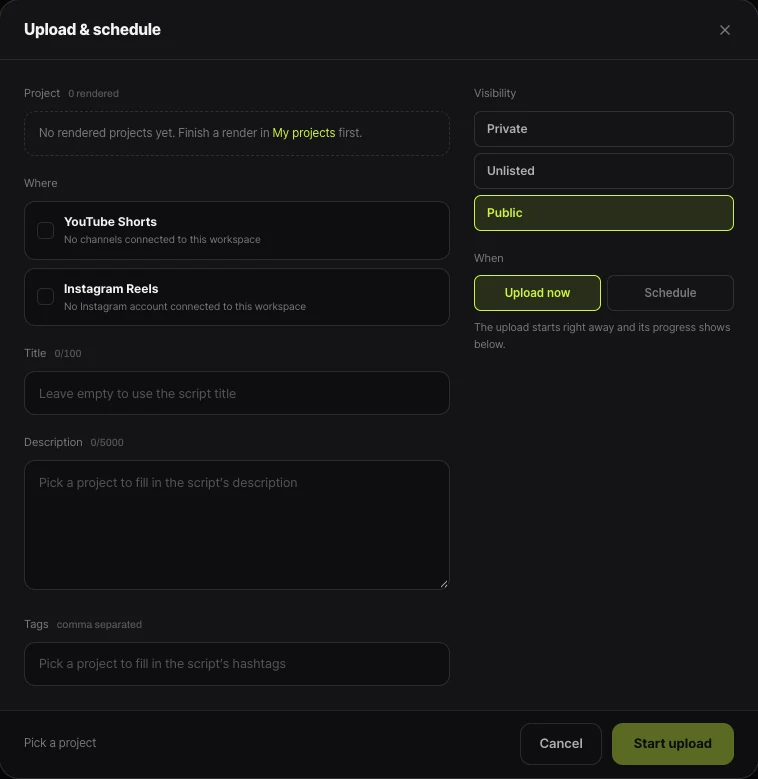
Shortsmith’s Upload & schedule window has fields for title, description, tags, visibility and upload time, but no comment settings. Set comments per video in YouTube Studio after you post, or set your channel defaults beforehand. YouTube says defaults apply to new uploads, so check once after posting that the video’s comment setting is what you intended.
Separate from showing other people’s comments in your video
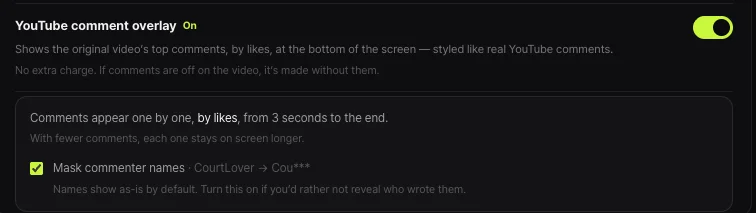
Shortsmith has a production option called “YouTube comment overlay”. It shows the original video’s top comments by likes at the bottom of the screen, one by one from 3 seconds to the end, with an option to mask commenter names. That is an on-screen element inside the finished video, and it doesn’t interact with your own channel’s comment moderation settings described above.
FAQ
What’s the difference between Basic and Strict review?
Basic holds spam, self-promotion, gibberish and potentially inappropriate comments; Strict holds a broader range of potentially inappropriate comments. Both use AI, so they aren’t always right.
How long are held comments kept?
Up to 60 days in YouTube Studio, and they aren’t public unless you approve them. Review them in the “Held” tab on the Comments page.
Can I block words or users on just one video?
No. Hidden users, blocked words and link blocking automatically apply to all videos and your channel homepage.
Does a hidden user get notified?
No. Their earlier comments are hidden from your videos too, and hidden users can’t create clips of your videos or live streams.
If I turn comments off and on again, do old comments come back?
Yes. Existing comments are hidden while comments are off and reappear when you turn them back on.
Can I set comment settings in Shortsmith’s upload window?
There’s no such field. Set them per video in YouTube Studio after posting, or set your channel defaults beforehand.
Sources
- Learn about comment settings — YouTube Help · checked
- Choose comment settings — YouTube Help · checked
- Manage your channel’s moderation settings — YouTube Help · checked
- Hide or unhide users on your channel — YouTube Help · checked