Deciding how others can use your videos — standard license vs CC BY, embedding, distribution, and changing many videos at once (October 2026)
Shortsmith team · Updated
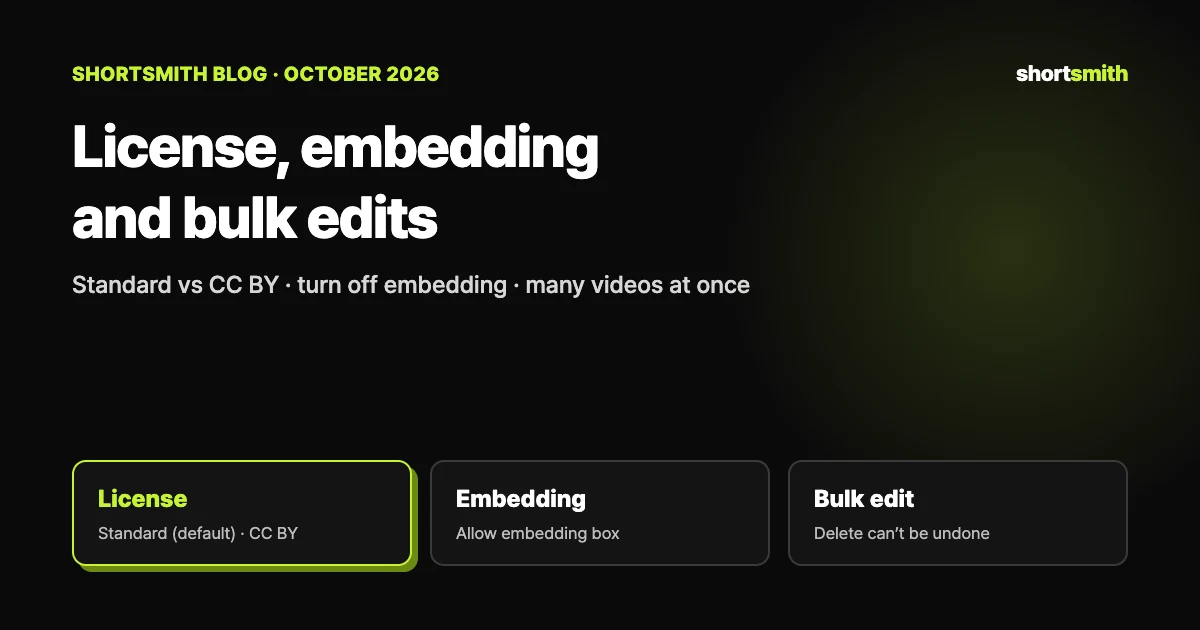
Videos you upload get the standard YouTube license by default, and if your content can be licensed under CC BY — your own work, for example — you can switch to the Creative Commons Attribution (CC BY) license. With CC BY, other creators can reuse your video under that license’s terms. Add embedding on other sites, the distribution setting partners can choose, and bulk edits that change many videos at once, and you can manage how far your videos can travel from one place.
This guide is based on YouTube Help’s “License types on YouTube”, “Embed videos & playlists”, “Change video distribution” and “Make bulk changes to videos”, checked on October 29, 2026. Licensing is a legal matter, so ask a professional if you’re unsure.
The two licenses compared
| Item | Standard YouTube license | Creative Commons Attribution (CC BY) |
|---|---|---|
| Default | Applied to every upload by default | You have to choose it |
| What it means | The terms in YouTube’s Terms of Service apply | Other creators can reuse your video under the CC BY terms |
| Content you can use it on | Any video | When all content in the video can be licensed under CC BY: your original content, content released under CC BY, and public domain content |
| When you can’t | Not applicable | When the video has a Content ID claim |
| Duty of the reuser | The Terms of Service | Give credit (attribution) |
Adding CC BY — and using someone else’s CC BY work
When you use someone else’s CC BY video, you have to credit it. YouTube says to include the title of the work, its author, its source (URL) and license information (for example “licensed under CC BY”) in your video or description, and a text overlay or voice-over can work too. Whether you can monetize CC BY content depends on whether the license agreement gives you commercial rights, and some owners ask for a mention of the creator or proof of purchase. YouTube can’t grant you permission to use others’ content or help you find who can.
- During upload: on a computer choose Create → Upload videos in Studio, pick the file, click Show more at the bottom of the Details page and choose “Creative Commons - Attribution” from the License drop-down.
- After upload: in Studio choose Content → click the video’s title or thumbnail → Show more under Details → pick the same option under License.
Embedding — putting your video on other sites, and blocking it
- To embed: on a video or playlist choose Share → Embed, copy the HTML code and paste it into your website.
- To block it: in Studio choose Content → Details next to the video → Show more, uncheck “Allow embedding” and save, so others can’t embed your video on outside sites.
- Privacy-enhanced mode: change the embed address from youtube.com to youtube-nocookie.com so views in the embedded player aren’t used to personalize the viewer’s YouTube experience and ads aren’t personalized.
- Autoplay, start time and captions: add “&autoplay=1”, “?start=seconds” and “&cc_load_policy=1” (with “&cc_lang_pref=language code” to pick a caption language) to the address.
- Age-restricted videos won’t play on most third-party sites and send viewers to YouTube. If you embed on a website or app made for kids, you must designate the site or app using the tool.
- If an embedded player shows “Error 153”, the HTTP referrer is missing; embedded players only work inside an embedding environment.
Distribution — monetization partners only
The distribution setting lets you choose whether a video is available on all platforms or only on monetized platforms, and only monetization partners can change it. In Studio, pick the video under Content, open Show more and choose under “License and distribution”, then save. Monetized platforms include the YouTube website and apps, the YouTube app on TVs and m.youtube.com on most smartphones, while “all platforms” adds things like older apps and feature-phone environments.
For a video with a claim, the claimant’s distribution settings apply instead of yours, and the same goes for a video that includes claimed music.
Changing many videos at once — bulk edit
- In YouTube Studio, select Content from the left menu.
- Check the boxes next to the videos you want to edit.
- Select Edit and choose the type of change.
- Enter the details and select Update videos.
| Kind | Fields you can change in bulk |
|---|---|
| Content | Title, description, tags, category, video language, recording date |
| Visibility and reactions | Visibility, comments, user ratings, audience, automatic chapters, caption certificate |
| Money and distribution | Monetization, ad settings |
| Usage | Embedding, license, Shorts sampling |
Bulk deletion can’t be undone
To delete several videos or drafts at once, choose More actions → Delete forever and check the box acknowledging it’s permanent. A deleted video can’t be recovered through YouTube, so save a backup first if you want to watch it later.
How far Shortsmith uploads can travel
Shortsmith’s Upload & schedule window has no license or embedding field. If you don’t set one at upload, assume YouTube’s default — the standard YouTube license — applies, and if you want something else, change it per video in Studio after posting, or use a bulk edit for several at once.
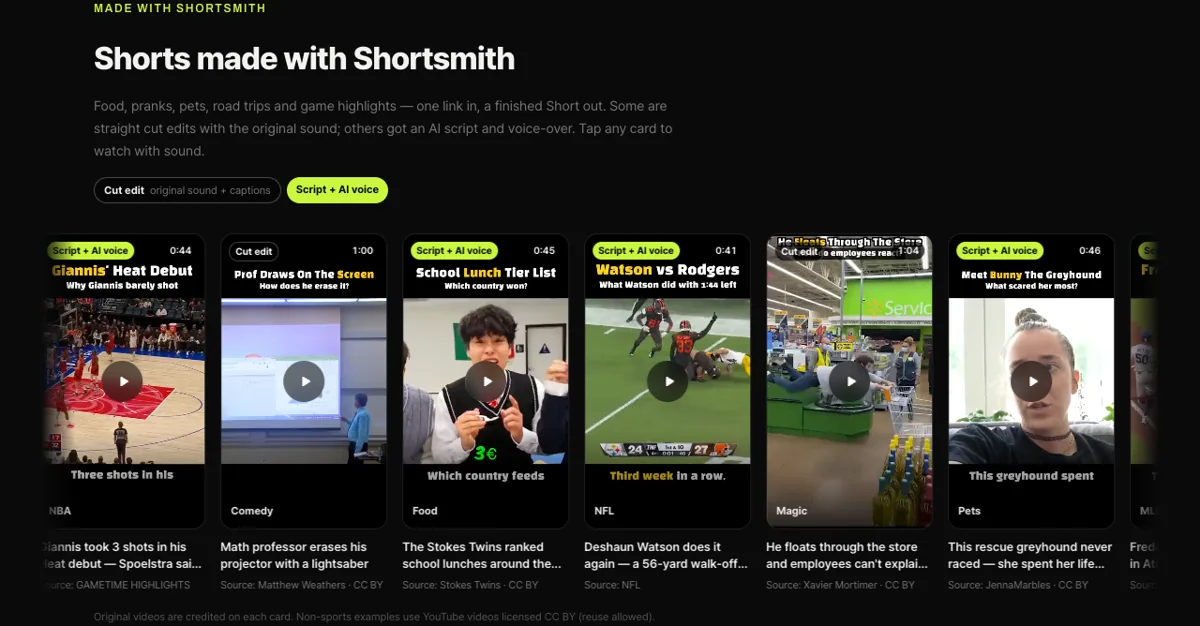
CC BY can only be added when all content in the video can be licensed under it. For a Short built on someone else’s video, even with your commentary on top, first work out whether it’s right to put CC BY on the whole video, and if the source is a reusable (CC BY) video, keep the credit in the video or description. The example cards on Shortsmith’s home page credit the creator and license on each card.
FAQ
What is the default license on YouTube?
The standard YouTube license. It applies to every upload by default and its terms are in YouTube’s Terms of Service.
What kind of video can use CC BY?
One where all content can be licensed under CC BY: your own content, content released under CC BY, or public domain content. It can’t be added if the video has a Content ID claim.
How do I stop others embedding my video?
In Studio choose Content → Details next to the video → Show more, uncheck “Allow embedding” and save.
Can anyone change the distribution setting?
No. Only monetization partners can, and for a video with a claim the claimant’s distribution settings apply.
Can I recover videos I bulk deleted?
No. They’re permanently deleted and can’t be recovered through YouTube, so save a backup first.
Can I set a license in Shortsmith’s upload window?
There’s no such field. Change it per video in YouTube Studio after posting, or with a bulk edit.
Sources
- License types on YouTube — YouTube Help · checked
- Embed videos & playlists — YouTube Help · checked
- Change video distribution — YouTube Help · checked
- Make bulk changes to videos — YouTube Help · checked