Hide your YouTube channel for now or delete it for good — what gets hidden, what disappears, and what to check before deleting (November 2026)
Shortsmith team · Updated
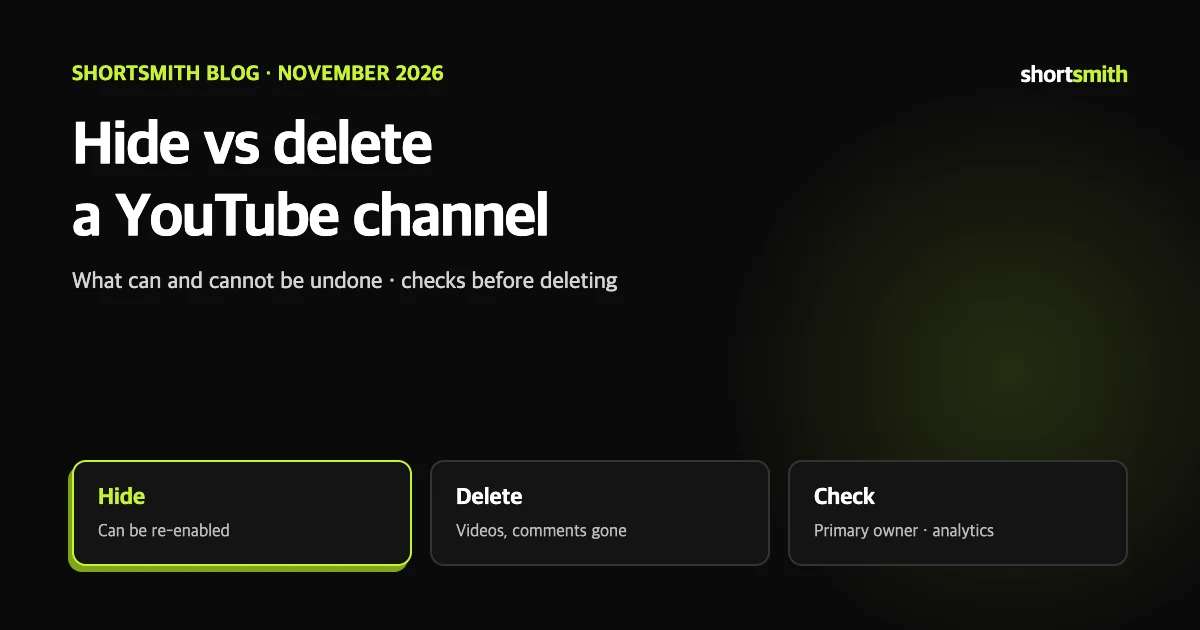
There are many reasons to wind a channel down. You might be changing direction and clearing out, or taking a break and only want it off the screen. YouTube separates the two clearly. "Hide" is a temporary measure you can reverse later, and "Delete" permanently erases the content. Both start from the same menu but the results are very different, so learn the difference before you choose.
This post is based on the YouTube Help page "Delete or hide your YouTube channel" (Korean and English versions), checked on November 1, 2026. The most common mistake is deleting the whole channel when you only meant to tidy up videos, so it also covers hiding just the videos.
Hide and delete at a glance
| Item | Hide the channel | Delete permanently |
|---|---|---|
| Reversible? | Can be re-enabled later | Content permanently deleted; account recovery may be harder |
| Content | Channel name, videos, likes, subscriptions and subscribers become private | Videos, comments, messages, playlists and history deleted |
| View counts | May be inaccurate; up to a week to update after re-enabling | Not attributed to the deleted channel |
| Mobile | Done in Studio | Cannot currently delete a channel on mobile devices |
| Google Account | Unchanged | Unchanged (only the channel is deleted) |
The way in is the same
To make content viewable again, or to upload, comment or use playlists, you must re-enable the channel. The same page links to a Help page on re-enabling a channel, so if you choose to hide, note where that guidance is.
- Sign in to YouTube Studio and select "Settings" from the left sidebar.
- Select "Channel" → "Advanced settings" and choose "Remove YouTube content" at the bottom. You may be asked to sign in again.
- To hide, choose "I want to hide my channel", tick the boxes confirming what will be hidden, and select "Hide my channel".
- To delete, choose "I want to permanently delete my content", tick the boxes to confirm, and select "Delete my content".
What to check before you delete
- Deleting a channel permanently deletes videos, comments, messages, playlists and history. Download the originals you need first.
- YouTube itself warns that choosing permanent deletion may make it harder to recover your account.
- Deleting the primary owner account linked to the channel deletes the channel too. If you run it with a team, find out who the primary owner is first.
- Deletion removes only the YouTube channel, not the Google Account you sign in with. Deleting the whole account is a separate process.
- Deletion takes time, and in the short term your video thumbnails may keep showing on the site.
If you only want to tidy a few videos
You do not need to hide or delete the channel. Change those videos to private or delete them one by one. The differences between visibility settings are covered in the video visibility post.
What happens to analytics after deletion
After you delete a channel, its URL and name are no longer visible or searchable in YouTube Analytics. Data associated with the channel, such as watch time, stays in aggregate reports but is not attributed to the deleted channel.
For the same reason, if you may want to compare channel performance later, download the metrics you need before deleting. This is the author’s suggestion.
If you want to delete because of a hack or account trouble
If the channel was hacked, follow the recovery steps before deleting, because permanent deletion can make account recovery harder. The recovery steps and how to prevent a repeat are in the hacked channel post.
If you use Shortsmith
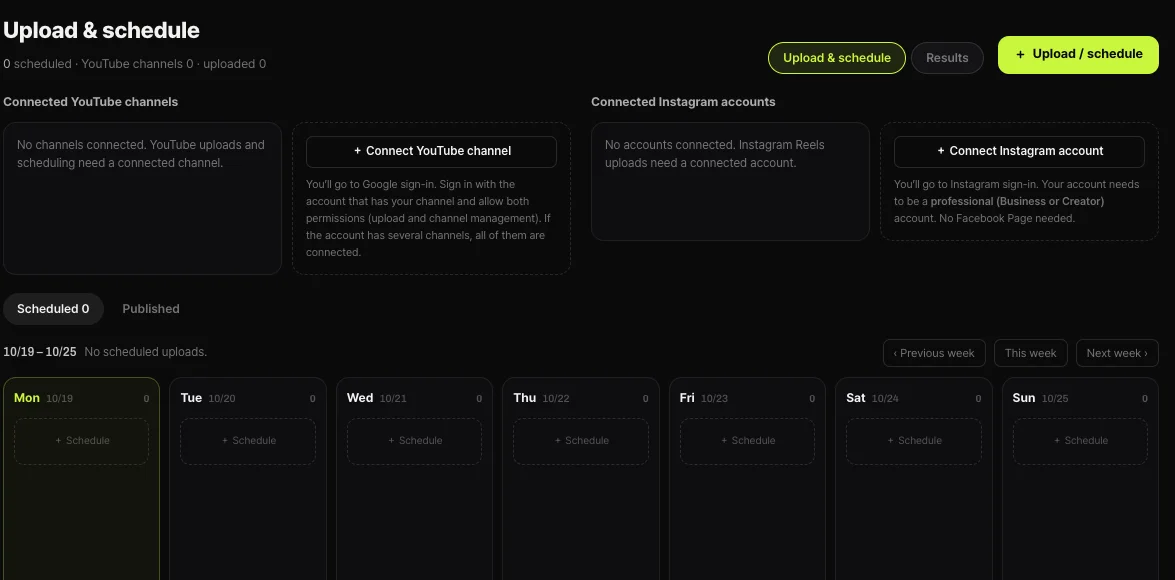
On Shortsmith’s Upload & Schedule screen each connected channel has a "Disconnect" button that cuts its link with Shortsmith. That removes only the Shortsmith connection; it does not hide or delete the YouTube channel. Shortsmith has no feature to hide or delete a channel, and hiding and deleting above are done in YouTube Studio.
The Help page says to re-enable the channel to upload, comment or use playlists, so while a channel is hidden you should not expect those to work. If you have scheduled uploads on a channel, clearing your schedule list before hiding is the safer order (the author’s suggestion). Starting over with a new channel is covered in the create a channel post.
FAQ
What becomes private when I hide my channel?
Channel name, videos, likes, subscriptions and subscribers become private. View counts may be inaccurate, and it can take up to a week for counts to update after you re-enable.
Does deleting a channel delete my Google Account?
No. Only the channel is deleted; the Google Account you sign in with is not. Deleting the whole account is a separate process.
Can I delete a channel on my phone?
You cannot currently delete a channel on mobile devices. Do it in Studio on a computer.
Why do my thumbnails still show after deletion?
Deletion takes some time, and in the short term thumbnails of your videos may continue to show on the site.
What happens if I delete the primary owner account?
Deleting the primary owner account linked to the channel deletes the channel too.
Does "Disconnect" in Shortsmith delete my YouTube channel?
No. It cuts only the Shortsmith connection. Hiding or deleting a channel is done in YouTube Studio only.
Sources
- Delete or hide your YouTube channel — YouTube Help · checked
- Recover your hacked YouTube channel — YouTube Help · checked