Add audio descriptions on YouTube — upload an accessibility narration track, replace it and what you need first (November 2026)
Shortsmith team · Updated
For viewers who have low vision or cannot see the screen, half of a video is information they cannot see. YouTube’s audio description is a narration track that fills natural pauses in the sound with a spoken account of what is happening on screen, so more people can follow the same video.
This post summarizes YouTube Help’s “Add audio descriptions” and “Add Multi-language features to your videos” as read on November 9, 2026. The feature is not open to every channel yet, and menu names follow the help pages.
What it is and who can use it
An audio description is a narration track that makes video content accessible. The help page says it describes what is happening on screen during natural pauses in the audio so the audience can better understand and follow along. Captions put what you hear into text; audio description puts what you see into sound.
Eligibility today is creators with access to advanced features. The multi-language audio help page also says creators with that access can upload audio description tracks in the same studio area. If you do not see a Languages item in the menu, the feature may not be enabled for your account yet.
Upload a new audio description
The “about the same length as the video” rule is the one people trip on. Even if you only speak in a few gaps, read it as: build a full-length file with silence everywhere else.
- Sign in to YouTube Studio on a computer.
- Select Languages in the left menu.
- Click the video you want to edit.
- Choose the language for the description audio.
- Next to Description audio, select Add.
- Select Choose file and pick the file. It must be a supported audio-only format and about the same length as the video.
- When it is ready, select Publish.
What must already be there
To add a description audio track you must already have uploaded an original audio track or a dubbed audio track in that language. A description track cannot be uploaded on its own.
Replace an uploaded track
Replacing means delete and upload again, not edit in place. If you changed the video and its length shifted, rebuild the description file for the new length; recording after the edit is final is the safer order.
- Sign in to YouTube Studio on a computer.
- Select Languages, then click the video to edit.
- Choose the language to replace and go to Description audio.
- Select Delete for that language.
- Repeat the upload steps above.
Tips when you make the track (the author’s suggestions)
- Avoid stretches with dialogue and speak briefly in the gaps; the help page also frames this around natural pauses.
- Describe scenes where on-screen text or expressions and actions matter most, since sound alone does not carry them.
- Record after the video is final. If the length changes you must rebuild the file.
- Take care of captions and translated titles and descriptions too. The help page points to captions and translations as the way to reach more viewers.
Suggestions, not requirements
These are the author’s working tips. What YouTube requires is a supported audio-only file of about the video’s length.
Using it alongside multi-language audio
According to the multi-language audio help page, the default audio track a viewer hears follows their preferred language from watch history and viewers can switch tracks in player settings. It also warns that a secondary track may be removed if copyrighted content in it differs from the original audio. Because description tracks are managed in the same Languages menu, you can see at a glance which tracks each language has when you prepare dubs and descriptions together.
Creators using multi-language audio can see views and watch time by audio language in YouTube Analytics. Checking where demand is and adding descriptions there first is one way to limit the workload.
For videos made in Shortsmith
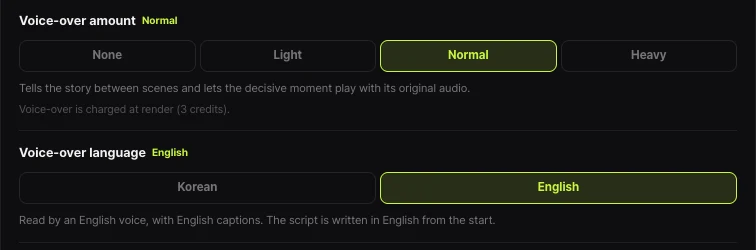
Shortsmith lets you pick Korean or English for narration and adds a voice that talks through the whole video. That narration is merged into the video; it is not a separately switchable “description audio” track like YouTube’s. So for a video that needs audio description, you upload the finished video and then build the description audio separately and add it in Studio under Languages.
Key points
Audio description turns on-screen information into sound, and uploading it is simple. Remember these seven lines and your first attempt goes smoothly.
- It is offered to creators with access to advanced features.
- In Studio: Languages, the video, the language, then Add next to Description audio.
- An original or dubbed audio track in that language must already be uploaded.
- The file is audio-only and about the same length as the video.
- To change it, Delete and upload again.
- If you edit the video and its length changes, rebuild the file.
- Captions and translated titles and descriptions widen your reach.
How to check whether the help pages have changed
YouTube Help updates its documents whenever a feature changes, and translations lag by language, so the Korean and English versions can differ slightly. The figures and conditions here come from pages read on November 9, 2026 and may have changed since.
Before making an important decision, open the original links under Sources and compare them with what you see now. Eligibility rules and numbers change most often. If a menu name looks different, look for a similar item in the same place; if it is missing, the feature may not be enabled for your account yet. Statements about Shortsmith reflect its screens and code as of November 2026.
FAQ
How is audio description different from captions?
Captions put what is heard into text; audio description tells what happens on screen through sound.
Can anyone use it?
For now it is offered to creators with access to advanced features.
Can I upload a description track first?
No. An original or dubbed audio track in that language must already be uploaded.
How do I match the file length?
It must be an audio-only file about the same length as the video.
How do I change an uploaded track?
Delete it under Description audio for that language, then upload again.
Sources
- Add audio descriptions — YouTube Help · checked
- Add Multi-language features to your videos — YouTube Help · checked