Getting found in other languages: translating titles and descriptions, video language and multi-language audio (November 2026)
Shortsmith team · Updated
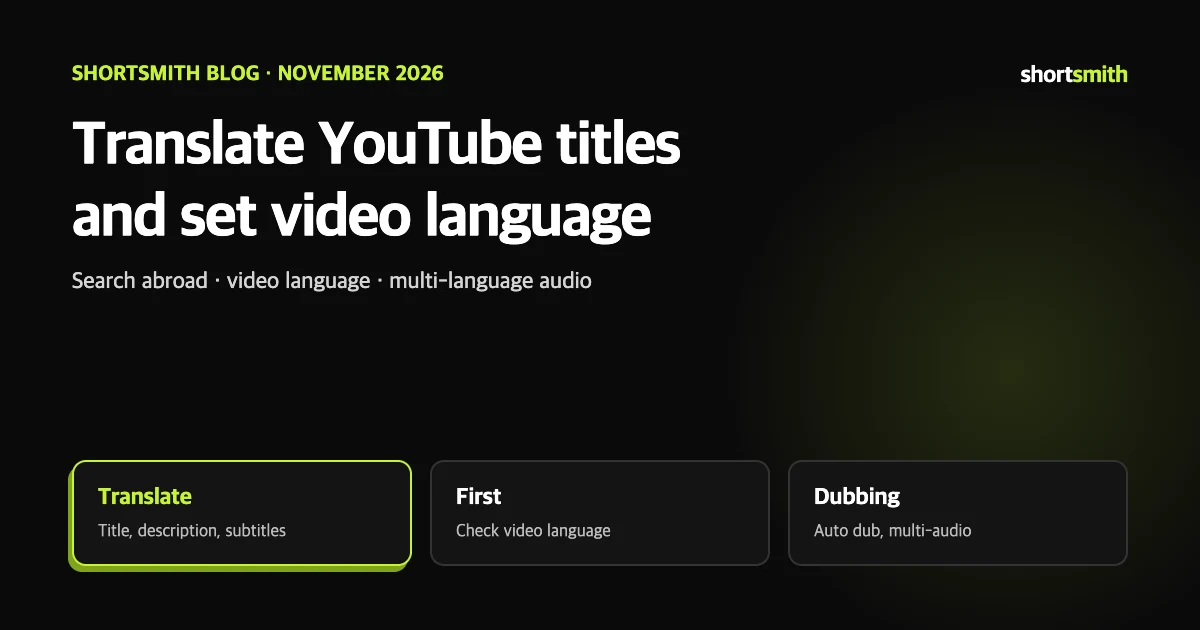
When creators think about reaching abroad, dubbing comes to mind first, but translating the title and description is a lighter place to start. YouTube says that on average more than two thirds of a creator’s watch time comes from outside the region where they live, and it points to its translation tools as a way to expand reach.
This guide is based on four YouTube Help pages read on November 3, 2026: “Translate your own video titles & descriptions”, “YouTube tools to translate your content”, “Change the language of your uploaded video” and “Add Multi-language features to your videos”. Auto dubbing and multi-language audio are covered in depth in our English Shorts guide, so here we focus on metadata and language settings.
Translation tools compared
| Tool | What it translates | Key point |
|---|---|---|
| Title and description translation | The title and description shown in search | Can appear in search for viewers in that language |
| Subtitle translation | What is said in the video | Viewers who speak other languages can search and watch with subtitles |
| Auto dubbing | The audio track | Allow it and choose how tracks publish in channel advanced settings |
| Multi-language audio | Dubs you record yourself | For creators with advanced features; not auto-generated |
| Localized thumbnails | Thumbnails per language | Available for long-form videos |
Translating a title and description
Translated titles and descriptions can appear in the YouTube search results of viewers who speak that language, and the title and description show in the language the viewer uses. Poor translation looks awkward, so check it yourself or ask someone who knows the language to review. If you manage claimed content through a content manager, a CSV upload can localize titles and descriptions in bulk.
- Sign in to YouTube Studio and choose Subtitles from the left menu.
- Select the video. If you have not set its language, you will be asked to choose and confirm it.
- Choose Add language and pick the target language.
- Next to Title & description, click Add.
- Enter the translated title and description and choose Publish.
Set the video language first
The video language setting helps YouTube and volunteer contributors understand the original language, and it is used when adding subtitles. It also helps viewers find videos made in their own language. If the language is wrong, open the video under Content in Studio, choose More options and set the video, title and description language, then save.
One caveat: changing the original language means any subtitles translated afterward are based on the new language. Subtitles already published and ones you were writing are not affected, so check the original language before you start translating.
Auto dubbing, multi-language audio and localized thumbnails
For multi-language audio YouTube recommends focusing on one or two languages, matching secondary tracks to the main-language translation as closely as possible, and tracking views and watch time by language in analytics. It also cites creators who uploaded multi-language audio seeing more than 25% of watch time in a language other than the video’s default. That is a result YouTube reports, not a guarantee for your channel.
- Auto dubbing: in Studio Settings, Channel, Advanced settings, you decide whether to allow it and can choose “Review dubs before publishing” to preview and approve a track before viewers can hear it.
- Multi-language audio: lets you upload audio tracks in several languages to one video or Short. It is available to creators who can use advanced features and does not create tracks for you, so you upload files you recorded. A secondary track may be removed if copyrighted content is detected that differs from the original audio.
- Localized thumbnails: for long-form videos you can upload a different thumbnail per language.
Where to start
- Check that the video language matches the language actually spoken.
- Translate the title and description of a few well-performing videos first.
- Translate subtitles too, so viewers with the sound off can follow.
- If you see overseas interest, focus on one or two languages and consider dubbing.
- Look at views and watch time per language in analytics and decide whether to continue.
This is our suggestion
YouTube does not prescribe this order. Starting with the cheapest option and expanding after you see a reaction is the lower-risk way.
If you use Shortsmith
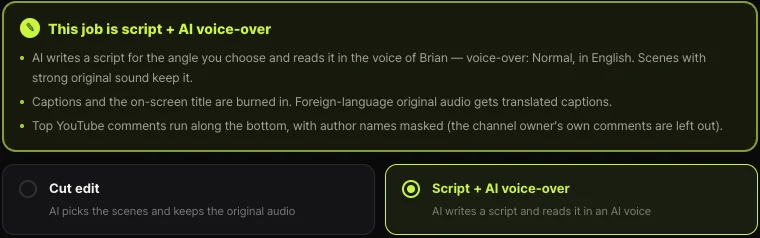
Shortsmith lets you choose Korean or English narration, so you can post Shorts made in English from the start. However, Shortsmith’s upload sets the video language to Korean and does not take translated titles or descriptions. If you made an English video, check the video language in Studio after posting, and if you want translations aimed at overseas viewers, add them in Studio with the steps above.
FAQ
Where do I translate a title?
In Studio choose Subtitles, pick the video, Add language, then Add next to Title & description, enter the translation and publish.
Does translating help search?
Help says translated titles and descriptions can appear in the search results of viewers who speak that language. It does not guarantee results.
Does changing the video language change existing subtitles?
No. Published subtitles and drafts are not affected; later translations use the new language as their base.
Who can use multi-language audio?
Creators who can use advanced features. You record and upload the audio tracks yourself.
Can I approve auto dubs before they go live?
Yes. In the channel’s advanced auto dubbing settings, choose to review dubs before publishing.
Does Shortsmith upload English videos as English?
Its upload sets the video language to Korean, so for English videos check the language in Studio after posting.
Sources
- Translate your own video titles & descriptions — YouTube Help · checked
- YouTube tools to translate your content — YouTube Help · checked
- Change the language of your uploaded video — YouTube Help · checked
- Add Multi-language features to your videos — YouTube Help · checked