How to add and fix YouTube captions — supported file types, auto-sync, why auto-captions fail, and using Shortsmith’s SRT (November 2026)
Shortsmith team · Updated
Text burned into a video and a YouTube caption track are different things. Burned-in text is part of the picture and cannot be turned off, but a track uploaded in Studio can be switched on or off by viewers, who can also pick a language. It is also the way to open a video to deaf or hard-of-hearing viewers and to viewers who speak another language.
This post is based on the YouTube Help pages "Add subtitles & captions", "Supported subtitle and closed caption files", "Edit or remove captions" and "Use automatic captioning" (Korean and English versions), checked on November 1, 2026. The Help pages carry many per-feature conditions, so this post groups them in the order operators actually run into them.
Three ways to add captions
You can also add captions during upload. Uploading a file means supplying a caption file you already made. Auto-sync means supplying a transcript and letting YouTube match the timing to the video. Typing manually means playing the video and typing as you go; the timing is set for you, and you can add sound labels such as [cheering] or [thunder] so viewers know what is happening in the video.
- Sign in to YouTube Studio and choose "Subtitles" from the left menu.
- Pick the video, click "Add language" and choose the language.
- Under "Subtitles" click "Add" and choose one of three options: upload a file, auto-sync, or type manually.
The three methods compared
| Method | What you need | Timing | Watch out for |
|---|---|---|---|
| Upload a file | A caption file (text + timecodes) | Already in the file | The file type must be supported |
| Auto-sync | Transcript text (typed or uploaded as a file) | YouTube syncs it for you | Must be a language its speech recognition supports and the language spoken in the video. Not recommended for videos over an hour or with poor audio |
| Type manually | Nothing (type while watching) | Set automatically as you type | Slow for long videos |
Supported caption file types
For a first file, YouTube suggests SubRip (.srt) or SubViewer (.sbv): they need only basic timing information and can be edited in a plain text editor. Only the basic versions of both are supported, so style information such as markup is not recognized, and the file must be plain UTF-8.
| Group | Formats (extensions) | Notes |
|---|---|---|
| Basic | SubRip (.srt), SubViewer (.sbv, .sub), MPsub (.mpsub), LRC (.lrc), Videotron Lambda (.cap) | Timing-focused; Videotron Lambda is mostly used for Japanese captions |
| Advanced | SAMI (.smi, .sami), RealText (.rt), WebVTT (.vtt), TTML (.ttml), DFXP (.ttml, .dfxp) | Simple markup or positioning; support differs by format |
| Broadcast | Scenarist Closed Caption (.scc), EBU-STL (.stl) and others | For TV and film; SCC is preferred |
SRT and SBV write time differently
SubRip looks like 00:00:00,599 --> 00:00:04,160, with a comma and an arrow and a number on each entry. SubViewer looks like 0:00:00.599,0:00:04.160, with a dot and a comma. Mixing the two can make a file unrecognizable, so stay with one format.
Auto-captions — review, do not trust
YouTube can create automatic captions with speech recognition, and when they are ready they are published to the video automatically. Dozens of languages, Korean and English among them, are supported, but they come from machine learning, so quality varies. Mispronunciations, accents, dialects and background noise can make them differ from what was said, which is why YouTube encourages creators to add professional captions first and always review and fix auto-captions. If a video has several language audio tracks, auto-captions appear in the default language.
English auto-captions support expressive captions, which show intense speech in all caps and sound expressions such as sighs and gasps, plus ambient noise.
- The video’s complex audio may still be processing, so captions are not ready.
- The video’s language is not supported for auto-captions, or the video is too long.
- The audio quality is poor or YouTube cannot recognize the speech.
- The start of the video has a long stretch of silence.
- Several speakers overlap or several languages are spoken at once.
Editing, downloading and deleting captions
To edit the file yourself, use "Options" → "Download subtitles", fix the timing in a plain text editor and upload it again. To remove captions, choose "Options" → "Delete" for that language and confirm; YouTube says deleting removes the captions completely from the video and your Google Account.
The editor has shortcuts too: Ctrl (Windows) or command (Mac) with the arrow keys to jump back or forward 1 second, the space bar to play or pause, Enter to add a new line, and the up and down arrows to move between captions.
- In Studio "Subtitles", open the video and select "Edit" in the "Subtitles" column for the language.
- For auto-captions, choose "Duplicate and edit" and click "Continue" to overwrite the existing draft. Editing auto-captions creates a new track that includes your revisions.
- Click inside a line in the track panel to change the text; adjust timing with the two timestamp boxes, then "Publish".
The setting that hides potentially inappropriate words
Studio’s "Don’t show potentially inappropriate words" setting is on by default and replaces potentially inappropriate words in auto-captions with [ __ ]. It does not apply to audio tracks or manually edited captions, and YouTube says it does not affect a video’s monetization status. To turn it off, clear the box under "Automatically generated captions" in "Settings" → "Channel" → "Advanced settings". It applies to auto-captions and auto-translated captions.
Auto-captions on live streams are English-only and rolling out to channels with over 1,000 subscribers. Live captions do not remain after the stream ends; new auto-captions are generated afterwards and can differ from what viewers saw during the broadcast.
Captions on videos made with Shortsmith
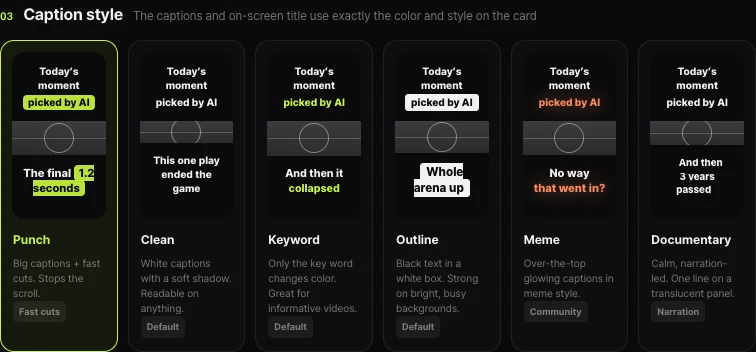
Shortsmith renders captions directly onto the video picture. So the captions in a finished video are burned in and viewers cannot switch them off, which is different from a YouTube caption track. The upload window has no field for uploading a caption file alongside the video.
If you need a separate YouTube caption track, the editor’s download menu offers "Subtitles SRT" after a render finishes, with the same timing as the captions actually in the video. Upload that file in Studio "Subtitles" with the file option. If a video already has burned-in captions, turning on the same track can show the text twice, so decide how you want it shown first (the author’s note).
FAQ
Which caption file types can I upload to YouTube?
Basic formats are SubRip (.srt), SubViewer (.sbv, .sub), MPsub, LRC and Videotron Lambda; advanced ones are SAMI, RealText, WebVTT, TTML and DFXP. YouTube suggests SRT or SBV for a first file, and the file must be plain UTF-8.
Which videos suit auto-sync?
The transcript must be in a language its speech recognition supports and the same language spoken in the video. YouTube says it is not recommended for videos over an hour or with poor audio.
Why are my auto-captions missing?
They may be missing if complex audio is still processing, the language is unsupported, the video is too long, the audio is poor, there is a long silence at the start, or speakers and languages overlap.
What happens to the original when I edit auto-captions?
A new caption track that includes your revisions is created; you choose "Duplicate and edit" and continue to overwrite the existing draft.
Can I turn off the [ __ ] in auto-captions?
Yes. Clear "Don’t show potentially inappropriate words" under "Automatically generated captions" in Settings → Channel → Advanced settings. YouTube says it does not affect monetization.
Can I get an SRT from Shortsmith?
The editor’s download menu offers "Subtitles SRT" after a render finishes. The upload window cannot upload a caption track with the video, so add it in Studio.
Sources
- Add subtitles & captions — YouTube Help · checked
- Supported subtitle and closed caption files — YouTube Help · checked
- Edit or remove captions — YouTube Help · checked
- Use automatic captioning — YouTube Help · checked