Finish tomorrow what you could not finish today: .shortsmith project files, 24-hour source storage and relinking (November 2026)
Shortsmith team · Updated
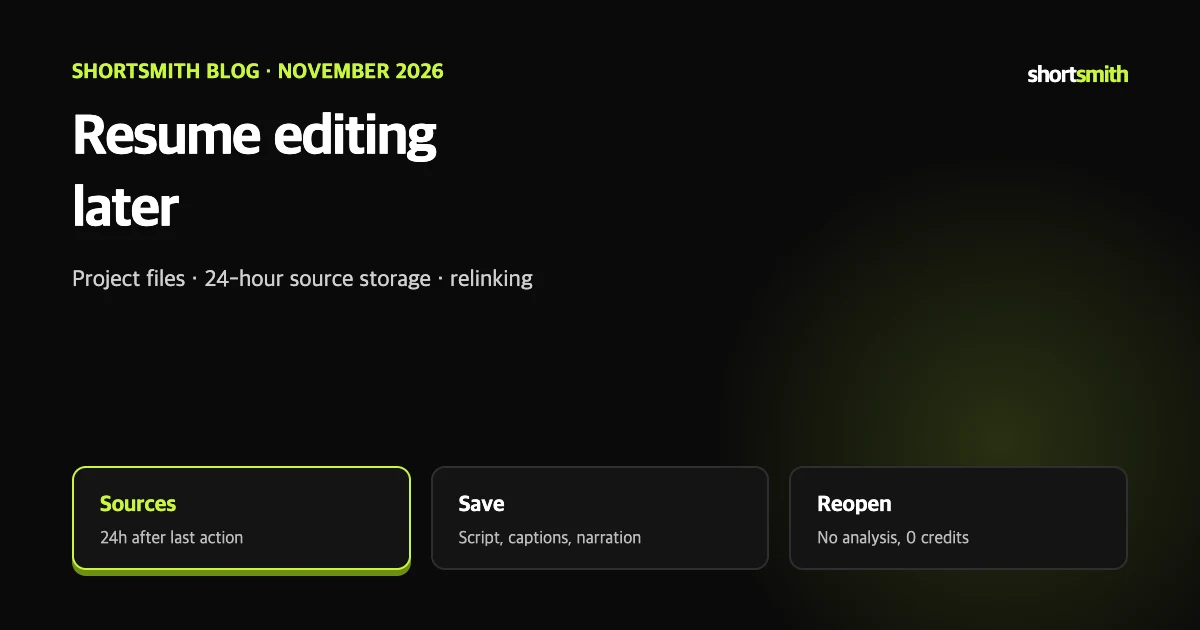
Editing often does not finish in one sitting. The script and captions are still being polished, but keeping source footage on a server indefinitely is a burden in both cost and security. So Shortsmith keeps uploaded sources only for 24 hours after your last action, and when you want to continue you save the work itself as a project file.
This guide describes features as implemented in Shortsmith on November 7, 2026. How to upload several videos and make one is covered in the previous article.
Sources for 24 hours, your work stays
Uploaded source videos are deleted from the server 24 hours after the project’s last action. A strip at the top of the editor shows the time left, and a “Save project file” button appears before deletion. Even after the sources are deleted, the script and captions remain, and Shortsmith says you can continue by picking the same source videos again.
What a project file contains
The source videos themselves are not in the file. Keep the originals as they are and pick the same videos again when you open it. A project file can be opened only in the same workspace.
| Saved | Note |
|---|---|
| Script, chapters, scenes | The story structure you are editing |
| Clip times and order | Which part of which video |
| Captions, lettering, position | The layout you set in the editor |
| Narration audio | Audio already made can be reused |
| Production options and category | The settings chosen at upload |
| Analysis results | So AI analysis is not repeated |
| Finished mp4 | If the render was done |
Saving
- Press “Save project file” on the source storage strip in the editor.
- Check what will be included in the save window and press Save. The file downloads in .shortsmith format.
- Do not delete the original video files; keep them under the same names and locations.
Resuming
- On the Create screen open “Open a project file” and choose your saved .shortsmith file with “Choose file”.
- On the “Relink sources” screen, drag all the source videos in together. Order does not matter; matching videos are paired automatically.
- Each video shows “Linked”, “Mismatch” or “Missing”. Replace a mismatched one with “Pick again”.
- Once all sources are linked, press “Open editor”. Analysis is not run again.
No credits are charged
Opening a project file costs no credits, and the relink screen shows “0 credits”.
Saving narration credits
When you relink, also choose your saved project file under “Also pick the project file (optional)” and the narration audio is restored. The screen says this means no narration credits are charged when you render again. If you used narration, picking the file as well is the better choice.
When to save
Use the strip showing the remaining time to decide when to save. The window is 24 hours after the last action, so working on the project restarts the clock. This follows the on-screen explanation; check the exact time left on the editor strip.
- When you cannot finish the render today and will carry on tomorrow
- When you reworked the script and captions heavily and the sources are about to be deleted
- When you want to make another version of the same footage later
- When you switch computers and want to continue (same workspace; move the original files along)
Habits that make editing easier
- Sort your videos before uploading.
- Save a project file each time you finish a big edit in the editor.
- Leave the source video folder alone until you are done.
- Put a date in the file name to tell versions apart.
This is our suggestion
These habits are not requirements of the feature; they just make resuming easier.
What to know before posting
Other people’s faces or names appearing in footage, and other people’s music inside it, can lead to YouTube policy issues. Saving a project file does not remove these problems, so check again before you post.
FAQ
How long is the source kept on the server?
24 hours after the project’s last action. The strip at the top of the editor shows the time left.
Does the project file include the source video?
No. It holds your work (script, scenes, captions, narration audio); you pick the sources again when you open it.
Does opening one cost credits?
No. The relink screen also shows 0 credits.
Do I have to pick sources in order?
No. Matching videos are paired automatically.
Can I open it from another account?
Only in the same workspace.
Do I need to remake the narration?
If you also pick the project file when relinking, the narration audio is restored and no narration credits are charged on re-render.
Sources
- Learn about copyright claims — YouTube Help · checked
- Protecting your identity — YouTube Help · checked