YouTube multi-language audio and auto dubbing — upload your own dub and when auto dubbing fails (November 2026)
Shortsmith team · Updated
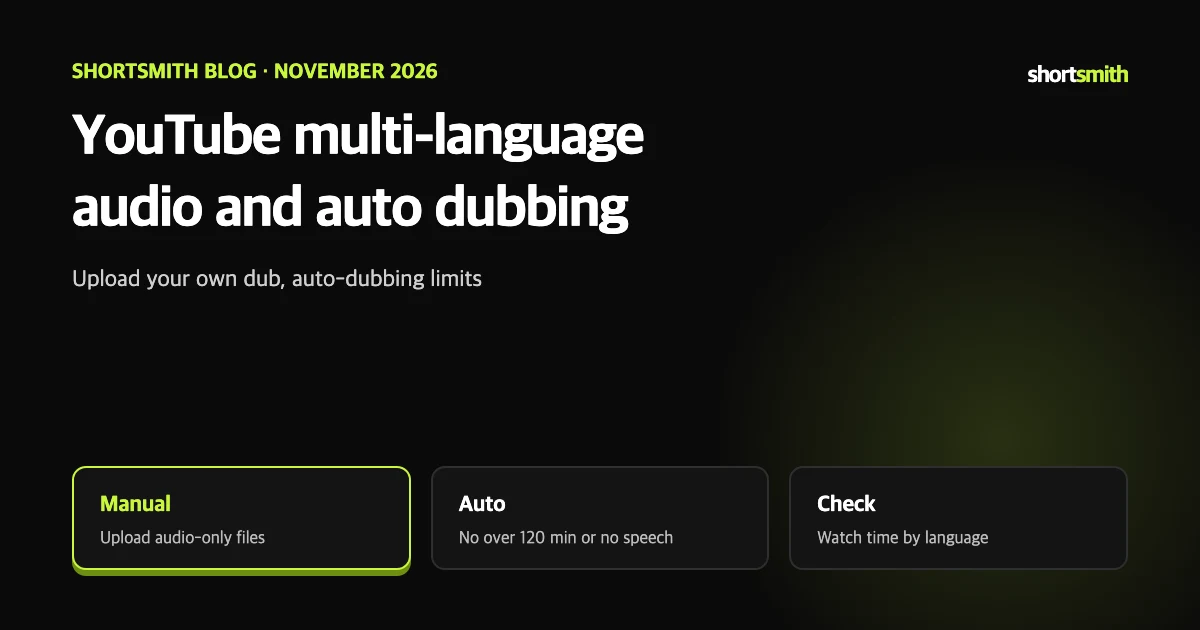
There are two ways to let one video speak several languages: Multi-language audio, where you upload dubbed tracks you made, and Auto dubbing, where YouTube generates translated audio. They sound alike but have different rules.
This post summarizes YouTube Help’s “Add Multi-language features to your videos” and “Use automatic dubbing” as read on November 8, 2026. Multi-language audio is offered to creators with access to advanced features.
The two features compared
The help page notes that translated titles and descriptions can help viewers find a video in their language. Adding translated titles, descriptions and captions alongside audio widens reach.
| Item | Multi-language audio | Auto dubbing |
|---|---|---|
| Who makes the track | You upload tracks you recorded | YouTube generates it |
| Applies to | A video or a Short | Eligible videos |
| Eligibility | Creators with advanced features | On by default for eligible creators |
| Viewer experience | Track matching their preferred language by default; switch in player settings | “Auto-dubbed” noted in the description; switch between original and dub |
Upload a dubbed track
To replace a track, open the video under Languages, select Delete for that language under Audio, then upload a new track the same way. For long-form videos, the same Languages menu also lets you add localized thumbnails.
- Sign in to YouTube Studio on a computer.
- Select Languages in the left menu.
- Click the video you want to edit.
- Select Add language and choose the language.
- Next to Dub, select Add, then Select file.
- Choose an audio-only file about the same length as the video and select Publish.
It is not generated for you
Multi-language audio does not create dubs automatically. Record the track yourself or hire a vendor, and if an auto-dub already exists in that language, delete it first. If copyrighted content in the secondary track differs from the original audio, the file may be removed.
Recommendations
YouTube states in the help page that for creators who uploaded multi-language audio, more than 25% of watch time came from languages other than the video’s default. That is a figure YouTube reports, not a guarantee for your channel.
- Focus on one or two languages and dub as much as you can.
- Keep translations close to your primary-language title, description and captions.
- Automatic captions follow the original audio language, so add captions yourself if needed.
- If you edit the video and trim or replace the original audio, the change also applies to secondary tracks.
- Use YouTube Analytics to see views and watch time by audio language and find where demand is.
When auto dubbing does not happen
For more accurate dubbing, set the original video or channel language correctly when you upload. A wrong setting can cause mistranslation, and fixing the language makes the dubs regenerate automatically. The help page warns that pronunciation, accents, background noise, proper nouns and idioms can cause errors and that quality varies by language.
- The video is longer than 120 minutes.
- There is no speech, only music, very little speech, or the source language is not yet supported.
- The source language of the audio cannot be detected.
- The speech is too fast, producing dubbing that cannot be understood.
- The video contains copyrighted content.
The viewer side and the limits of auto dubbing
In short: choose multi-language audio when you want to own the quality, and auto dubbing when you want to test several languages quickly. Either way the original-language setting must be right, and you cannot use both for the same language, so to upload your own track where an auto-dub exists, delete the auto-dub first.
- The default track is set from the viewer’s preferred language based on watch history, and viewers can change their preferred language in settings.
- Auto dubs are created automatically when you upload an eligible video and the description shows “auto-dubbed”.
- Dubs may be regenerated later to improve quality, and quality varies by language.
- See which languages are available for a video (including experimental ones) on the Languages page in YouTube Studio.
- If auto dubbing is off, the help page says you can turn it on in advanced settings.
Check the language setting on Shortsmith uploads
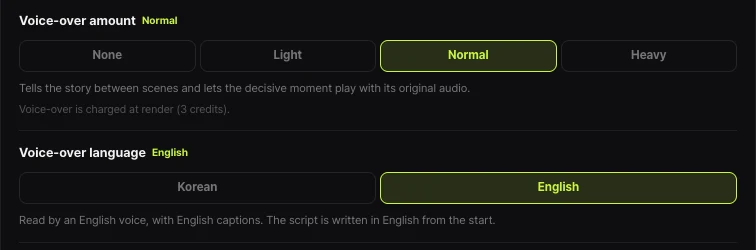
Shortsmith lets you choose Korean or English for voice-over; with English it uses an English voice and English captions and writes the script in English from the start. However, videos uploaded from Shortsmith always carry Korean as the video language, so after uploading an English video, change its language to English in Studio. A wrong language can throw off auto dubbing and translation.
Summary of the two features
The two easily confused features once more in seven lines.
- Multi-language audio is for dubbed tracks you upload and needs advanced features.
- Auto dubbing is generated by YouTube and on by default for eligible channels.
- Open the video under Languages and use Add next to Dub to upload an audio-only file.
- If an auto-dub exists for that language, delete it first.
- Over 120 minutes, no speech or an unsupported language rules out auto dubbing.
- Set the original language correctly to reduce mistranslation; fixing it regenerates the dub.
- See views and watch time by audio language in YouTube Analytics.
How to check whether the help pages have changed
YouTube Help updates its documents whenever a feature changes, and translations lag by language, so the Korean and English versions can differ slightly. The figures and conditions here come from pages read on November 8, 2026 and may have changed since.
Before making an important decision, open the original links under Sources and compare them with what you see now. Eligibility rules, time limits and numeric caps change most often. If a menu name looks different, look for a similar item in the same place; if it is missing, the feature may not be enabled for your account yet. Statements about Shortsmith reflect its screens and code as of November 2026.
FAQ
How do Multi-language audio and Auto dubbing differ?
Multi-language audio is for dubbed tracks you upload; Auto dubbing is generated by YouTube.
Does it work for Shorts?
Yes. You can upload several language tracks to one video or Short.
What is the length limit for auto dubbing?
Videos over 120 minutes are not eligible.
What if the auto-dub is mistranslated?
Correct the video’s original language and the dub regenerates automatically.
Can I replace an uploaded track?
Delete that language under Audio in the Languages menu, then upload a new track.
Sources
- Add Multi-language features to your videos — YouTube Help · checked
- Use automatic dubbing — YouTube Help · checked