Share revenue with YouTube Creator Music — usage requirements, the 55% calculation examples and checking status (November 2026)
Shortsmith team · Updated
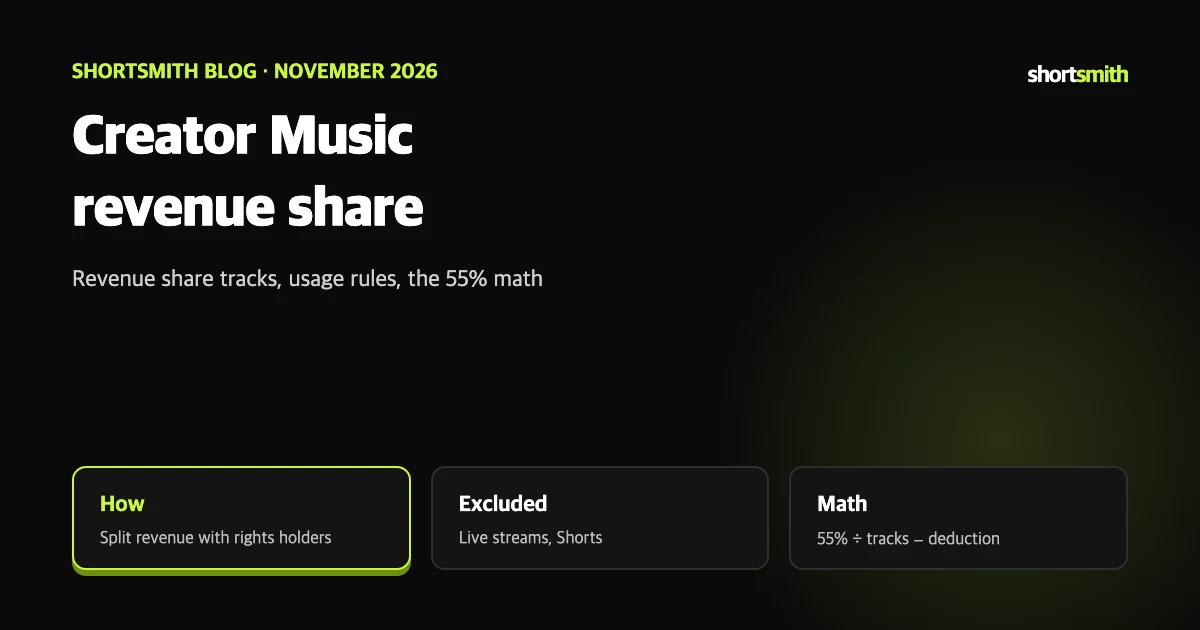
If you want to use copyrighted music and still monetize, one route YouTube offers is Creator Music’s revenue share tracks. You split part of the video’s revenue with the track’s rights holders in exchange for using the music.
This post summarizes YouTube Help’s “Share revenue using Creator Music” as read on November 12, 2026. The page opens by saying Creator Music is in beta, rolling out gradually to YouTube Partner Program (YPP) creators in the US first, with expansion to YPP creators outside the US planned. Check whether it appears in your own account.
What a revenue share track is
If you use a track eligible to share revenue, you can split that video’s revenue with the track’s rights holders, the page explains. Unlike buying a music license up front, the split comes out of what the video earns. The page says the feature is available through a web browser.
Creator Music also has licensed tracks that are not revenue share tracks, and the calculation examples below cover mixing the two.
How to start
One more condition applies for the automatic enablement: there must be no copyright claims for content that cannot share revenue. Adding one track does not clear every other sound in the video.
- Find tracks that can share revenue.
- Create a video that meets the usage requirements.
- Upload the video to YouTube.
- During the Checks stage of the upload, the system looks for copyright-protected content. If an eligible revenue share track is found, revenue sharing is enabled automatically.
- Revenue sharing starts as soon as the video is published.
Usage requirements: videos that do not qualify
If the requirements are not followed, the video could get a copyright claim or removal request that disables monetization or blocks it, the page warns. Usage requirements can change at the rights holders’ discretion, in certain territories or all of them.
For example, if a rights holder later disables monetization for a track after you upload, monetization of your video is disabled too. A published video can change status with the rights holder’s settings. The page also opens with a note that, due to current events, some content that looks eligible may be blocked in Russia and Belarus.
| Requirement | Detail |
|---|---|
| No monetization issues | No copyright claims that blocked visibility or disabled monetization, and no violations of advertiser-friendly content guidelines |
| No live streams or Shorts | Live streams and Shorts are not eligible. Shorts have a separate revenue sharing model |
How the revenue share shrinks
In a long-form video using revenue share tracks, the standard 55% revenue share is adjusted to cover the cost of clearing music rights. Two factors matter.
- Number of tracks: how many eligible revenue share tracks the video uses.
- Additional music rights costs: a deduction covering costs such as performing rights, up to 5%, reflecting the blended cost across eligible Creator Music tracks.
| Case | Calculation | Creator’s share |
|---|---|---|
| 1 revenue share track | 55% ÷ 2 = 27.5%, assuming a 2.5% deduction | 25% |
| 2 revenue share tracks + 1 licensed track | 55% ÷ 3 = 18.33%, assuming a 2% deduction | 16.33% |
The deductions in the table are examples
According to the page, the real deduction is set within a maximum of 5%. The 2.5% and 2% figures are assumed to illustrate the math.
Checking revenue share status
Usage details can change at the rights holder’s discretion, the page adds. Rather than checking once and forgetting, reopen this screen whenever earnings look off.
- Sign in to YouTube Studio.
- From the left menu, select Content.
- In the Videos tab, find the video with a revenue share track.
- Look for Share in the Notifications column.
- For details, click the thumbnail, choose Copyright in the left menu and hover over Revenue share in the Impact on video column.
When this route fits: the author’s take
This is a plain reading of the page’s math, not a use YouTube recommends. Which route pays more depends on the expected revenue and track count, so run the numbers yourself.
- You want music in a long-form video and prefer sharing revenue to paying up front.
- Videos with only one or two tracks, since each added track splits the share further.
- If your channel is Shorts or live, this route does not apply; see the Shorts music guidance instead.
Videos made with Shortsmith, and music
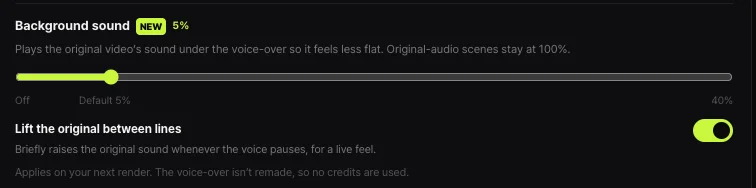
Shortsmith does not add music for you. Its Background sound option lays the source video’s sound softly under the narration, and original-sound scenes stay at 100%. If you want music, you choose it yourself when uploading, and music playing inside your source can trigger a claim.
Creator Music revenue share applies to long-form videos and excludes Shorts, so it does not apply to Shorts made with Shortsmith. Use this post only if you plan to add music to a long-form video.
Summary
Six lines for first-time readers.
- A revenue share track means splitting the video’s revenue with the rights holders.
- It is a beta, rolling out to US YPP creators first.
- If a track is detected at the Checks stage, sharing turns on automatically.
- Live streams and Shorts are not eligible.
- The standard 55% is divided by the track count, with up to 5% deducted.
- Check status via Share in the Studio Content notifications column.
How to check whether the help pages have changed
YouTube Help updates its documents whenever a feature changes, and translations lag by language, so the Korean and English versions can differ slightly. The figures and conditions here come from pages read on November 12, 2026 and may have changed since.
Before making an important decision, open the original links under Sources and compare them with what you see now. Eligibility rules and numbers change most often. If a menu name looks different, look for a similar item in the same place; if it is missing, the feature may not be enabled for your account yet. Statements about Shortsmith reflect its screens and code as of November 2026.
FAQ
Can anyone use Creator Music?
The page says it is in beta and rolling out to US YPP creators first, with expansion planned outside the US.
Does it work for Shorts?
No. Live streams and Shorts are excluded; Shorts have their own revenue sharing model.
How much revenue is shared?
In long-form videos the standard 55% is divided by the number of tracks, then up to 5% is deducted. With one track, that is 27.5% minus the deduction.
Can sharing be cancelled after upload?
Yes. If the rights holder later disables monetization for the track, your video’s monetization is disabled too.
Where do I see whether it is sharing?
In Studio Content, Videos tab, look for Share in the Notifications column.
Sources
- Share revenue using Creator Music — YouTube Help · checked
- Creator Music을 사용하여 수익 공유하기 (Korean) — YouTube Help · checked