Three tools that carry viewers onward in long videos — five info cards, four end screen elements and chapter timestamp rules (October 2026)
Shortsmith team · Updated
Info cards, end screens and chapters are the tools that move a viewer who came from a Short to your long video on to the next one. Cards show a video, playlist, channel or link during playback (up to 5 per video); end screens suggest the next video or a subscribe in the last 5–20 seconds (for videos of 25 seconds or longer); chapters split a video into sections so people can resume where they want.
This post is based on the YouTube Help pages "Add info cards to videos", "Add end screens to videos" and "Video chapters" (Korean and English versions), checked on October 30, 2026. The Help guidance is for long videos and has no separate explanation for Shorts themselves.
The three tools compared
| Tool | When / where | Key rules |
|---|---|---|
| Info cards | Shown as a teaser at a time you pick during playback; also open from the card icon | Up to 5 per video; video, playlist, channel, link (external links need Partner Program); not on made-for-kids videos |
| End screens | The last 5–20 seconds of a video | Video of 25 seconds or longer; up to 4 elements on 16:9 videos, fewer on other aspect ratios; not on made-for-kids videos (some settings) |
| Chapters | A list of timestamps in the description splits the video into sections | Start at 00:00; at least 3 timestamps in ascending order; each chapter at least 10 seconds; needs advanced features |
Adding an info card
- In YouTube Studio "Content", click the video you want to edit.
- Choose "Editor" from the left menu.
- Choose "Info cards" and pick the type of card to add. You can add up to 5 per video.
- Change the card’s start time and, if needed, add a message and teaser text (both are required for a channel card).
- Press "Save".
- Video and playlist cards link to a public video or playlist. A channel card can thank a channel that helped you or recommend another channel.
- Only channels in the YouTube Partner Program can use a link card to point to an external website; if the site breaks the Community Guidelines or Terms of Service, the card or link is removed and it can lead to a strike or account termination.
- On a video claimed through Content ID, cards do not show if the content owner set up a campaign, and a video with cards does not show the call-to-action overlay.
Adding an end screen
A video element can show your most recent upload, a video chosen for the viewer by YouTube, or a specific public or unlisted video from your channel or another. Linking to an external website is only for Partner Program channels. Other interactive elements such as card teasers and the video watermark do not appear on the end screen. The recommendations are to use elements relevant to the video, use custom images of at least 300 x 300 pixels, and use a call to action on each element.
- In Studio "Content", choose the video’s title or thumbnail, then "Editor" on the left.
- Choose "End screen" and apply a template or add elements (video, playlist, subscribe, channel, link).
- Drag the timeline end to set when elements start and end, and drag elements in the player to position them. The grid icon’s "Snap to grid" helps.
- Preview with the play button and "Save".
Making chapters — manual or automatic
For automatic chapters, open the video’s "More options" → "Automatic chapters" and choose "Allow automatic chapters"; it is checked by default on new uploads. Chapters you make yourself take priority over automatic ones. Some videos may not get automatic chapters even when they qualify, and if the channel has an active strike or some viewers may find the content inappropriate, the chapters feature may not be available. If chapters do not show yet, check your advanced features access.
- In Studio "Content", click the video.
- In the "Description", add a list of timestamps and titles. The first timestamp must be 00:00.
- Add at least 3 timestamps in ascending order; each chapter must be at least 10 seconds.
- Press "Save".
A flow from Shorts to a long video
URLs in a Short’s description are not clickable, so the most direct route to send viewers to a long video is the Short’s "Related video". Once they arrive, a card can suggest the next video, an end screen can suggest subscribing or a playlist, and chapters let them start where they want. This flow is the author’s suggestion.
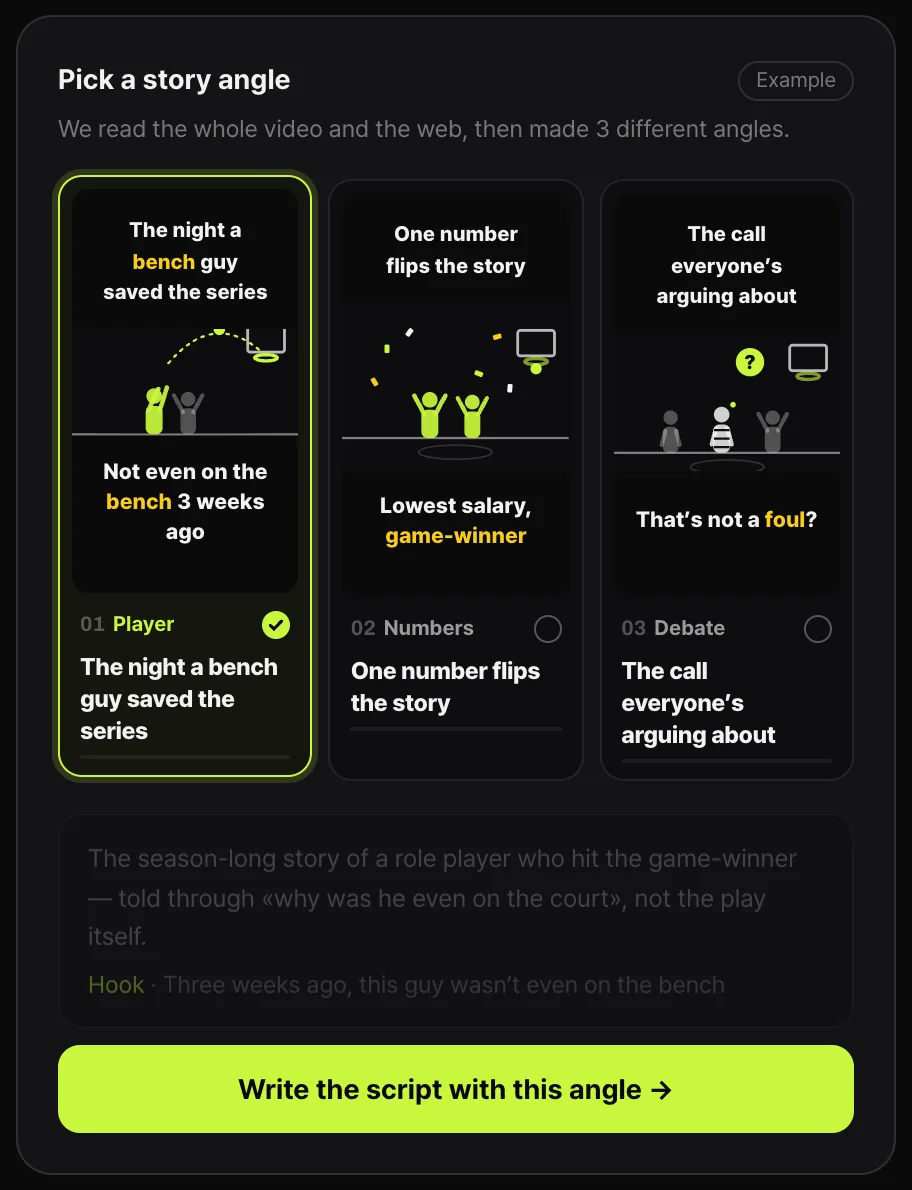
Shortsmith can be used to pull Shorts from long videos and also to expand Shorts into long videos, and it asks you to pick a story angle before building the script. Cards, end screens and chapters are set in the YouTube Studio editor, not in Shortsmith.
FAQ
How many cards can one video have?
You can add up to 5 cards per video. Cards cannot be used on videos whose audience is set to made for kids.
From how long a video do end screens work?
The video must be at least 25 seconds, and the end screen goes in the last 5–20 seconds. A 16:9 video can have up to 4 elements.
How do I make chapters?
Put a list of timestamps and titles starting at 00:00 in the description. You need at least 3 in ascending order, and each chapter must be at least 10 seconds.
What if automatic and manual chapters overlap?
Chapters you enter yourself take priority over auto-generated ones.
Can I put an external link on a card?
A channel in the YouTube Partner Program can use a link card to point to an external website, and the site must follow YouTube’s policies.
Can I set cards or end screens in Shortsmith?
No. Set them in the YouTube Studio editor.
Sources
- Add info cards to videos — YouTube Help · checked
- Add end screens to videos — YouTube Help · checked
- Video chapters — YouTube Help · checked